Build a workspace that thinks, organizes, and protects your focus
Last updated: Feb 2026
This guide shows how to design an AI-powered workspace that improves speed, focus, and quality. You will
learn how to set up hardware, software, and workflows that reduce repetitive work while keeping privacy and
control. If you need role-specific help, visit the
AI tools by profession hub
or explore
best AI tools for work.
Quick tip: start with one workflow, not ten.
You will get better results by refining a single task than by adding a full stack at once.
Overview: what an AI-powered workspace actually means
An AI-powered workspace is not a room full of robots or a desk covered in gadgets. It is a practical system that
helps you plan, draft, review, and decide faster while maintaining human judgment. The goal is not to automate your
entire job, but to build a workflow where AI handles the first draft and you handle the final decision. This
approach makes work consistent, reduces cognitive load, and prevents small tasks from dominating your schedule.
In 2026, the most effective workspaces combine three layers: reliable hardware, a focused software stack, and
repeatable workflows. When these layers are aligned, you get a workspace that feels calm and controlled instead
of noisy and reactive.
In practice, that means the right laptop or desktop, the right display setup, the right input devices, and a
software stack that is small but intentional. It also means your AI tools are connected to your notes and your
calendar instead of living as disconnected apps. A good workspace helps you make decisions faster, but it also
protects your attention. That is why this guide focuses on clarity and privacy as much as speed. A faster workflow
is meaningless if it creates confusion or risk. You should feel confident that the tools you use are helping you
produce higher quality work, not just more work.
This guide is structured to be practical. Each section explains what to buy, how to configure, and how to use it
in real workflows. You will also find internal links to the most relevant guides on TechNextPicks, including
what an AI PC is,
privacy and ethics,
and
how to learn AI skills.
The goal is to make this guide a foundation you can return to, not a one-time read.
Think of this guide as the companion to the AI tools guide. The tools guide explains what AI can do. This
workspace guide explains how to make those tools usable every day. Most people can name tools, but struggle to
integrate them into a calm, repeatable workflow. This is why the workspace matters. It gives structure to the
tools and protects your time. If you only take one idea from this section, let it be this: your system matters
more than any single app. A well-designed workspace with simple rules will outperform a chaotic setup with more
advanced tools. The rest of this guide shows you how to build that system step by step.
Use this guide as a reference, not a checklist you finish once. The best workspaces evolve with your role,
your tools, and your responsibilities.
Core principles: focus, context, and trust
A strong AI workspace follows three principles. First, focus. Your tools should reduce noise, not add more
notifications. Second, context. AI tools are most effective when they can see your notes, your files, and your
tasks in a structured way. Third, trust. Your system must be safe, privacy aware, and aligned with how your
organization handles data. If you ignore any of these principles, your workspace may feel fast at first but will
quickly become chaotic or risky.
Focus is created by reducing friction. That means fewer apps, fewer tabs, and fewer decisions. A good AI
workspace should allow you to move from idea to draft without leaving your main tools. If you use Google Docs,
your AI assistant should be inside that environment. If you work in Microsoft 365, your AI assistant should
operate inside Word, Excel, and Outlook. This is why tools like Copilot and Gemini are often the best choices
for office environments. The fewer handoffs you create, the less mental energy you waste.
Context means organizing your information so AI can use it safely. It is not about dumping entire databases
into a model. It is about having clean notes, well-labeled files, and consistent templates. When you use a
template for weekly reports, AI can generate a summary in seconds. When your meeting notes are structured,
AI can extract action items accurately. Context is the difference between AI as a toy and AI as a real
productivity system.
Trust is the most important principle. AI does not remove human accountability. The final output is still your
responsibility. That means you need a review step, a privacy policy, and a clear boundary about what data can be
processed. If your work involves sensitive information, use approved tools only. The guide on
AI ethics and privacy
provides a full checklist. Your workspace should make it easy to do the right thing, not just the fast thing.
Hardware foundation: the quiet engine behind AI productivity
The best AI workspace starts with hardware that does not slow you down. In 2026, the minimum expectation is a
modern CPU, 16 GB of RAM, and a fast NVMe SSD. These basics matter more than marketing labels. If you are shopping
now, an AI-ready laptop can be a smart long-term choice, but only if the fundamentals are strong. A slow SSD or
limited RAM will make every AI workflow feel laggy, especially when you run browsers, meetings, and AI tools at
the same time. This is why many professionals benefit from an AI PC, but only when it is built on a strong base.
A high-quality display is a productivity multiplier. If you can, use a dual-monitor setup or an ultrawide
monitor so you can keep your notes, AI assistant, and primary work document visible at the same time. This
reduces context switching and makes AI outputs easier to review. A basic ergonomic setup also matters. A
comfortable chair, a stable desk, and an external keyboard reduce fatigue and allow you to focus longer. The
goal is not a luxury setup, but a reliable one that removes friction. If you are unsure about hardware
priorities, see the hardware guides in
what is an AI PC.
Dual monitors reduce context switching and make review faster.
Audio and video quality matter more than most people expect. A decent microphone and simple lighting improve
clarity in meetings, which means AI transcription tools like Otter produce more accurate summaries. This saves
time because you spend less time correcting transcripts. If you do frequent video calls, consider a dedicated
webcam and ring light. This is not about vanity. It is about reducing noise and improving the quality of AI
summaries and meeting notes. Clear input produces better AI output.
Clear audio and lighting improve transcript accuracy.
Finally, a stable network matters. AI tools rely on the cloud unless you use on-device models. If your network
is unstable, you will lose time to reloads and failed uploads. A reliable router, a strong Wi-Fi signal, and
a backup mobile hotspot are small investments that protect your workflow. A fast, stable connection is the
invisible layer that keeps everything else running.
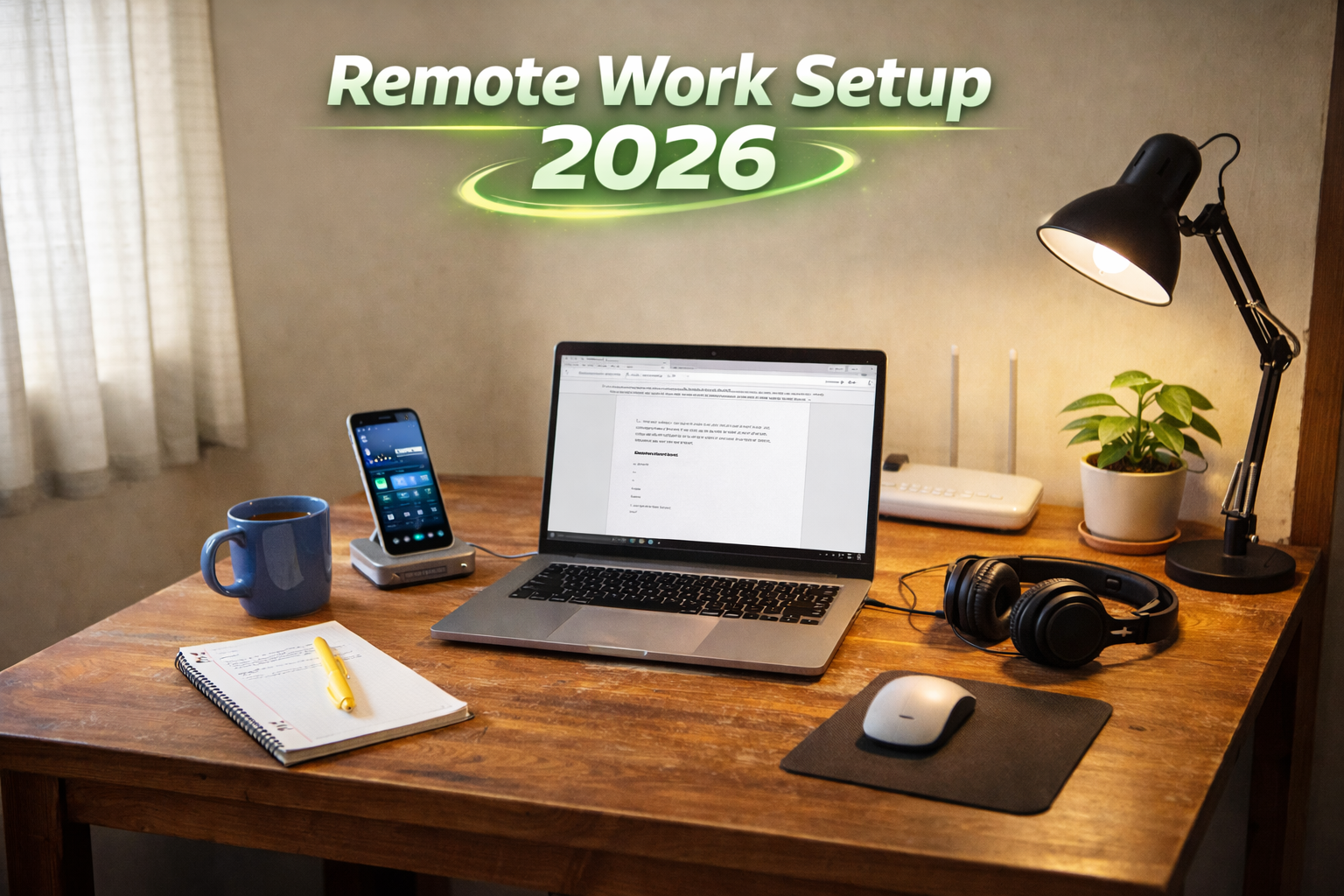
Reliable connectivity keeps AI tools responsive.
Software stack: keep it small, keep it connected
A strong AI workspace does not use dozens of apps. It uses a small number of tools that work well together. The
goal is to reduce switching, not increase it. Choose one main writing environment, one research environment,
one task manager, and one automation tool. If you work in a team, pick tools that match your organization
policies. For most office teams, this means either Microsoft 365 or Google Workspace. For individuals, Notion
or similar knowledge tools can provide structure without complexity.
The most common mistake is using an AI tool as a separate app instead of integrating it into your workflow. If
you draft in ChatGPT but then copy into a doc, you create extra steps. That is why teams often choose Copilot
or Gemini, because they work directly inside the tools you already use. If your team uses Notion for documentation,
Notion AI can be more practical than a separate tool. If your team uses Slack for updates, an automation tool can
push AI summaries directly into a channel. The goal is to make AI part of the workflow, not a detour.
Start with a small stack: one drafting tool, one research tool, and one workflow automation tool. For example,
you might use ChatGPT for drafts, Perplexity for research, and Zapier for automation. Then, connect your notes
or tasks so outputs go to the right place. Over time, you can expand, but each new tool should replace a
manual step. If it does not remove a step, it is likely unnecessary.
For practical recommendations, see
best AI tools for work
and the role-based guides in
AI tools by profession.
These guides show how different roles build a focused tool stack without tool overload.
Workspace zones: create places for thinking, making, and reviewing
An AI workspace should be designed for cognitive flow. One of the simplest methods is to create zones, even if
you only have a small desk. The creation zone is where you draft and brainstorm. The review zone is where you
check outputs, verify facts, and edit. The decision zone is where you finalize and share. These zones can be
physical or digital. For example, you might use one monitor for drafting, another for sources and verification,
and a third space for tasks and deadlines. This separation reduces the chance of copying errors and improves
review discipline.
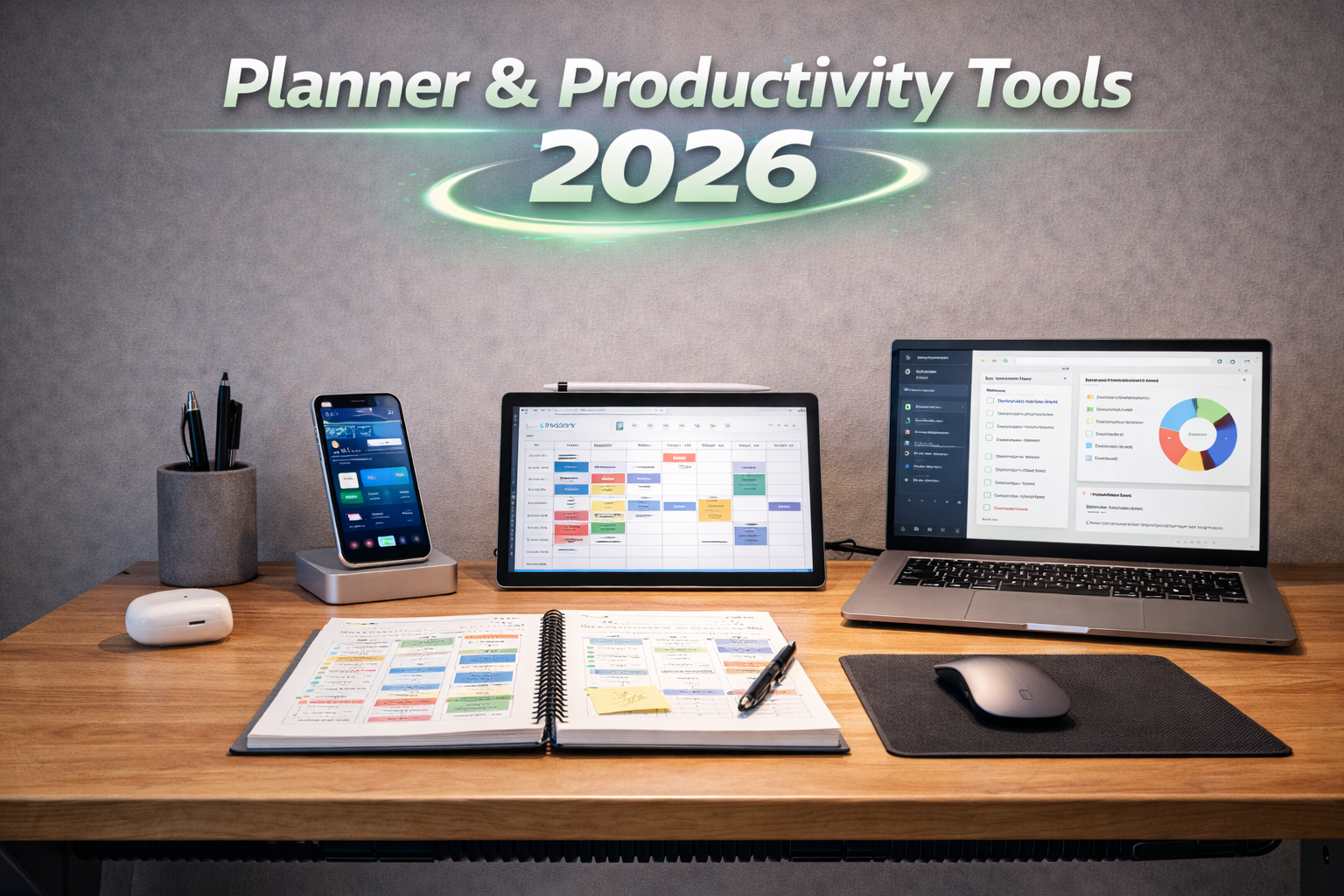
Distinct zones improve focus and review quality.
If you only have one screen, you can still create zones by using split layouts. Keep your AI tool and writing
doc on one side and your source materials on the other. Make it a habit to keep sources visible when you review
AI output. This builds a natural verification step without extra effort. For teams, shared templates and
standard layouts can create consistency. When everyone uses the same structure, AI prompts and outputs become
easier to share and reuse.
Another effective approach is to set time-based zones. For example, dedicate the first 30 minutes of your day
to planning and input preparation. Then dedicate a focused block for drafting with AI. Finally, schedule a
review block later in the day when you can verify output with fresh attention. This keeps AI use intentional
instead of reactive. The goal is to prevent AI from turning into constant interruptions.
If you work in a shared office, create a privacy zone for sensitive work. This might mean working with a
privacy screen, using headphones, or scheduling sensitive tasks when fewer people are around. Privacy is part of
workspace design, not just a tool setting.
Workflow automation: remove the invisible busywork
Automation is where AI workspaces become truly powerful. The best automation targets small repetitive tasks that
happen weekly: routing notes, creating tasks, sending reminders, or generating summaries. The key is to automate
the handoffs, not the decisions. For example, you can use Zapier to take meeting notes and create tasks in your
project tool. You can use a summary tool to draft a weekly update, then review and send it yourself. This keeps
control in your hands while removing the busywork that drains attention.
Start with one automation. A simple example: when a meeting ends, a transcript is generated, a summary is
created, and action items are added to a task list. This workflow saves time every week and builds trust in
the system. Once one automation works consistently, expand to another. Avoid building complex automations
before you have proven the basics. Complexity creates maintenance overhead, which is the opposite of the goal.
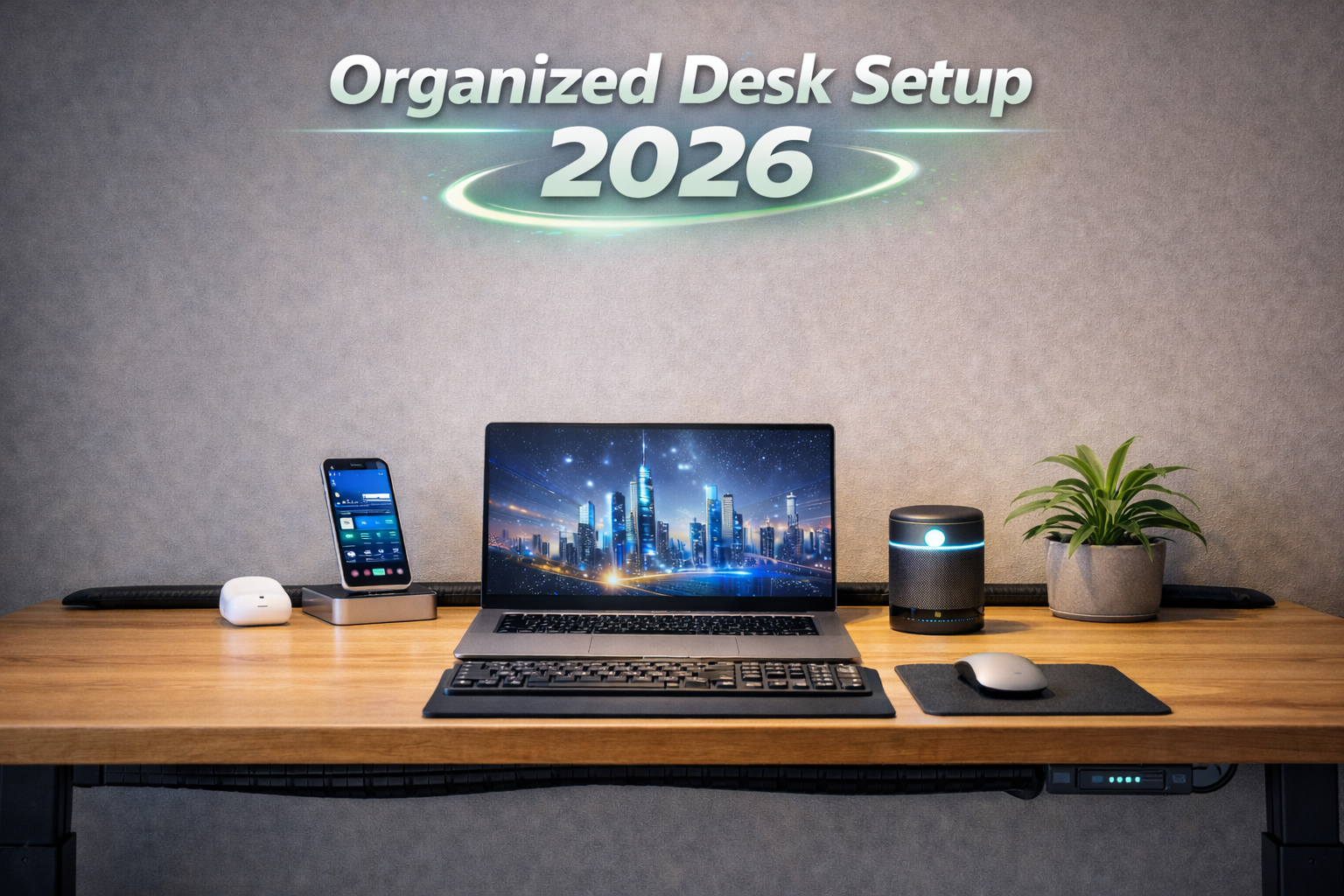
Clean setups make automation easier to maintain.
A simple automation plan has three parts: trigger, action, and review. The trigger is the event that starts
the workflow. The action is the automated step. The review is the human check. For example, trigger: new
meeting ends. Action: summarize and draft action items. Review: manager verifies before sharing. This
structure keeps workflows reliable and safe. For more automation ideas, see the role-specific guides such as
AI tools for office managers
and
AI tools for customer support.
Measure automation success by time saved, not by number of workflows. A single workflow that saves 30 minutes
per week is more valuable than five fragile workflows that save five minutes each. Keep it simple, consistent,
and safe.
End-to-end workflows: build a system, not a single task
An AI-powered workspace becomes valuable when it supports complete workflows, not just isolated tasks. A full
workflow starts with input, moves through drafting and review, and ends with a decision or deliverable. This is
where most teams see real ROI because the entire chain is shorter and more consistent. The key is to define the
workflow in steps, then decide where AI is safe to help and where humans must confirm. Use this as a template:
input collection, AI draft, human review, distribution, and archive. Each step can be made more reliable with
simple templates and a short checklist. The four workflows below are designed to be copied into a team playbook.
Workflow 1: Weekly leadership update. Input: meeting notes, ticket stats, and top risks. Draft: AI summarizes
into three sections: highlights, blockers, and next actions. Review: manager verifies dates and owners. Output:
a one-page update sent to leadership. Archive: store in a shared folder with a consistent file name. Example
prompt: "Summarize these notes into a leadership update with highlights, blockers, and next actions, 200 words
max." This workflow saves hours and improves consistency, especially when multiple teams contribute to the
update. It also creates a searchable history of decisions over time.
Workflow 2: Meeting to action. Input: meeting audio or notes. Draft: AI creates transcript, summary, and action
items. Review: meeting owner verifies tasks and due dates. Output: tasks are sent to a project tool and a summary
is posted in a team channel. Archive: summary is stored in a shared notes system. Example prompt: "Summarize this
meeting, list decisions, and create action items with owners and due dates." This workflow reduces follow-up
confusion and keeps teams aligned, which is often more valuable than the time saved.
Workflow 3: Research to decision. Input: report, articles, or policy documents. Draft: AI extracts key findings,
risks, and recommendations. Review: analyst checks sources and highlights any gaps. Output: a short decision
brief and a recommendation list. Archive: sources are stored with the brief for auditability. Example prompt:
"Summarize this report, list top risks, and provide three actionable recommendations." This workflow is ideal
for planning meetings and reduces the time needed to prepare decision packets. It also keeps research grounded
in sources rather than opinions.
Workflow 4: Customer support resolution. Input: ticket or chat thread. Draft: AI proposes a response and a
resolution summary. Review: agent verifies policy and tone. Output: response is sent and a short summary is
logged for QA. Archive: ticket and summary stored for trends. Example prompt: "Draft a response and summarize the
resolution in two sentences." This workflow cuts response time while preserving empathy. It also creates a clean
dataset for future training and FAQ updates.
The success pattern is simple: define your inputs, standardize the output, and force a review step. If you skip
the review, you will eventually pay for it with errors. If you skip standardization, the workflow cannot scale.
A good rule is to ask, "Can this workflow be run by someone new using a short checklist?" If the answer is yes,
it is ready for rollout. Use the role-based guides to tailor these workflows to your job, such as
office managers
or
accountants.
A practical implementation checklist helps teams run the workflow consistently. Keep it short: collect inputs,
run the prompt, verify facts, confirm owners, store the output. If a step feels unclear, add a single line of
guidance rather than rewriting the whole process. For example, add "verify dates against the calendar" or
"confirm numbers against the spreadsheet." These micro-instructions prevent common mistakes without slowing the
workflow. Over time, the checklist becomes part of the culture. Teams stop asking where outputs go because the
answer is always the same. This is how you turn an AI workflow into a reliable system that new hires can learn in
a day.
Case studies: how real teams build AI-powered workspaces
Real outcomes matter more than theory. These mini case studies show how different teams set up AI workspaces
using the same principles: focused tools, structured inputs, and human review. Notice that each case uses a
small number of tools and a clear workflow. This keeps adoption smooth and avoids tool fatigue.
Office manager: weekly ops recap
An office manager collects notes from facilities, HR, and IT. She uses ChatGPT to draft a weekly recap,
then verifies dates and owners. The update goes out 45 minutes faster each week, and leadership reports
fewer follow-up questions.
Teacher: lesson planning system
A teacher uses AI to generate lesson outlines and exit tickets. She stores templates in Notion and
reviews every output. Planning time drops from two hours to 45 minutes while lesson quality remains
high.
Small business: marketing + support
A small business owner uses Canva for visuals, ChatGPT for captions, and a support inbox template for
replies. He tracks time saved and reinvests the hours into product development.
Accountant: variance reporting
An accounting team uses Copilot to draft variance narratives. They verify numbers in Excel and save
templates for recurring reports. Reporting cycles shorten without reducing compliance.
Support lead: ticket triage
A support team uses AI to tag tickets and draft replies. Agents review each response for tone. Average
response time drops by 60 percent and customer satisfaction improves.
Research analyst: policy scan
A policy analyst uses Perplexity to scan new regulations, then verifies sources and writes a two-page
summary. The team now reviews changes weekly instead of monthly.
Student: study pipeline
A student uses AI summaries to build flashcards and check understanding. He keeps original sources
visible and writes final work in his own voice. Study time drops by half.
Manager: meeting-to-decision
A manager uses Otter summaries and a Notion template for decision logs. Action items are tracked with
owners and due dates. Team alignment improves and project delays decline.
Each case above follows the same foundation: clear inputs, AI drafting, human review, and consistent storage.
If you want to build a similar system, start with the case study closest to your role and replicate the workflow
before adding additional tools.
Across these case studies, the most common success factor is discipline. Teams that measured time saved and kept
templates consistent scaled faster. Teams that added tools without standardizing outputs struggled to maintain
quality. The difference is not the tool itself, but the structure around it. If your team is new to AI, pick one
case study and follow it exactly for two weeks. Then refine the prompts and templates based on real results. This
incremental approach reduces risk and makes adoption smoother.
The second success factor is feedback. Teams that shared templates and reviewed outputs together improved faster.
A quick peer review can catch missing context and prevent errors from scaling. Build a small feedback loop into
your workflow and you will see quality improve over time.
Room layouts: design the physical space for AI work
The best AI workspace is not only digital. The physical layout affects focus and output quality. If you have a
dedicated room, split it into three zones: focus, collaboration, and reset. The focus zone should have your main
monitor, keyboard, and tools. The collaboration zone can be a small table for brainstorming or quick calls. The
reset zone can be as simple as a chair and a notebook to step away from the screen. The purpose of these zones is
to control your cognitive state. Deep work happens in the focus zone. Feedback and review happen in the
collaboration zone. Recovery happens in the reset zone. This structure reduces fatigue and improves your ability
to review AI output critically.
If you work in a shared room, use micro-zones. A micro-zone can be a desk mat that signals work mode, a lamp that
turns on during focus time, or a specific screen layout that signals review mode. These small cues reduce the time
it takes to switch contexts. For example, you might use a split screen layout for review and a full screen layout
for drafting. Over time, these cues reduce cognitive friction. They also help you avoid the common problem of
reviewing AI output too quickly without proper attention.
For a travel setup, prioritize portability and reliability. A compact laptop stand, a lightweight keyboard, and
noise-canceling headphones can recreate your workflow anywhere. Store AI prompts and templates in a cloud
workspace so you can access them from any device. For privacy, use a screen filter in public spaces and avoid
processing sensitive data on open networks. A travel workspace should prioritize safety and consistency, not
maximum performance.
Lighting and sound matter in every setup. A soft, consistent light reduces eye strain and improves video quality.
Noise control helps transcription tools and keeps your focus stable. Small changes like positioning a monitor to
avoid glare or using a directional microphone can significantly improve both comfort and AI accuracy. A quiet,
well-lit workspace is a productivity multiplier because it makes every AI output easier to review.
Advanced automation: scale without losing control
Once basic automation works, advanced automation can scale your workflow. The risk is that complexity grows
faster than reliability. To avoid this, apply a layered approach. Layer 1 is the trigger, Layer 2 is the AI
draft, Layer 3 is the review step, and Layer 4 is the distribution. If any layer fails, the system should stop
instead of sending a faulty output. This is why advanced automation should include error checks and manual
approvals. It is better to delay a report than to share incorrect data.
An example of advanced automation is a monthly reporting workflow. The trigger is a calendar event. The system
pulls data from a spreadsheet, generates a draft narrative, and creates a report template. A reviewer receives
a notification and approves the final output. This workflow can save hours but only if data validation is built
in. Another example is a support workflow where tickets are automatically categorized and drafts are generated,
but the agent must approve before the response is sent. This preserves human judgment while still reducing time.
The most reliable advanced automations include logs. Each automation should record what it did, when it ran, and
who approved the output. This makes audits easier and builds trust. If you are building workflows for teams,
create a shared document that describes each automation in plain language. Include the trigger, the data used,
the AI prompt, and the review step. This transparency prevents confusion and reduces the risk of silent errors.
Advanced automation should also be limited to low-risk tasks at first. For example, auto-drafting internal
updates is low risk. Auto-sending customer communications is higher risk. Use a risk tier system and require
approvals for medium and high risk tasks. This framework keeps your automation sustainable.
Monitoring is the difference between a reliable automation and a silent failure. Add a simple alert when an
automation fails or produces an empty output. Keep a weekly log of automation runs so you can spot patterns.
If you notice repeated errors, pause the automation and fix the input step. Many issues trace back to messy
inputs rather than the AI itself. A small monitoring habit keeps the system healthy and prevents errors from
reaching customers or leadership.
Prompt library: reusable templates for an AI workspace
A prompt library turns AI into a repeatable system. The prompts below are designed for common workspace tasks.
Save them in a shared document, then adapt the inputs for your team. Use a consistent format so your outputs are
predictable. These prompts are intentionally short so they are easy to edit.
Category
Prompt
Best use
Summary
Summarize these notes into highlights, blockers, and next actions.
Weekly updates
Meetings
Summarize this meeting and list action items with owners and dates.
Follow-ups
Research
Extract the top five findings and supporting evidence from this report.
Decision briefs
Writing
Draft a professional email based on these bullet points.
Client updates
Editing
Rewrite this paragraph for clarity and neutral tone.
Polish drafts
Planning
Create a weekly plan with priorities and time blocks.
Work planning
Notes
Turn these raw notes into a clean SOP with steps and checks.
Documentation
Support
Draft a customer reply and summarize the resolution.
Support replies
Analytics
Explain the top three changes in this data in plain language.
Reporting
Review
Check this draft for missing assumptions and list risks.
Quality control
Planning
Turn these goals into a weekly plan with time blocks.
Weekly planning
Checklists
Create a checklist for reviewing AI outputs.
Governance
Knowledge
Summarize this document into a reusable SOP.
Documentation
Collaboration
Draft a short team update from these notes.
Team alignment
Decision
List options, pros, cons, and a recommendation.
Decision briefs
Quality
Identify missing context and ask clarifying questions.
Review
Email
Draft a polite follow-up email with action items.
Client follow-ups
Training
Create a short training guide from these steps.
Onboarding
Research
List the top five sources and summarize their findings.
Source reviews
Store these prompts in a shared doc, then add placeholders like [DATE], [OWNER], and [SOURCE]. This makes them
reusable and helps teams stay consistent across projects.
As your workspace matures, turn the prompt library into a living document. Add notes on which prompts work best
and which need adjustments. Encourage team members to submit improvements, then review them monthly. Over time,
this creates a shared language for AI use and reduces training time for new staff.
Troubleshooting: common issues and quick fixes
AI workspaces fail when the basics are ignored. The most common problem is unclear input. If your prompt is vague,
the output will be vague. Fix it by adding context, desired format, and constraints. The second most common issue
is missing review. If AI outputs are shared without review, errors will eventually occur. Fix it by adding a
checklist step to every workflow.
Another common issue is tool overload. If your team uses too many tools, no one remembers where outputs live.
Fix it by choosing a single primary workspace for each function: one for writing, one for research, one for tasks.
Keep the rest as optional. A final issue is data risk. If people paste sensitive data into public tools, you
create compliance problems. Fix it by creating a list of approved tools and a simple rule: if the data is
sensitive, use the approved system only.
Use this short troubleshooting checklist whenever a workflow feels unreliable: Are inputs structured? Are outputs
reviewed? Are sources visible? Is the tool the right fit? Is the process documented? Most problems can be solved
by tightening these five areas.
If you are still seeing weak outputs, simplify the prompt. Remove extra requests and focus on one clear task.
For example, instead of "Summarize, analyze, and provide recommendations," ask only for a summary. Once the
summary is strong, ask for recommendations in a second prompt. This two-step approach improves quality and makes
it easier to review. Prompt clarity is the fastest fix for most AI issues.
Another fix is to provide example output. If you want a specific format, show a short example in the prompt.
AI tools respond strongly to structure. A single example can improve consistency across an entire workflow.
If outputs drift over time, refresh the prompt library and remove outdated prompts. AI tools evolve, and a
prompt that worked last year might not produce the same results today. A short quarterly refresh keeps quality
stable and prevents slow declines in output reliability.
When troubleshooting, keep a copy of the input and output. This makes it easier to identify where the failure
occurred and to improve the next prompt.
AI tool stack: what to use and why
The tools below cover the most common AI workspace needs: drafting, research, documentation, and automation.
Use them as a reference and build a stack that fits your work. If you need deeper tool guidance, see the
best AI tools for work
guide and the role-based posts such as
AI tools for students
and
AI tools for teachers.
It captures conversations and action items without manual note-taking.
How to use it
Label speakers, review summaries, and correct key details before sharing.
When to use it
Use for team meetings, interviews, and recurring syncs.
Best prompt + setup
Prompt: “Summarize this meeting with action items.”
Setup tip: Label speakers when possible.
Best users: Managers and teams with many meetings.
12-week rollout plan: build the workspace without chaos
A 12-week rollout gives you enough time to test tools, train teams, and measure results without rushing. The
goal is to create a workspace that is stable and repeatable, not a rushed setup that breaks under real use.
The plan below assumes a small team or individual, but the same phases scale to larger teams. Each phase builds
on the previous one. You start with foundations, then add workflows, then optimize. The key is to keep each step
measurable and low risk. If a step fails, you adjust before moving forward.
Weeks 1-2: Foundations. Set up hardware, update your OS, and choose your primary workspace. Decide whether you
are a Microsoft 365 team or a Google Workspace team, then standardize around that. Configure storage, create a
folder structure, and build a simple naming system. This is not glamorous, but it is essential. A clean file
system makes AI tools more effective because your inputs are consistent. At the end of week 2, you should have
a stable environment and a short list of approved tools.
Weeks 3-4: Input templates. Create templates for the top three documents you produce, such as weekly updates,
meeting summaries, or reports. Save these templates in a shared space. Add a simple checklist at the bottom of
each template: verify facts, verify dates, confirm owners, and check privacy. This turns AI outputs into a
structured workflow rather than a random draft. The output should look consistent regardless of who runs the
workflow. At the end of week 4, you should be able to draft a clean document in 10 minutes or less.
Weeks 5-6: First workflow. Choose one low-risk workflow and run it weekly. Good candidates include weekly
updates, meeting summaries, or internal status reports. Measure time saved and output quality. Do not add more
workflows yet. The goal is to stabilize one workflow so it can be repeated reliably. Use the role-based guides
such as
office managers
or
accountants
to find a workflow that fits. At the end of week 6, you should have consistent output and a clear time saved
metric.
Weeks 7-8: Second workflow and automation. Add a second workflow only if the first is stable. Choose a workflow
that uses a different tool or input type, such as a research brief or a customer response draft. Add a simple
automation if it removes manual copying, such as sending summaries to a shared channel. Keep the automation
minimal and include a review step. By the end of week 8, you should see compound savings because workflows
begin to share templates and prompts.
Weeks 9-10: Team enablement and documentation. Document each workflow in a short playbook: inputs, prompt,
review steps, and output format. Train team members on how to run the workflow and what not to do. This is
where most rollouts fail, so keep it simple. Record one short walkthrough video or a written checklist. The
goal is that a new team member can run the workflow after a 15-minute explanation.
Weeks 11-12: Optimization and scale. Review your time saved data and error rate. If a workflow saves time but
introduces errors, tighten the review step. If a workflow produces great results but people forget to use it,
add reminders or integrate it into a recurring meeting. At the end of week 12, decide which workflows to scale,
which to pause, and which to replace. This makes the AI workspace durable instead of temporary.
A rollout plan works best when it is visible. Keep a simple checklist in your task system and mark progress
weekly. The plan is not about speed. It is about reliable adoption. If you need to accelerate, skip features,
not review steps. Review steps are the safety layer that protects quality and privacy.
A useful technique is the gate review. At the end of each phase, answer three questions: Is the output reliable?
Is the time saved measurable? Are users actually using the workflow? If any answer is no, pause and fix before
you move on. This prevents you from scaling a broken workflow. It also makes stakeholders more confident because
they see clear evidence before further investment.
Communicate the rollout plan early. Share a simple timeline with your team and explain what will change each
week. People adopt new workflows more easily when they know what to expect. Short updates also create feedback
opportunities that improve the plan before it grows too large.
Collaboration and governance: make AI trustworthy at scale
Governance is what keeps AI productive instead of risky. It does not need to be heavy, but it must be clear.
The core idea is simple: AI can draft, but humans approve. This rule applies across roles, whether you are
preparing a client update, a student report, or a financial summary. Governance also means documenting which
tools are allowed and what data can be used. Without these rules, people make different assumptions and risk
increases over time.
Start with a short AI use policy. It should answer four questions: What tools are approved? What data is
restricted? Who reviews outputs? Where are outputs stored? Keep the policy to one page. The goal is clarity, not
legal detail. Then add a short checklist that people can use every time they run a workflow. A good checklist is
short: verify facts, verify dates, confirm privacy, and confirm the output format. This checklist should appear
in every template so it is always visible.
Collaboration matters because AI output is often shared. Create shared templates for your most common documents.
For example, if your team sends weekly updates, store one template in a shared space and use the same headings.
This makes AI output consistent and easier to compare week to week. It also makes it easier to train new team
members. For larger teams, assign a workflow owner who monitors quality and updates prompts when tools change.
A practical governance system uses versioning. Store approved prompts and templates in a single folder, then
update them only when necessary. Use a version number or a date in the template name. This prevents multiple
versions from spreading across teams. If you use Notion, create a "Prompt Library" page with sections by
workflow. If you use Google Workspace, store a shared doc that contains all approved prompts. The key is to
avoid hidden, personal prompts that are never reviewed.
Governance also includes escalation. If a workflow touches sensitive data, require a second reviewer. If a tool
changes its terms of service, review it before continued use. If someone accidentally pastes sensitive data into
an unapproved tool, document it and update the policy. These are not rare events. They are predictable, and
simple rules make them easier to manage.
Collaboration improves quality when feedback is shared. Encourage team members to post examples of strong AI
outputs and explain why they worked. Over time, this builds a library of good prompts and reduces trial and
error. If you are not sure where to start, the
AI ethics and privacy
guide provides a full governance checklist and example policies you can adapt.
Governance also benefits from small training rituals. Run a short quarterly session where teams review one good
example and one flawed example. Discuss what made the output reliable or risky. This keeps governance practical
and reduces fear. It also helps teams internalize the review step rather than treating it as extra work.
If your organization is audited, keep a light audit trail. Store final outputs in a shared folder, include the
reviewer name, and keep a short note of the tool used. This is enough to explain how decisions were made without
adding heavy process.
Tool configuration: set up defaults that make AI reliable
Most AI tools improve significantly when you configure basic defaults. The goal is to reduce repetitive setup
and make outputs consistent. For writing tools, define tone preferences and formatting expectations. For
research tools, always request sources and set the output format to bullets. For meeting tools, enable speaker
labels and store transcripts in a shared folder. These settings remove noise and improve accuracy.
Start by defining a common output style. For example, decide that all summaries use three sections: highlights,
risks, and next actions. Then configure your tools or templates to follow this format. If you use Notion, build
a template with those headings. If you use Google Docs, create a template doc. If you use Microsoft Word, create
a base document with the required structure. When AI outputs are placed into this structure, review becomes
faster because the output is predictable.
Next, configure your data sources. If your workflow uses spreadsheets, clean column names and remove duplicates.
AI tools interpret column names as meaning. Clean labels lead to clearer summaries. If your workflow uses notes,
store them in a consistent format. Avoid long, messy note files. Use bullet points and headings. AI tools perform
better when the input is structured.
Finally, configure your export and storage settings. Decide where AI outputs go, such as a shared folder, a
Notion database, or a project management tool. If outputs are scattered, teams will not use them consistently.
A simple rule: every AI output must end in a shared system. This ensures that results are visible and that
workflows can be audited later.
Area
Default
Reason
Summaries
Highlights / Risks / Next actions
Consistent review and faster scanning
Tone
Professional, concise, neutral
Avoids overly casual output
Sources
Always include citations
Improves verification
Storage
Shared workspace
Visibility and auditability
Review
Human approval required
Reduces risk and errors
After you set defaults, run a prompt test with three inputs: a short input, a medium input, and a messy input.
Compare outputs and update the prompt if the messy input produces confusion. This testing step prevents weak
outputs from entering real workflows. The best prompts are not the longest. They are the clearest.
Naming conventions also matter. Use a consistent prefix for outputs, such as "Weekly-Update" or "Meeting-Summary"
followed by the date. This helps AI outputs stay searchable and reduces confusion when multiple versions exist.
Daily and weekly routines: make AI a habit, not a novelty
The most effective AI workspaces rely on routines. A daily routine might include a morning plan, a mid-day review,
and an end-of-day summary. The AI role is to reduce friction in each step, not to replace your judgment. For
example, use AI to draft your daily plan based on yesterday's notes, then adjust it manually. Mid-day, use AI to
summarize open tasks or meetings. At the end of the day, use AI to create a short recap and list tomorrow's
priorities. This routine creates a continuous feedback loop and keeps your work organized.
Routines keep AI outputs consistent and reviewable.
Weekly routines are even more powerful. A weekly review helps you measure progress and refine workflows. A
simple weekly routine includes: review last week's outputs, update templates if needed, and measure time saved.
Use AI to draft a weekly summary, then verify and share it. The key is consistency. If you follow the routine
for four weeks, you will have clear evidence of what is working and what is not. This is how you build a
sustainable AI workspace rather than a temporary experiment.
Monthly routines are ideal for deeper optimization. Use the first week of each month to review tool usage,
update prompts, and remove workflows that are no longer useful. This prevents workflow sprawl. It also ensures
that your AI tools evolve with your work. Many teams find that a short monthly review saves more time than it
costs because it eliminates outdated workflows and reduces confusion.
A practical routine template: Monday morning plan, Wednesday mid-week review, Friday weekly summary. In each
step, AI provides the draft, and you provide the final decision. This keeps the human in control while still
benefiting from speed. If you need a role-specific routine, see
AI tools for teachers
or
AI tools for small business owners.
The most important routine is the review routine. Set aside time to verify outputs when you are not rushed. A
quick five-minute review at the end of each workflow prevents small errors from becoming large problems. Over
time, this habit protects trust and keeps AI outputs reliable.
Focus system: protect attention while AI accelerates output
AI can make work faster, but speed only matters if your attention is stable. Many teams install AI tools and then
get overwhelmed by notifications, drafts, and suggestions. A focus system is the antidote. It is a set of rules
that protects your attention so you can review AI output with care. Without a focus system, AI output becomes
noise. With one, AI output becomes a reliable draft you can evaluate in a calm state.
Start with time blocks. Designate two or three focus windows each day. During those windows, you should avoid
notifications and run AI workflows intentionally. For example, use the first 30 minutes to process inputs and
draft summaries. Use the next 30 minutes to review and finalize. This reduces context switching and prevents
AI output from piling up. If you are a manager, align focus windows with your team so review and feedback happen
at predictable times.
Next, apply a "single task rule." When you request AI output, commit to reviewing it before starting another
request. This keeps you from generating a pile of drafts that you never properly evaluate. The single task rule
also improves prompt quality because you focus on the specific outcome you need. A good habit is to write the
output goal before you prompt. Example: "I need a 150-word summary for leadership." Then run the prompt. Then
review. This keeps the loop tight and reduces wasted output.
A focus system also includes a review checklist. Use a short list: verify facts, verify dates, check tone,
confirm privacy. Print this list or keep it visible in your template. The point is to make review automatic.
When review becomes a habit, AI becomes safer. Without a review habit, AI mistakes become inevitable. This is
why the best AI workspaces treat review as part of the workflow, not a separate task.
Finally, reduce inputs during focus time. Close unnecessary tabs, silence alerts, and keep a clean desktop. If
you are constantly interrupted, your ability to evaluate AI output drops. The cost of a mistake is often higher
than the time saved. A quiet workspace allows you to catch errors and refine output. This is especially important
in regulated environments where accuracy and compliance matter. A simple focus system does not require new tools.
It requires discipline and consistent routines.
Consider using a "drafting only" hour. During this hour, you only generate drafts and do not publish anything.
Later, during a review hour, you verify and finalize. This separation keeps quality high and reduces rushed
decisions.
Data flow and compliance: map what moves where
Data flow is the hidden layer of an AI workspace. Every time you paste notes into an AI tool, data moves. If you
do not map this flow, you cannot control privacy or compliance. The simplest way to map data flow is to draw a
diagram: input source, AI tool, output destination. Label each step with the type of data involved. Public data
is low risk. Internal data is medium risk. Regulated data is high risk. This classification helps you decide
which tools are allowed and where outputs can be stored.
A common mistake is mixing data types. For example, a team might paste customer names into a public AI tool to
draft an email. That creates a compliance risk. The safer approach is to draft a generic email and insert names
later inside an approved system. The rule of thumb is simple: if the data is sensitive, use an approved tool.
If you are unsure, check the tool's data policy or ask your compliance team. The cost of a mistake is not just
legal. It is also trust.
Data flow mapping also improves efficiency. When you know where outputs should go, you can automate that step.
For example, if every meeting summary should be stored in a specific folder, create an automation that moves it
there automatically. This reduces manual steps and keeps your workspace organized. The map also helps with
audits because you can explain where data traveled and who reviewed the output.
Compliance is not just about avoiding mistakes. It is about building a system that people trust. Create a short
list of approved tools and make it visible. Label each tool with the data types it can process. This gives
everyone a clear boundary. If your team uses multiple tools, create a shared chart. The guide on
AI ethics and privacy
provides a template you can adapt. When data flow is clear, your AI workspace becomes safer and easier to scale.
Finally, update your data map regularly. AI tools change quickly, and policies evolve. A quarterly review is
enough for most teams. Use the review to confirm that approved tools are still approved, that outputs are still
stored in the right place, and that no new data types are slipping into public tools. This ongoing discipline
protects your workspace for the long term.
If you are a solo user, you can still apply the same idea with a simple list: input source, AI tool, output
location. Keep this list in your notes and update it whenever you change tools. This keeps your workspace tidy
and reduces the chance of accidental data exposure.
Equipment buying guide: what matters most in 2026
Buying equipment for an AI workspace should be practical, not flashy. The most important factors are speed,
reliability, and comfort. Start with the core device. A recent CPU, 16 GB of RAM, and a fast NVMe SSD are the
minimum. If you can, choose 32 GB of RAM if you run large files or multiple AI tools at once. Storage matters
because AI workflows often involve large documents and media files. A slow drive will bottleneck everything.
Next, focus on display quality. A larger or secondary display reduces context switching and makes review easier.
If you only buy one upgrade, a good monitor is often the best choice. For dual monitors, keep one dedicated to
drafts and the other to sources. This makes verification faster and reduces mistakes. If you are using a laptop
only, consider a portable monitor. It provides the same context benefits while staying travel-friendly.
Input devices matter more than most people expect. A comfortable keyboard and mouse reduce fatigue and improve
accuracy. This is important because AI workflows still require human review. If your hands or shoulders are
tired, you will review less carefully. A simple ergonomic keyboard can make long review sessions much easier.
Audio equipment is another small but high impact upgrade. A good microphone improves meeting transcription,
which improves AI summaries. A headset or noise-canceling headphones reduce distractions and help you focus.
These upgrades are relatively inexpensive compared to a new laptop but often deliver more immediate benefits.
Finally, consider power and connectivity. A docking station, a reliable Wi-Fi router, and a backup hotspot
protect your workflow from interruptions. If your work depends on cloud AI, a stable connection is essential.
A backup power supply is helpful if you work in areas with unstable electricity. These are not glamorous
upgrades, but they keep your workspace reliable.
Timing matters. If your device is more than four years old and you rely on AI tools daily, upgrading now usually
saves more time than it costs. If your device is recent and you only use AI occasionally, focus on a monitor or
audio upgrade first. This targeted approach gives you the best return without unnecessary spend.
If you are unsure where to start, prioritize the upgrade that removes the most daily friction. For most users,
that is a second monitor or a faster SSD. These upgrades improve both AI workflows and general productivity.
Role-based patterns: design the workspace around real jobs
A single workspace template will never fit every role. The right setup depends on what you produce and how you
review. Use the patterns below as a starting point. Each pattern highlights the tools, inputs, and review steps
that matter most for that role. The goal is to build a workspace that matches the real workflow, not a generic
tech setup.
Office managers
The office manager pattern prioritizes scheduling, documentation, and weekly updates. The workspace
should keep calendar, notes, and task lists visible at all times. Use a summary template for weekly
updates and a meeting template for action items. AI tools should draft summaries and agendas, while the
manager verifies dates and ownership. This pattern works best with a dual-monitor setup, because one
screen can hold notes and the other can hold the summary draft. See
AI tools for office managers.
Students
Student workspaces focus on study summaries, writing clarity, and safe research. The best layout is a
split view with source materials on one side and AI output on the other. Students should keep a
verification habit: always compare AI summaries to textbooks or lecture notes. The primary tools are
a drafting assistant, a summarizer, and a citation helper. The output should be organized into study
guides and flashcards. See
AI tools for students.
For gear recommendations, check
student tech essentials 2026.
Teachers
Teacher workspaces prioritize lesson planning, feedback templates, and accessibility. The most useful
structure is a lesson template library with sections for objectives, activities, and assessments. AI
tools help draft the outline, but teachers adapt content to student needs. A good setup includes a
separate area for feedback templates so comments stay consistent. This pattern reduces planning time
while keeping teacher judgment central. See
AI tools for teachers.
Small business owners
Small business workspaces need speed, consistency, and customer trust. The pattern focuses on three
workflows: marketing drafts, customer replies, and weekly KPI summaries. The workspace should keep a
dashboard with sales metrics and a simple content calendar. AI should draft marketing posts and support
replies, but the owner reviews tone and accuracy. This pattern reduces admin time and keeps brand voice
consistent. See
AI tools for small business owners.
Accountants
Accounting workspaces require high accuracy and clear narratives. The pattern includes a clean data
pipeline, a variance summary template, and a review checklist. AI tools draft explanations, but all
numbers are verified in Excel. Output is stored in a controlled folder with versioning. This pattern
shortens reporting time while keeping compliance intact. See
AI tools for accountants.
Customer support
Support workspaces must balance speed and empathy. The pattern includes a ticket queue, a response
template library, and a QA summary log. AI helps with triage and draft replies, but agents review every
response. The workspace should prioritize visibility of customer context to avoid generic replies.
This pattern improves response time without sacrificing trust. See
AI tools for customer support.
These patterns are not rigid. They are starting points. The best workspace is the one that matches how you
actually work. Choose the closest pattern, adopt it for two weeks, then refine. This is how you build a
sustainable AI workspace rather than a short-term experiment.
If you work across multiple roles, create a shared core and role-specific overlays. The core includes your
note system, your templates, and your review checklist. The overlays are small adjustments that fit each role.
This prevents you from rebuilding the entire workspace each time you switch tasks. It also makes it easier to
share workflows with colleagues in different roles.
Metrics and dashboards: measure what the workspace delivers
A reliable AI workspace should produce measurable outcomes. Without metrics, you cannot tell whether the system
is improving work or just creating new tasks. The simplest metrics are time saved, error rate, and output
clarity. Time saved is easy to measure: track how long a task takes without AI and with AI. Error rate can be
measured by counting corrections or rework. Output clarity is subjective but can be measured by asking, "How
many follow-up questions did this output generate?" These three metrics are enough to evaluate most workflows.
Build a dashboard with five core indicators: time saved per week, number of AI-assisted outputs, correction
rate, review compliance, and workflow adoption. Time saved shows ROI. AI-assisted outputs show volume. Correction
rate shows quality. Review compliance shows governance. Adoption shows whether the workflow is actually used.
Keep the dashboard simple. A spreadsheet with monthly totals is enough. The value is not the chart; it is the
conversation it creates.
A good dashboard also tracks input quality. If prompts are vague, outputs will be weak. Track how often prompts
are reused and refined. If a prompt produces strong output consistently, make it a standard. If a prompt produces
errors, remove it. Over time, your prompt library becomes more reliable and your dashboard should reflect that.
This feedback loop is what turns AI into a system rather than a novelty.
Use the dashboard in team meetings. Spend five minutes reviewing the metrics and ask simple questions: Are we
saving time? Are we making fewer mistakes? Are we following review steps? If the answer is no, adjust the
workflow. If the answer is yes, consider scaling. This is how the workspace evolves without losing control.
For individuals, a simple journal works as a dashboard. Write one line each day: task, time saved, and any
errors noticed. Over a month, this becomes clear evidence of which workflows deserve attention. Measurement
does not need complex tools. It needs consistency.
If you want a starter template, create a simple table with columns for task, baseline time, AI time, time saved,
and review issues. Fill it weekly. In a month, you will have enough data to make a decision about whether the
workflow is worth keeping. This is a lightweight measurement system that works for both individuals and teams.
Avoid vanity metrics. More AI usage is not automatically better. The only numbers that matter are the ones that
reflect better outcomes: faster delivery, fewer errors, and clearer communication.
Integration map: connect tools without creating chaos
Integration is the difference between a set of tools and a true workspace. When tools are disconnected, people
spend time copying data and reformatting output. When tools are connected, AI outputs flow into the right place
automatically. The integration map is a simple document that shows how information moves from one tool to
another. It should include inputs, outputs, and review steps. The map does not need to be technical. It just
needs to answer: where does this output go and who checks it?
Start by mapping three critical flows: meetings, updates, and research. Meeting flow: capture audio, generate a
summary, send action items to a task tool, and store the summary in a shared folder. Update flow: collect notes,
draft a summary, review, and post to a shared channel. Research flow: collect sources, summarize, review, and
store the brief in a knowledge base. These three flows cover most professional work and create the baseline for
your integration map.
The map should identify friction points. For example, if you draft in ChatGPT but your team stores documents in
Notion, you should create a simple process for moving the output into Notion. If you rely on Excel for metrics,
make sure your summary tool can access those tables directly. The integration map helps you choose tools that
reduce steps rather than add them. It also clarifies where automation can be safe. If a step is low risk, you can
automate it. If a step is high risk, you keep it manual.
A practical integration rule is "one destination per workflow." Every workflow should end in one place: a shared
folder, a project tool, or a knowledge base. This prevents outputs from scattering across email threads and
personal files. When outputs live in one place, teams can search, review, and reuse them. It also makes AI output
feel like a real part of the system rather than an isolated experiment.
Review integration quarterly. Tools change and teams evolve. A quarterly review helps you remove unnecessary
steps and keep the workspace clean. The goal is to reduce friction, not to create more tools. If an integration
does not save time or improve clarity, remove it. This is how you keep the workspace efficient as it grows.
When in doubt, choose fewer integrations. The most stable workspaces use two or three core integrations that are
extremely reliable. Extra automation can feel impressive, but it often becomes a maintenance burden. A clean
integration map is easier to explain, easier to audit, and easier to improve. Clarity beats complexity.
If you need a quick starting map, list three tools: your writing tool, your task tool, and your knowledge base.
Draw arrows between them and label who reviews the output. This simple diagram gives you 80 percent of the
integration value with minimal effort.
When you add automation, document the exact trigger and the exact output location. This prevents silent failures
when a tool changes its interface or permissions. A one-line note such as "Meeting summaries go to /Notes/Weekly"
is enough to keep the system coherent.
Keep the map visible and update it after every major workflow change.
Cost and subscriptions: build a sustainable AI workspace
AI workspaces can become expensive if you subscribe to every tool. A sustainable approach starts with a budget
and a clear rule: pay only for tools that save measurable time or improve quality. Many AI tools offer free
tiers, which are enough for testing. Use the free tier for two to four weeks, measure time saved, and then decide
whether a paid plan is justified. This prevents subscription sprawl and keeps the workspace lean.
A practical budgeting model assigns a dollar value to time saved. If a tool saves two hours per week and your
time is valued at $30 per hour, that is $60 per week in savings. A $20 monthly subscription is clearly justified.
If a tool saves only a few minutes per week, it is not worth paying for unless it improves quality in a way that
matters. This method turns budget decisions into simple math rather than guesswork.
For teams, consider shared licenses. A single enterprise tool that serves multiple workflows is often cheaper
than multiple individual tools. For example, if your team already uses Microsoft 365, Copilot may be more cost
effective than adding separate drafting and summarization tools. If your team uses Google Workspace, Gemini
provides similar integration benefits. The right choice depends on where your data already lives.
Plan for annual reviews. Tool pricing changes frequently. A yearly review helps you cancel unused subscriptions
and focus on the tools that actually deliver value. Keep a simple list of active tools, their monthly cost, and
the workflows they support. If a tool is not tied to a workflow, it is a candidate for removal.
Finally, budget for maintenance. Hardware upgrades, replacement cables, and monitor adjustments are small costs
but keep the workspace reliable. A sustainable budget includes not only software subscriptions but also the
physical tools that make AI workflows comfortable and consistent.
If you manage a team, combine budgeting with adoption data. Cancel tools that are not tied to a workflow or that
show low usage. Then reinvest the savings into the tools that deliver measurable ROI. This keeps the workspace
focused and avoids subscription sprawl.
Plan a hardware refresh cycle every four to five years. This keeps performance stable and avoids sudden
downtime. Pair the refresh cycle with a quick workflow audit so hardware upgrades align with actual needs.
If you are unsure about budget size, start with a small monthly allowance for tools and upgrades. Track what
you actually use, then expand only when the value is proven. This protects cash flow and keeps the workspace
sustainable.
A simple spending rule: one new tool must replace one old tool. This keeps costs stable and prevents clutter.
Upgrade checklist: prioritize what improves AI workflows
Not every upgrade delivers the same value. This checklist helps you prioritize upgrades that directly improve
AI workflows. Start with the bottleneck. If your system slows down during large documents or multiple meetings,
add RAM or upgrade storage. If you struggle to review outputs, add a larger or second monitor. If meeting
transcripts are inaccurate, improve audio quality. Each upgrade should solve a specific problem you can describe.
Step 1: Identify the biggest friction point. Examples: slow performance, poor transcription, eye strain, or
messy file organization. Step 2: Choose one upgrade that directly addresses that issue. Step 3: Run a two-week
test and measure whether the issue improves. Step 4: Decide if another upgrade is needed. This keeps upgrades
intentional and prevents overspending.
Use the checklist below to guide decisions. The goal is not a perfect setup. The goal is a reliable one that
removes daily friction and protects focus.
High impact upgrades
Fast NVMe SSD for large files and AI outputs.
Second monitor to reduce context switching.
External keyboard and mouse for long reviews.
Quality microphone for accurate transcripts.
Reliable Wi-Fi router or mesh network.
Optional upgrades
Portable monitor for travel workflows.
Standing desk converter for comfort.
Noise-canceling headphones for focus.
Docking station for quick setup.
Backup power or hotspot for stability.
After upgrades, revisit your workflow templates. Faster hardware often enables better AI outputs, but only if
your inputs are structured. Pair upgrades with workflow improvements to capture the full benefit.
Privacy and security: protect data without slowing down
Privacy is not optional in an AI workspace. The most common mistake is pasting sensitive data into public tools.
A safer approach is to use generic drafts and insert sensitive details only inside approved systems. If your work
involves clients, students, or regulated data, use enterprise tools with explicit data controls. The guide on
AI ethics and privacy
provides a detailed checklist. The short version is simple: do not paste personal identifiers, do not paste
confidential documents into public tools, and always review outputs before sharing.
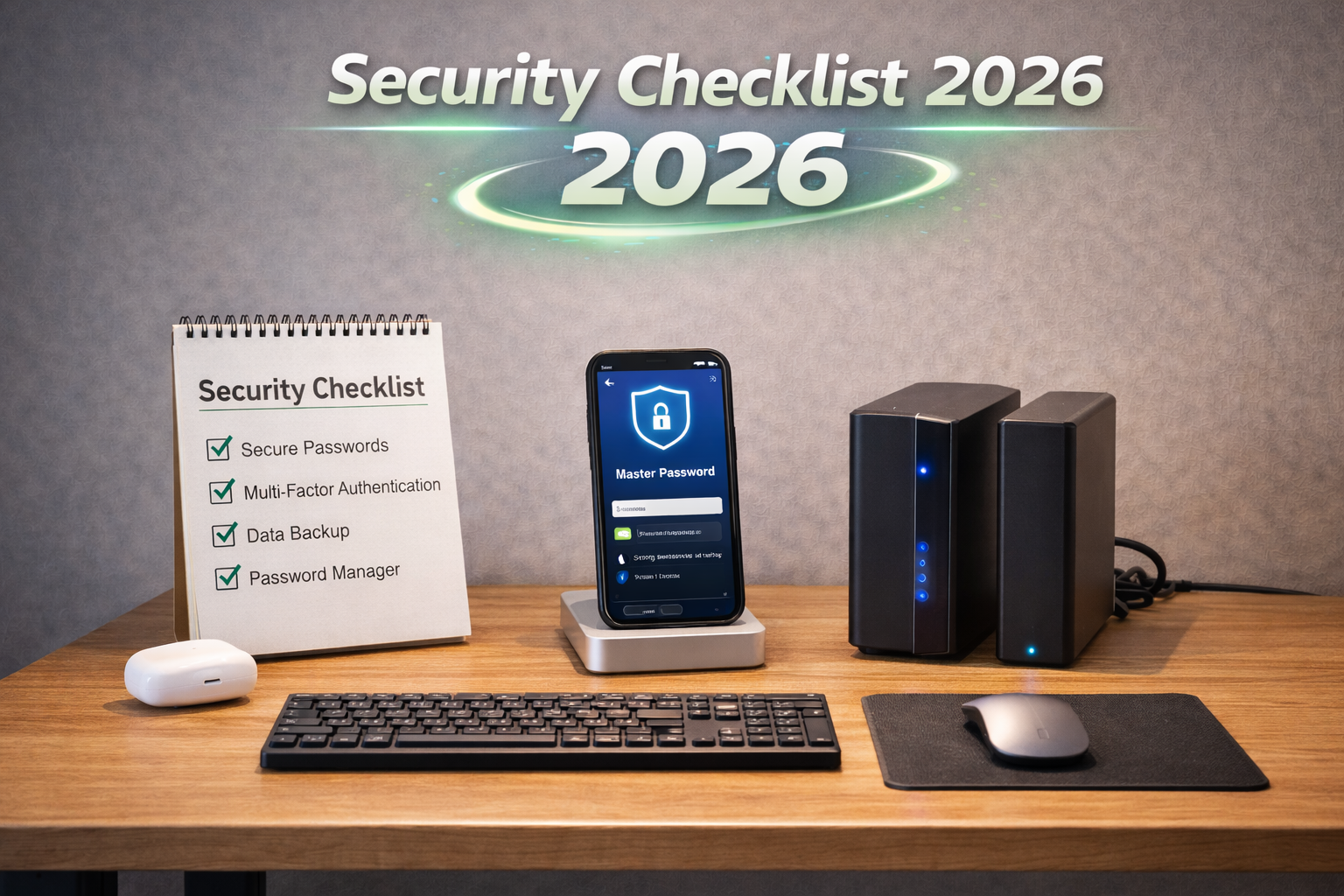
Privacy checklists prevent accidental data exposure.
A practical workspace habit is to keep a privacy checklist visible. Before you run an AI prompt, ask: does this
include names, account numbers, or confidential details? If yes, remove them or use an approved tool. If the
output will be shared externally, verify facts and sources. This discipline keeps AI useful without creating risk.
Another privacy layer is device security. Use strong passwords, enable disk encryption, and keep your system
updated. If your device is compromised, AI tools are not the biggest problem. A secure workspace protects both
data and productivity. Consider a password manager and multi-factor authentication for all AI tools.
On-device AI can also improve privacy. If your organization allows it, consider tools that run locally for
drafts and summaries. This reduces the need to send data to external servers. You can learn more in
what is an AI PC.
Even when using cloud tools, the safest practice is to anonymize inputs and keep sensitive details in secure
systems. This habit protects both you and your organization.
Privacy also benefits from clear roles. Decide who can approve AI outputs and who can access sensitive data.
Role-based permissions reduce accidental exposure. If you are using shared documents, limit edit access to
approved reviewers and share read-only versions for broader teams.
Ergonomics: a productivity multiplier that AI cannot replace
A fast AI setup is meaningless if it causes fatigue. Ergonomics protect your focus over long sessions. Start with
chair height, monitor height, and keyboard position. Your eyes should align with the top third of the screen, and
your wrists should rest comfortably while typing. A separate keyboard and mouse reduce strain compared to using
a laptop keyboard all day. If you work long hours, consider a standing desk converter or alternate between sitting
and standing. Small adjustments make large differences over time.
Ergonomic alignment protects focus during long sessions.
Lighting is another overlooked factor. Poor lighting creates eye strain and makes you tired faster. A soft,
diffuse light source and reduced glare improve comfort. For video calls, a simple light improves your appearance
and helps AI transcription tools capture speech. Ergonomics is not about looking professional. It is about
maintaining energy so you can review AI output carefully.
Sound also matters. If you work in a noisy environment, consider noise-canceling headphones. They reduce
distractions and improve microphone quality. This helps AI transcription accuracy, which in turn improves
summary quality. Ergonomics and AI performance are connected because they both depend on clear input and
sustained focus.
Maintenance and updates: keep the workspace reliable
The most effective AI workspaces are the ones that stay reliable. That requires small maintenance habits. Clean
up your file system every month. Archive old projects. Keep a consistent naming convention. These small actions
improve AI performance because the tools have cleaner context to work with. If your notes are messy, AI summaries
will be messy. If your folders are organized, AI can find what you need faster.
Software updates matter. AI tools evolve quickly, and updates often include performance and privacy changes.
Set a monthly reminder to review updates for your main tools. If you work in a team, assign someone to document
changes that affect workflows. A short change log prevents confusion and keeps the team aligned.
Finally, back up your workspace. Cloud backups are essential, but you should also have a local backup for
critical documents. If your AI workflow depends on certain templates, store them in a backup folder. This
prevents disruptions when a tool changes or a file is lost.
ROI and measurement: prove the workspace works
The best way to justify an AI workspace is to measure outcomes. Start with a baseline. How long does a weekly
report take without AI? How many hours do you spend summarizing meetings? Track this for two weeks. Then introduce
one AI workflow and measure the difference. If you save 30 minutes per week, that is already a measurable ROI.
Over a year, small savings add up.
ROI is not only about speed. It is also about consistency and quality. If AI helps you catch errors faster or
produce clearer updates, that is a quality improvement. If AI reduces the number of follow-up questions from
leadership, that is time saved for everyone. The best AI workspaces show measurable results in both time and
clarity.
Keep ROI reports simple. A short note with three numbers is enough: time saved per week, reduction in errors,
and improvements in output quality. Over time, this becomes evidence that the workspace is working. This also
helps if you need to justify hardware upgrades or tool subscriptions.
If you want a clearer picture, add a quality score. For example, rate each output on a five-point scale for
clarity and completeness. Over a month, you will see whether AI is improving quality or just producing faster
drafts that still require heavy edits.
Checklists: build a workspace that stays consistent
A checklist turns a good idea into a reliable system. Use the short lists below to keep your workspace
consistent and safe. They are designed to be quick, not heavy.
Weekly workflow check
One workflow automated and reviewed.
Notes captured in a consistent template.
Summaries verified for facts and dates.
Tasks routed to the right owners.
Data stored in approved systems.
Privacy check
No sensitive data in public tools.
Enterprise tools used for regulated work.
Training opt-out verified if available.
Outputs reviewed before sharing.
Approvals documented when needed.
These checklists are intentionally short. They are designed to be used weekly, not stored and ignored. If you
share them with a team, ask each person to confirm the list once per week. This creates a culture of consistency
without heavy process.
For teams, add a simple checkbox in your project tool so completion is visible. This small habit encourages
accountability and makes it easier to spot where the workflow is breaking down.
Related guides
These guides expand the topics covered here and provide role-specific examples. Use them to deepen your setup
and find workflows that match your job.
Not always. A modern laptop with a recent CPU, 16 GB of RAM, and a fast SSD can run cloud-based AI tools well. An AI PC becomes more valuable if you need privacy, offline access, or long-term hardware longevity.
What is the best first workflow to automate?
Start with meeting summaries or weekly updates. They are low risk, easy to review, and save time quickly.
How do I keep AI outputs accurate?
Use AI for drafts, verify facts against sources, and keep a simple checklist for review before sharing.
Can I use this setup at school or work?
Yes, but follow your organization policies. Use approved tools and remove sensitive data before prompts.