Ideal for
- Office work with multiple windows
- Students and remote workers
- Teams who want reliable color and text clarity
- Long sessions with less eye fatigue
Quick guidance on refresh rates, panel types, and comfort for long monitor sessions.
TechNextPicks reviews and selects products independently. Purchases made through affiliate links may earn commissions that help fund our testing.
Best Monitors 2026
Clear size guidance, panel comparisons, and side-by-side picks to help you choose a monitor that fits your desk, your eyes, and your daily workflow.

Photo credit: Amazon.
Start with size and resolution. If your desk is shallow, 27-inch 1440p stays sharp without forcing you to scale text.
See FAQsMethodology
Each tier balances real-world pricing, panel quality, and desk comfort so the picks stay practical for daily work, gaming, and creative use.
Pick your path
Rotating guidance based on how you work, study, and play.
This longform guide is here to teach you how to pick a monitor with confidence, not to push a purchase. Monitors are all about comfort and clarity. If you choose the right size, panel, and ports for your desk and workflow, even a midrange display can feel premium. The sections below explain the why behind each decision, give simple examples, and point out common traps. If your current monitor is doing the job, there is no rush. Use this guide when you are ready to upgrade or when your setup changes.
Size is the most important monitor choice because it controls everything else: resolution, pixel density, and even whether you will sit comfortably for long sessions. A large monitor can feel immersive, but it can also create neck strain if your desk is shallow. A smaller monitor may be easier to place, yet it can feel cramped if you multitask with two or more windows side by side. Start by measuring the depth of your desk and the distance from your eyes to the screen. If you sit about 20 to 28 inches from the display, a 27-inch monitor is the safest all-around pick. If you sit farther back or have a deeper desk, 32-inch can be great. Large 38 to 43-inch monitors can work well for command-center setups, but they need more space and better ergonomics to avoid constant head movement.
A good rule of thumb: larger screens should sit farther away, and more distance means you will want more resolution to keep text crisp. If you only remember one thing from this section, remember this: size should match your desk, not your dreams. If you plan to stack or mount your screen, check VESA support and plan your stand or arm in advance. Many users find that a simple monitor arm makes a bigger difference than a more expensive panel because it lets you place the screen at eye level. If you already own a solid desk, a good chair and a proper stand from best ergonomic chairs or a stand from best laptop stands 2026 can turn a decent monitor into a comfortable daily setup.
If you are a student or a remote worker at a standard 24-inch-deep desk, 27-inch 1440p is usually the most balanced choice. If you are editing video and need a larger canvas, 32-inch 4K makes sense when you have enough distance. If you are gaming and want smooth motion, a 27-inch 1440p high-refresh screen often delivers the best value and performance. And if you are running two laptops or a desktop plus a laptop, a 34-inch ultrawide may replace a dual-monitor setup, but only if you like the wider horizontal workspace.
HDR marketing can be confusing. Some monitors advertise HDR but do not get bright enough to show true HDR highlights. A practical way to think about it: HDR matters most for creators and movie watchers who want deeper contrast and more realistic highlights. For office work, HDR is less critical. If you do not edit HDR video or watch a lot of content on your monitor, you can safely prioritize text clarity and comfort.
Brightness matters for room lighting. If your workspace is bright or has sunlight, you want a monitor that can comfortably reach higher brightness without washing out. If you work in a dim room, you will likely turn brightness down anyway. Contrast is tied to panel type: OLED wins for contrast, VA comes next, and IPS is the most consistent but with lower contrast. Mini-LED improves contrast for IPS panels without the OLED care requirements. If you want a simple rule: for office use, focus on a comfortable brightness range and avoid glare; for creative work, prioritize color accuracy and stable contrast.
If a monitor lists HDR but does not mention strong peak brightness or local dimming, treat HDR as a bonus, not the core reason to buy. If HDR is essential to you, look for specs that mention higher peak brightness and local dimming zones or OLED. If HDR is not essential, you can save money and still get an excellent display for daily use.
If you edit photos, video, or design assets, color accuracy matters. A monitor with wide color gamut coverage and factory calibration can reduce guesswork. That is the reason many creative professionals prefer specialized displays. If your work is not color critical, you can skip the premium panels and still get excellent results. The important part is consistency: a stable IPS panel is usually enough for documents, presentations, and everyday content.
If you do care about color accuracy, check for stated color coverage (such as sRGB or DCI-P3) and consider a calibration tool if you work on client deliverables. You do not need to calibrate every week. A basic calibration every few months can keep colors consistent. If you are using your monitor for both work and entertainment, you can often switch between a calibrated mode and a vivid mode. The key is knowing which mode you are in when you make decisions that matter.
Keep a dedicated color profile for your work, use a consistent brightness level, and avoid changing settings week to week. This consistency matters more than chasing the perfect spec list. If you are on a budget, buy a solid IPS monitor and focus on stable lighting in your workspace.
There is no universal best layout. A single large monitor can be clean and simple, while dual monitors can improve multitasking with dedicated spaces. An ultrawide can replace two screens but may feel different if you prefer distinct windows. The right choice depends on how you work. If you keep one main task and a few supporting windows, a large single display can feel great. If you constantly move between two different tasks, dual monitors can reduce context switching. If you love timelines, spreadsheets, and wide tools, ultrawide can be a strong fit.
The trade-offs are mostly about ergonomics and setup complexity. Dual monitors require more desk space and more cables, but they give you two independent screens. Ultrawide is simpler and cleaner, but it can feel awkward for some apps or video conferencing layouts. Before you commit, think about your current workflow: if you frequently snap windows side by side, you may benefit from more width. If you need two different focal points, dual monitors can be more comfortable.
Writers often prefer a single 27-inch or 32-inch display with a reading pane and a writing pane. Developers may prefer dual monitors: one for code, one for docs and terminals. Designers may like ultrawide for timelines and asset panels. Students often do well with a single monitor plus a laptop screen. Choose the layout that reduces friction for your specific tasks.
Many people use a laptop as their main computer and add a monitor for comfort. The most common pain points are cable clutter and inconsistent performance. A USB-C monitor with power delivery can solve both. One cable gives you video, data, and charging. If your laptop supports it, this is the cleanest setup. If you need more ports, add a dock. The goal is to avoid a desk that feels messy every time you sit down.
Another common bottleneck is driving high-resolution or high-refresh monitors from a laptop that cannot keep up. If your laptop struggles with 4K output or high refresh, the monitor will not feel as good as it could. If you are shopping for a laptop and a monitor, choose the laptop first, then match the monitor to what it can drive well. The guide at best laptops of 2025 can help you find the right balance without overspending.
If you want a clean docking experience, confirm that your laptop supports USB-C with DisplayPort Alt Mode and enough power delivery. For dual monitors, check the dock bandwidth and your laptop's GPU. For basic single-monitor setups, a simple USB-C hub can be enough. Keep it simple unless you truly need more ports.
If you use a monitor for consoles, HDMI support matters. Check the HDMI version and whether the monitor can handle the resolution and refresh rate your console targets. Many consoles output 4K at 60Hz or 120Hz. If you want those features, the monitor must support them. For casual gaming, a reliable 60Hz or 75Hz display can be perfectly fine. The most important factor is input lag and panel response, which are usually better on gaming-focused monitors.
For movies and streaming, contrast and brightness are more noticeable than refresh. VA or OLED panels can look more cinematic in dark rooms. If you primarily watch content, consider a monitor with good contrast and a comfortable viewing angle. If you mix work and entertainment, a balanced IPS panel can still be the most practical choice.
Confirm HDMI support, check response time, and look for a panel that handles dark scenes well. If you are using speakers, consider the audio output options or plan for external speakers.
Monitors can last years if you treat them well. Use a microfiber cloth, avoid harsh cleaners, and keep the screen away from direct sunlight when possible. If you have an OLED panel, use built-in screen maintenance features and avoid static images at high brightness for long periods. For IPS and VA panels, basic care is usually enough.
If you move your monitor often, check the stand and mounting points periodically. Use cable management to reduce strain on ports. If you use a monitor arm, make sure it supports the weight of your display. Small habits like these keep your setup stable and reduce the chance of damage.
A soft cloth and gentle cleaner are usually enough. If you want a dedicated kit, check cleaning essentials 2026.
A higher price does not always mean a better fit. The goal is to spend where it matters. If you are mainly reading and writing, you can often stay in the budget or productivity tier and still get a great display. If you are gaming or doing color work, a higher budget may be worth it, but only if you will truly use the features. For most people, the best value in 2026 is still the 27-inch 1440p IPS class with solid ergonomics.
If you are building a full setup, consider where your money is best spent. A good chair and a monitor arm can improve comfort more than a jump from 1440p to 4K. If you need more ports, a dock might be a better use of budget than a slightly nicer screen. Use your money to reduce friction in your daily routine.
A proper stand or arm, a dock for clean cables, and a chair with lumbar support often provide more value than the next tier of panel. These upgrades make a good monitor feel great over time.
Use this checklist when you are ready to decide. If you can answer these questions, you are ready to pick a monitor. If you cannot, read the matching section above again and make the decision easier.
If you are still uncertain, start with the productivity tier, then adjust based on your specific needs. You can always upgrade later once your workflow is clearer.
Resolution determines how sharp text and icons look. A higher resolution can be beautiful, but it is only a win if your operating system can scale text comfortably. For most people, 1440p at 27 inches is the sweet spot. It is sharp enough for long reading sessions without making icons and text tiny. At 32 inches, 4K is often the better choice, but you might need 125% or 150% scaling in Windows or macOS. That is normal and can actually make the experience more comfortable. If you prefer large, easy-to-read text or you use older apps that do not scale well, 1440p can still be the safer option.
Avoid the common mistake of pairing a large screen with a low resolution. A 27-inch 1080p display can look soft, and the text edges may be distracting during long study or office sessions. If you do choose 1080p, keep the screen size smaller (24 inches or less). For ultrawide monitors, WQHD or WQHD+ often feels more natural because it balances width with pixel density. Remember, the goal is to make text comfortable for the hours you will actually use the monitor. A slightly lower resolution that you can read easily is better than a sharper screen that forces you to squint or constantly zoom in.
Before you buy, test your scaling preferences on your current monitor. Increase the scaling percentage and see how your eyes feel after an hour. If you can read comfortably at 125% or 150%, 4K may be a good match. If you feel like you are constantly adjusting zoom levels, consider 1440p instead. On macOS, scaling works well with 4K monitors, but it can make a 27-inch screen feel like a 1440p display. This is a feature, not a flaw, and it often feels great for writing and research.
Panel type affects color accuracy, contrast, and how the screen looks from different angles. IPS is the default recommendation for most people because it delivers stable colors and wide viewing angles. That makes it ideal for office work, studying, and general use. VA panels provide deeper blacks and higher contrast, so they can look great for movies or darker scenes, but they can show motion blur during fast movement. OLED offers the best contrast and instant response times, which is why it is popular for gaming, but it requires some care to avoid burn-in when static elements stay on screen for long periods. Mini-LED is a premium IPS approach that adds better HDR highlights and local dimming without the same burn-in risk as OLED.
Your choice should match how you actually use the display. If you work with text and spreadsheets, IPS is safe and comfortable. If you spend more time in dark rooms or want dramatic contrast, VA can be a good value. If you game often and are okay with the extra care, OLED is the premium option. If you are a creative professional working on color-sensitive projects, a Mini-LED or professional IPS panel with calibration is often the most reliable. For most buyers, IPS is still the best daily driver in 2026.
Choose IPS if you want consistency. Choose VA if you want contrast at a lower price and you are not sensitive to motion blur. Choose OLED if you want cinematic contrast and high refresh, and you are comfortable managing burn-in risk. Choose Mini-LED if you need better HDR for creative work without OLED maintenance concerns.
Refresh rate controls how many times per second the monitor updates. For everyday tasks, 60Hz or 75Hz is fine. If you do a lot of scrolling, 120Hz or 144Hz will feel smoother and less tiring. For gaming, higher refresh rates make movement clearer and can reduce motion blur. Response time is another factor that affects motion clarity. In practice, if you are not playing competitive games, you do not need extreme refresh rates. Instead, focus on panel quality and comfort. A smooth 75Hz IPS screen can be better for daily work than a cheaper 144Hz panel with poor colors.
If you are a gamer, match your monitor to your hardware. A 240Hz screen is only useful if your PC can push high frame rates. Otherwise, a solid 144Hz display is usually the best value. For creators who scrub timelines in video editing apps, higher refresh can make the workflow feel smoother, but it is not required. In most office settings, 75Hz is a comfort upgrade over 60Hz without raising cost too much.
If you use a monitor mainly for writing, research, and video calls, aim for 60Hz or 75Hz. If you scroll all day, 120Hz is a nice upgrade. If you play esports or fast action games, 144Hz or higher makes a real difference. If you create content and want fluid motion previews, 120Hz helps but is not required. Keep the choice aligned with how you spend most of your time.
Ports are not exciting, but they can make a daily difference. If you use a laptop, a USB-C monitor with power delivery can simplify your setup to one cable. That single cable handles video, data, and charging, which keeps your desk clean and reduces clutter. If you use a desktop or console, DisplayPort and HDMI matter more. DisplayPort is often the best choice for high refresh rates on PCs, while HDMI is more common for consoles. USB hubs built into monitors can be a huge quality-of-life upgrade because they let you plug in a keyboard, mouse, and external drive without reaching behind your computer.
If you rely on multiple devices, consider a monitor with KVM support so you can switch between a laptop and desktop using one set of peripherals. This is especially useful for hybrid work. If your monitor does not have enough ports, a dock can fill the gap. See best USB-C docks and best USB-C hubs for clean ways to add ports. The main goal is to reduce friction. If your monitor adds more adapters and cables than it saves, it is not doing its job.
For laptop users, look for USB-C with at least 65W power delivery. For desktop users, make sure there is DisplayPort for high refresh. For multi-device setups, look for USB hubs or KVM features. If you use a console, check HDMI versions. For future-proofing, more ports usually win, but only if you will use them.
A monitor should help your body, not fight it. The best specs do not matter if the screen is too low, too high, or angled poorly. You should be able to place the top third of the screen at or slightly below eye level. A height-adjustable stand or a monitor arm is often more important than a small spec difference. Tilt and swivel help you reduce glare and keep your shoulders relaxed. If you sit for long sessions, look for low blue light modes and flicker-free backlights. These features are not magic, but they can reduce fatigue when combined with proper lighting.
The chair matters too. A good chair with lumbar support keeps your shoulders and neck aligned while you work. If you want to upgrade that part of your setup, check best ergonomic chairs. For laptop users, a stand can raise the laptop screen to eye level, then an external keyboard and mouse can keep your posture neutral. This is one of the cheapest upgrades for comfort. The goal is simple: your eyes and neck should feel the same after three hours as they do after ten minutes.
Sit straight, adjust the monitor so the top third is at eye level, keep the screen an arm length away, and angle it slightly back. If you are not sure, adjust slowly until you feel your neck relax. These small changes are often more valuable than any spec upgrade.
The right monitor depends on what you do most. For writing, analysis, and study, prioritize text clarity and comfort. That usually means 27-inch 1440p IPS at 60Hz or 75Hz. For gaming, prioritize refresh rate and response time, and consider OLED if you want deep blacks and can manage burn-in care. For creative work, prioritize color accuracy and panel quality, and look for factory calibration or wide color gamuts. For multi-tasking, a larger screen or ultrawide can reduce window switching and keep your focus on one display.
If you split your time across tasks, choose a balanced monitor and use software to optimize your layout. Most people do not need a specialized panel. A high-quality productivity monitor can handle casual gaming and basic creative tasks just fine. The best choice is the one you can use comfortably every day without thinking about it. If you are unsure, start with a productivity pick and upgrade later if your workflow demands it.
A student who reads and writes all day benefits most from a sharp 27-inch IPS panel with a stand that raises the screen. A designer benefits from a calibrated monitor with stable colors. A hybrid worker benefits from a USB-C monitor with a built-in hub so they can plug in one cable and start work. A gamer benefits from high refresh and low response time. A coder who uses long documents may love an ultrawide that keeps more text in view. These are not rules, but they are helpful starting points.
The most common mistake is buying the biggest monitor without checking desk depth. Another is choosing a low resolution for a large screen. Many buyers focus on refresh rate alone and forget panel quality, which matters more for daily work. Some people skip ergonomics and then struggle with neck pain. Another mistake is ignoring ports, which leads to a messy cable setup or extra adapters. Finally, it is easy to assume that expensive always means better. A midrange IPS panel with great ergonomics can outperform a cheaper 4K display that is uncomfortable to use.
The fix is simple: measure your desk, match resolution to size, choose a panel that fits your use, and check ports for your devices. If you are not sure, start with a balanced pick from the productivity or budget tier. If your needs change, you can upgrade later with clarity. Your comfort and daily focus are the real ROI.
The picks below are grouped by category and designed to reduce decision fatigue. Start with your category (productivity, budget, gaming, ultrawide, creative, portable), then use the filters to match your resolution, refresh rate, panel type, and port needs. The compare table is there to help you see differences at a glance. If two monitors feel close, the tie-breaker should be comfort: stand quality, adjustability, and port setup.
If you are shopping for a laptop-first setup, pair your monitor choice with a laptop that fits your workflow. The guide at best laptops of 2025 can help you avoid a mismatch between laptop performance and monitor demands. For example, a 4K 240Hz display is wasted if your computer cannot drive it well. The goal is balance. This guide is here to make that balance easier to find.
This short table is for readers who want a fast, practical decision. Use it as a starting point, then check the details or compare table if you need deeper specs.
| Best for | Pick | Why it stands out | Quick fit |
|---|---|---|---|
| Productivity | Dell UltraSharp 43 4K USB-C Hub Monitor (U4323QE) | Huge canvas, KVM support, strong hub for multi-device work. | Best for multi-window workflows and big desks. |
| Budget home office | Dell S2722DC Monitor (27-inch WQHD) | Sharp 1440p clarity, USB-C power delivery, great value. | Best for students and everyday office work. |
| Gaming | MSI MAG 321UPX QD-OLED (32-inch 4K UHD) | Fast 240Hz, deep contrast, premium QD-OLED panel. | Best for competitive and immersive gaming. |
| Ultrawide | ViewSonic VP3881A (38-inch WQHD+ Curved) | Wide canvas, accurate color, productivity-first curve. | Best for creative and multi-app workflows. |
| Creative / Pro | ASUS ProArt Display PA32UCXR (32-inch 4K Mini-LED) | Pro calibration tools, strong HDR, color accuracy. | Best for color-critical work. |
| Portable | ARZOPA A1 (15.6-inch FHD) | Lightweight, easy power, quick travel setup. | Best for travel and second-screen use. |
Balanced sizing and clarity for daily work.
Shortlist of models that consistently deliver value in this tier.
Huge canvas for multi-app workflows and strong USB-C docking.
Quick scan of resolution, refresh, panel, and ports in this tier.
| Model | Resolution | Refresh | Panel | Ports |
|---|---|---|---|---|
| Dell U4323QE | 4K | 60Hz | IPS | USB-C + hub |
Productivity monitors should prioritize clarity, comfort, and a clean port setup. A large IPS panel with USB-C can simplify your desk and reduce cable clutter.
Affordable 27-inch value picks.
Shortlist of models that consistently deliver value in this tier.
Strong everyday clarity with USB-C power delivery at a fair price.
Quick scan of resolution, refresh, panel, and ports in this tier.
| Model | Resolution | Refresh | Panel | Ports |
|---|---|---|---|---|
| Dell S2722DC | 1440p | 75Hz | IPS | USB-C |
Budget picks should still deliver sharp text and solid build quality. Avoid low-resolution panels at 27 inches.
High refresh and fast response.
Shortlist of models that consistently deliver value in this tier.
Elite motion clarity and true black HDR for high-end gaming.
Quick scan of resolution, refresh, panel, and ports in this tier.
| Model | Resolution | Refresh | Panel | Ports |
|---|---|---|---|---|
| MSI MAG 321UPX | 4K | 240Hz | QD-OLED | USB-C + DP |
Gaming monitors are about speed. If your PC cannot push high frame rates, consider a 1440p high-refresh model instead of 4K.
Wide canvases for multitasking.
Shortlist of models that consistently deliver value in this tier.
Color-accurate ultrawide with strong ergonomics.
Quick scan of resolution, refresh, panel, and ports in this tier.
| Model | Resolution | Refresh | Panel | Ports |
|---|---|---|---|---|
| ViewSonic VP3881A | WQHD+ | 75Hz | IPS | USB-C |
Ultrawides work best on deep desks. Match the width to your viewing distance to avoid neck strain.
Color accuracy and calibration.
Shortlist of models that consistently deliver value in this tier.
Flagship-level color accuracy and HDR support.
Quick scan of resolution, refresh, panel, and ports in this tier.
| Model | Resolution | Refresh | Panel | Ports |
|---|---|---|---|---|
| ASUS ProArt PA32UCXR | 4K | 60Hz | Mini-LED IPS | TB4 + HDMI |
Creative monitors should be calibrated and consistent. If color accuracy matters, prioritize panel quality over refresh rate.
Lightweight screens for travel.
Shortlist of models that consistently deliver value in this tier.
Affordable, light, and easy to power from a laptop.
Quick scan of resolution, refresh, panel, and ports in this tier.
| Model | Resolution | Refresh | Panel | Ports |
|---|---|---|---|---|
| ARZOPA A1 | 1080p | 60Hz | IPS | USB-C |
Portable monitors are about convenience. Keep expectations realistic for brightness and contrast.
Each “View details” link jumps here so you can review specs and use-case notes in one place.
Productivity
Premium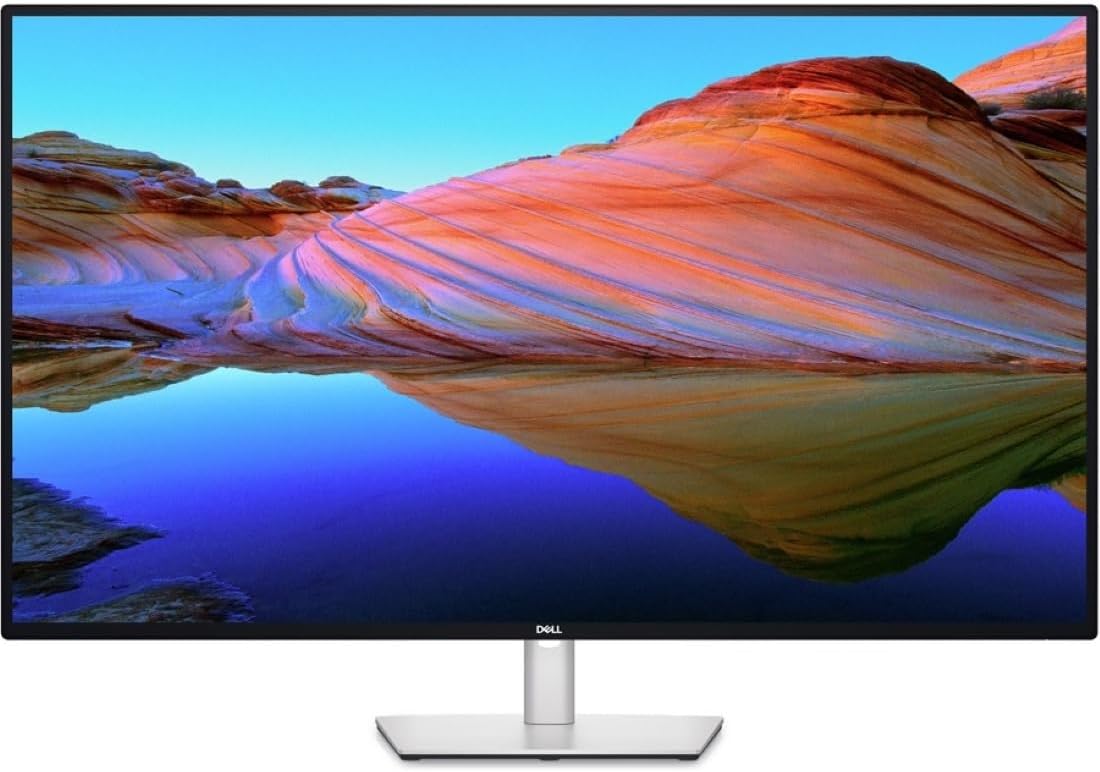
Huge canvas for multi-app workflows and strong USB-C docking.
Ideal for
Budget
Value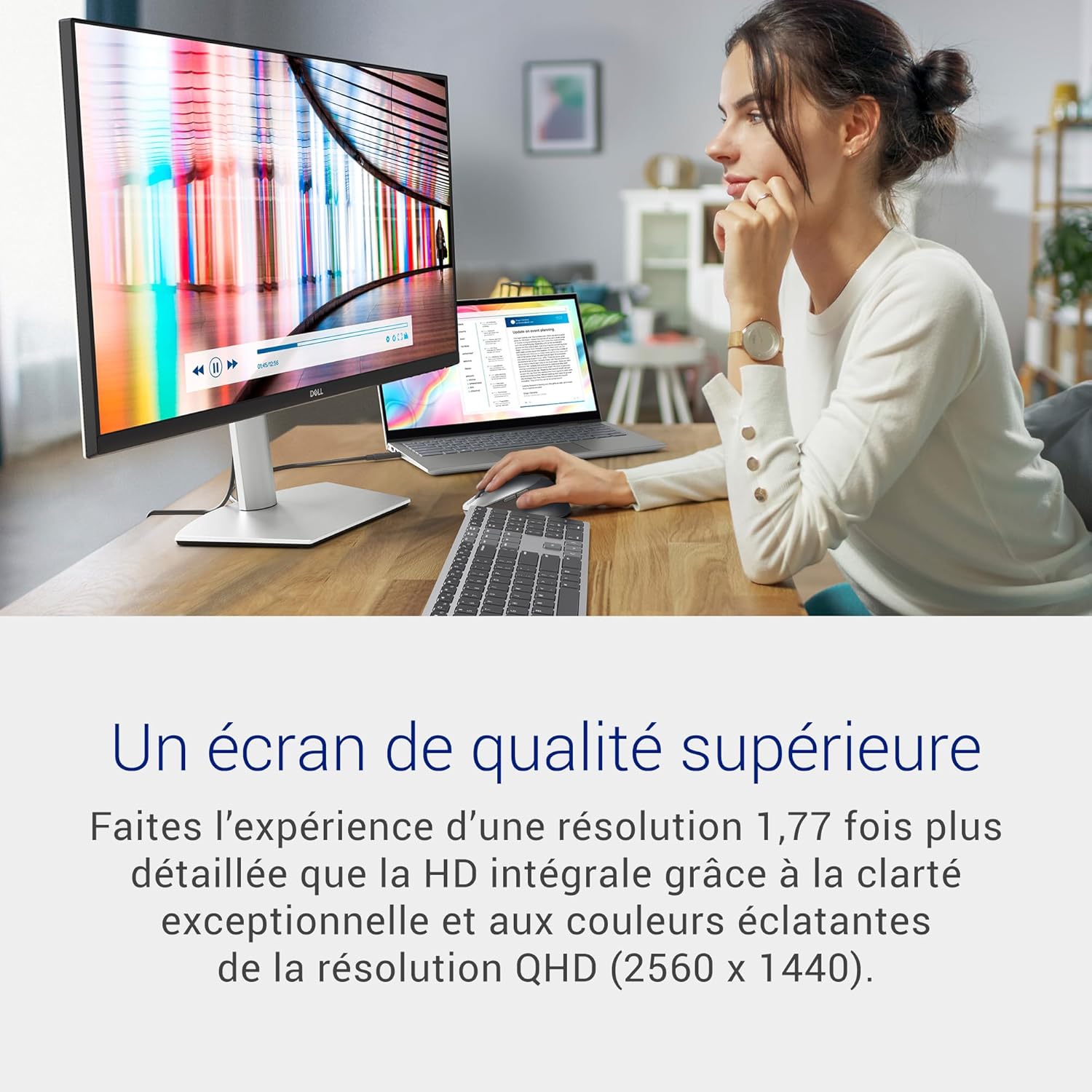
Strong everyday clarity with USB-C power delivery at a fair price.
Ideal for
Gaming
Premium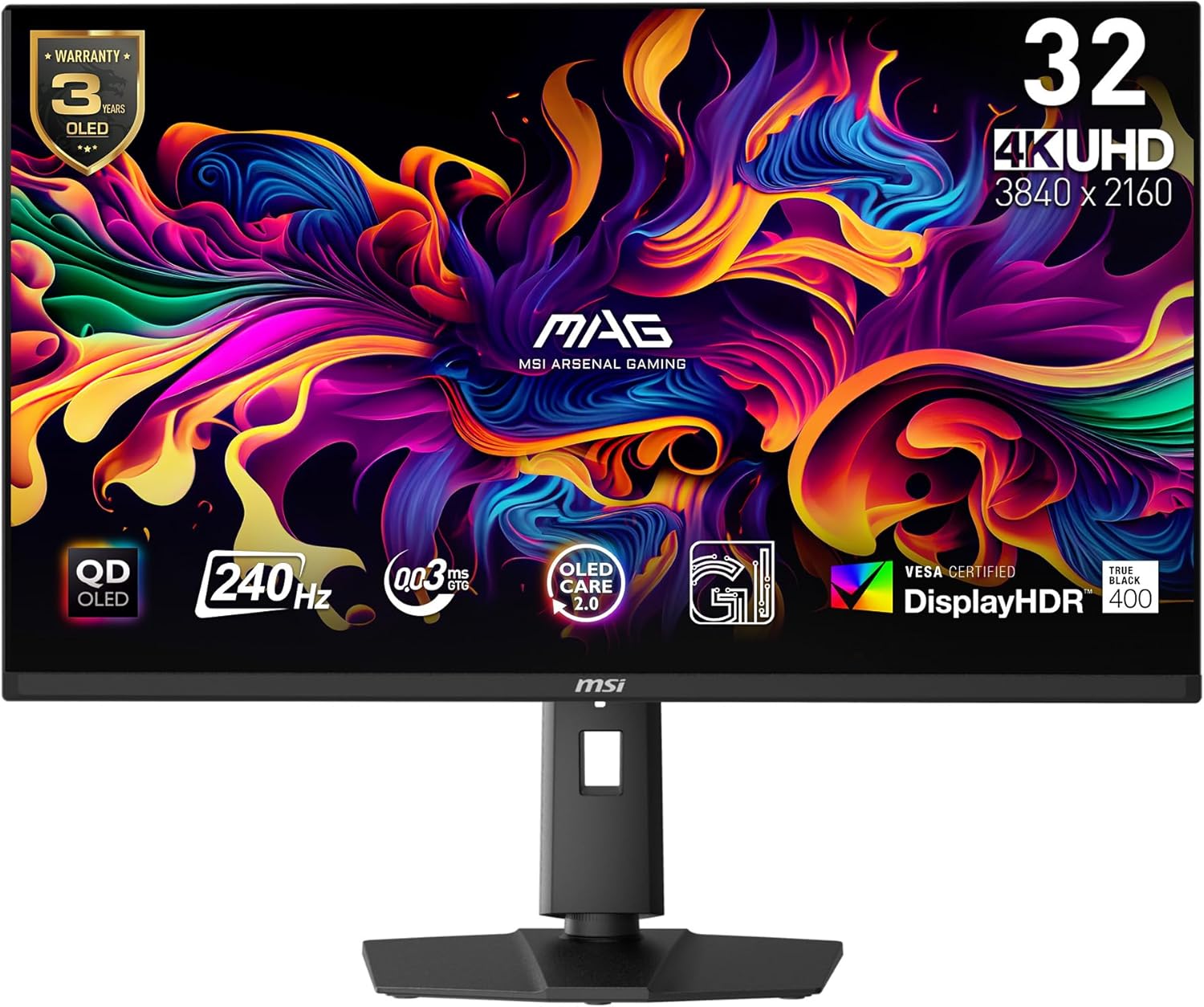
Elite motion clarity and true black HDR for high-end gaming.
Ideal for
Ultrawide
Premium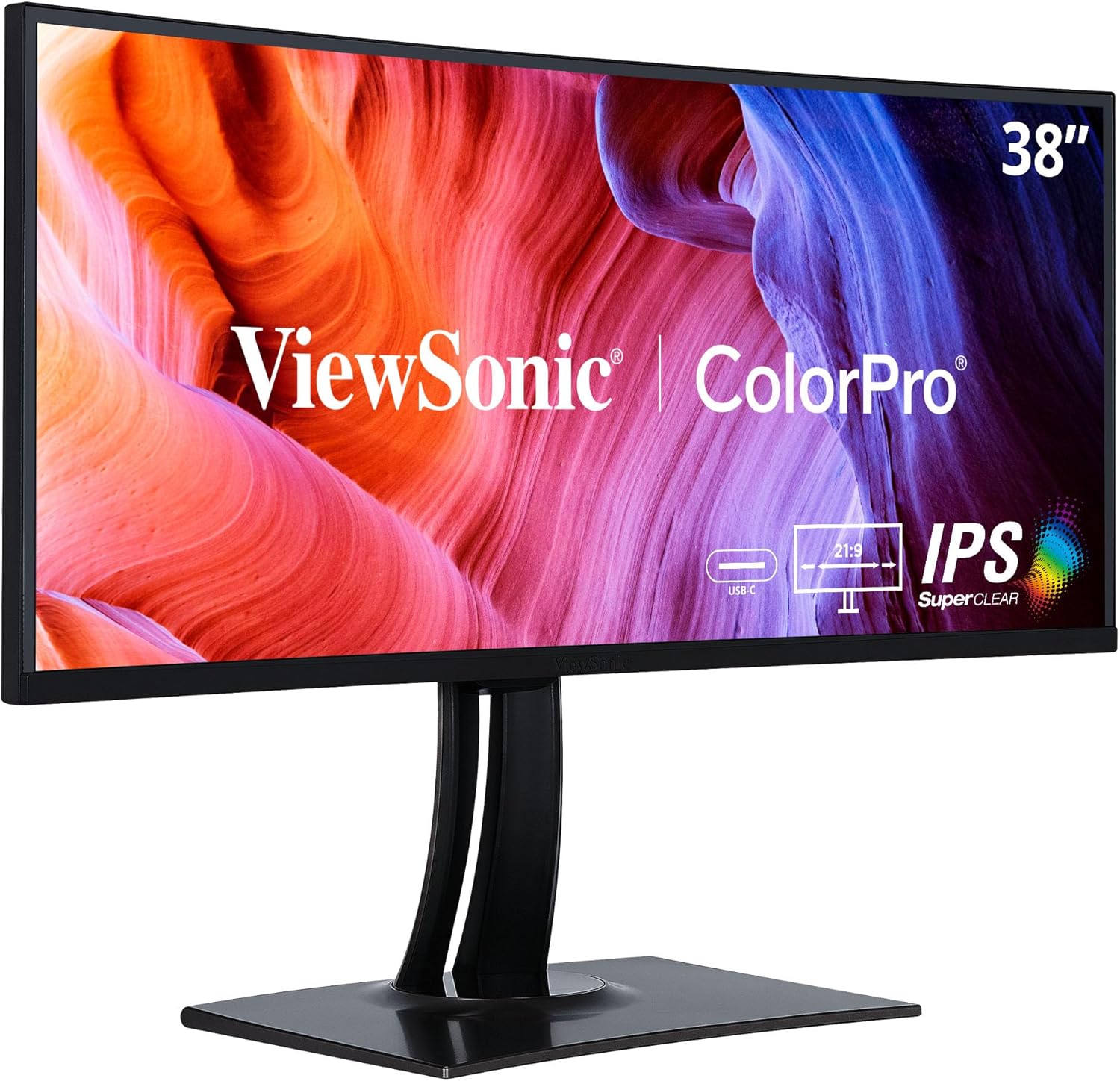
Color-accurate ultrawide with strong ergonomics.
Ideal for
Creative
Premium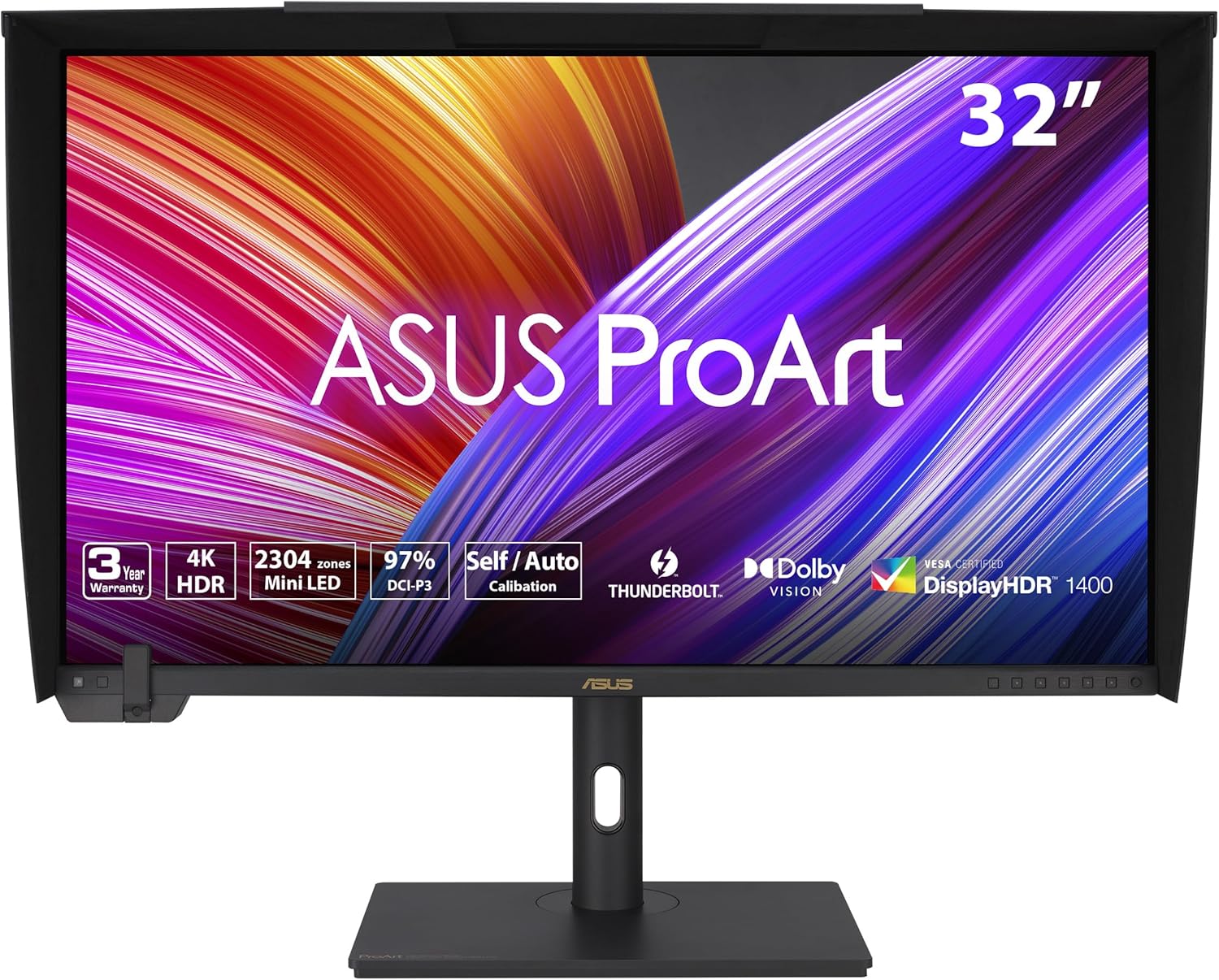
Flagship-level color accuracy and HDR support.
Ideal for
Portable
Value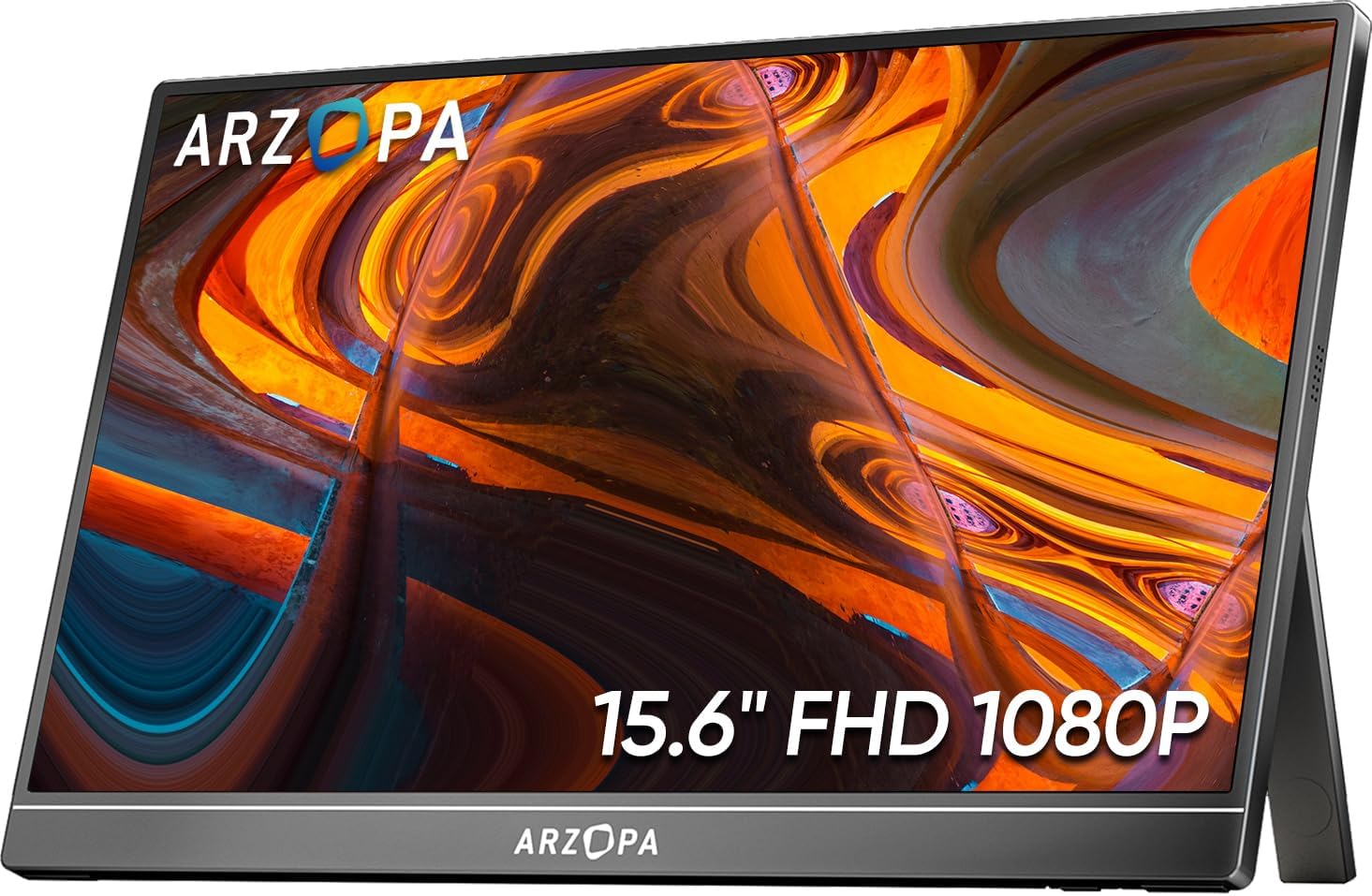
Affordable, light, and easy to power from a laptop.
Ideal for
Filtered results
Refine the list with filters on the left, then pick a model to view details.
Ideal for
Huge canvas for multi-app workflows and strong USB-C docking.
Ideal for
Strong everyday clarity with USB-C power delivery at a fair price.
Ideal for
Elite motion clarity and true black HDR for high-end gaming.
Ideal for
Color-accurate ultrawide with strong ergonomics.
Ideal for
Flagship-level color accuracy and HDR support.
Ideal for
Affordable, light, and easy to power from a laptop.
Compare picks
Add a few monitors to compare resolution, refresh, panel, and ports side by side.
| Tier | Model | Resolution | Refresh | Panel | Price | Ports | Notes | Action |
|---|---|---|---|---|---|---|---|---|
|
|
Fast answers to common monitor questions.
For creative work or large screens, yes. For general use, 1440p often gives the best value.
27 inches is the safest all-around size. It balances clarity and comfort.
IPS is better for color accuracy and wide angles. VA is better for contrast but can blur in motion.
Not necessarily. Higher refresh feels smoother but is optional for office tasks.
We evaluate budget laptops using real-world performance testing, verified specifications, long-term reliability, and price-to-value analysis. Prices and availability are reviewed weekly to ensure up-to-date recommendations.
Structured answers: summary, actions, tools, citations.
Suggested prompts
Learner mode follow-ups