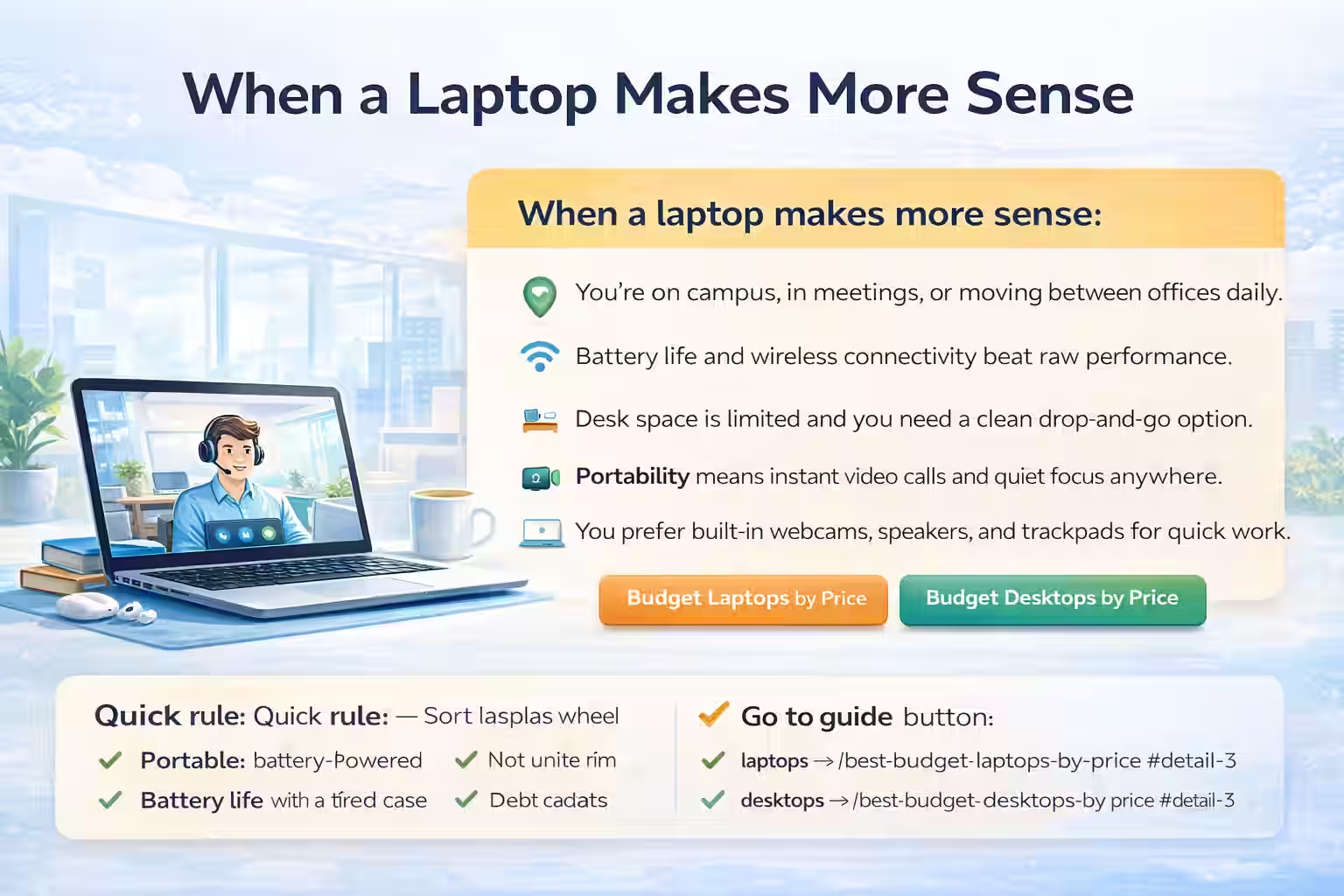
Ideal for
- Students who need reliability on a tight budget
- Remote work and office apps without lag
- Casual creators using light photo editing tools
- Everyday streaming, browsing, and multitasking
Quick guidance for integrated vs dedicated graphics in budget laptops.
TechNextPicks reviews and selects products independently. Purchases made through affiliate links may earn commissions that help fund our testing.
Best Budget Laptops Canada 2026
Compare practical price bands, visual product cards, and decision tables for student, business, creator, and gaming shoppers in Canada.

Photo credit: Pixabay.
If you can stretch to 16GB RAM, do it. It keeps everyday multitasking smooth and buys your laptop a longer lifespan.
See FAQsMethodology
Each tier is based on Canadian retail pricing, real-world performance expectations, and the features that matter most at that level.
Pick your path
Rotating picks based on how you work, study, and create.
Most budget laptop mistakes happen before you compare a single model. You start with a spec goal instead of a budget reality. The budget range is not just a price label, it is a performance ceiling. A $600 laptop can be great for writing, classwork, and web tasks, but it will not feel like a $1200 machine no matter how attractive the listing looks. A smart budget starts with the tasks you will do every week, then you map those tasks to a tier. That keeps you from buying too much machine or too little machine and feeling disappointed. It also keeps your research shorter because you are only comparing laptops in the tier that matches your workflow. That is the reason this guide is organized by price tier instead of a single, long list. If you want to compare laptops and desktops in the same price bands, the Budget Computers hub keeps everything in one place.
A helpful way to frame your budget is to ask two questions. First, how long do you want to keep this laptop before you upgrade? A two year plan means you can prioritize price, while a four year plan means you should prioritize RAM, storage, and keyboard quality because those are painful to replace later. Second, how much time will you spend on the laptop each day? If you use it for a few hours a week, you can accept a smaller battery and a basic display. If you use it all day, the display, keyboard, and trackpad quality become more important than the CPU badge. This is why real world comfort is a better indicator of satisfaction than a spec sheet.
Your budget reality also needs to account for taxes, accessories, and the occasional must have add-on. A budget plan that only covers the laptop price often leads to cutting corners later. You might end up with a $20 keyboard because your built-in keyboard is uncomfortable, or you might need a hub because your laptop only has two ports. A more practical plan is to hold back 10 to 15 percent of your budget for essentials and decide early whether you need them. That could be a protective sleeve, a small USB-C hub, or a basic monitor for your dorm. If you already know you need those extras, the budget tier below might not be enough. This guide is meant to make that math visible, not to push you toward the most expensive option.
A simple budget test is to write your top three tasks and your top three pain points. If your pain points are slow performance, noisy fans, or poor battery life, that is a signal to move up one tier. If your pain points are storage and ports, you might be able to stay in your tier and solve the problem with an upgrade. The goal is not to buy a perfect laptop, but to remove the daily friction that slows you down. When your budget aligns with your workflow, the laptop feels like a good decision long after the sale ends.
Finally, remember that price bands are not strict walls. A solid machine in a lower tier can outperform a weak machine in a higher tier. Sales also make tiers fuzzy. That is why the picks below include what this laptop is for and what it is not for. Those short notes are the fastest way to avoid a mismatch. Use the tiers as a filter, then use the notes to make the final decision. When you do that, you are more likely to find a laptop that feels good a year from now, not just on the day it arrives.
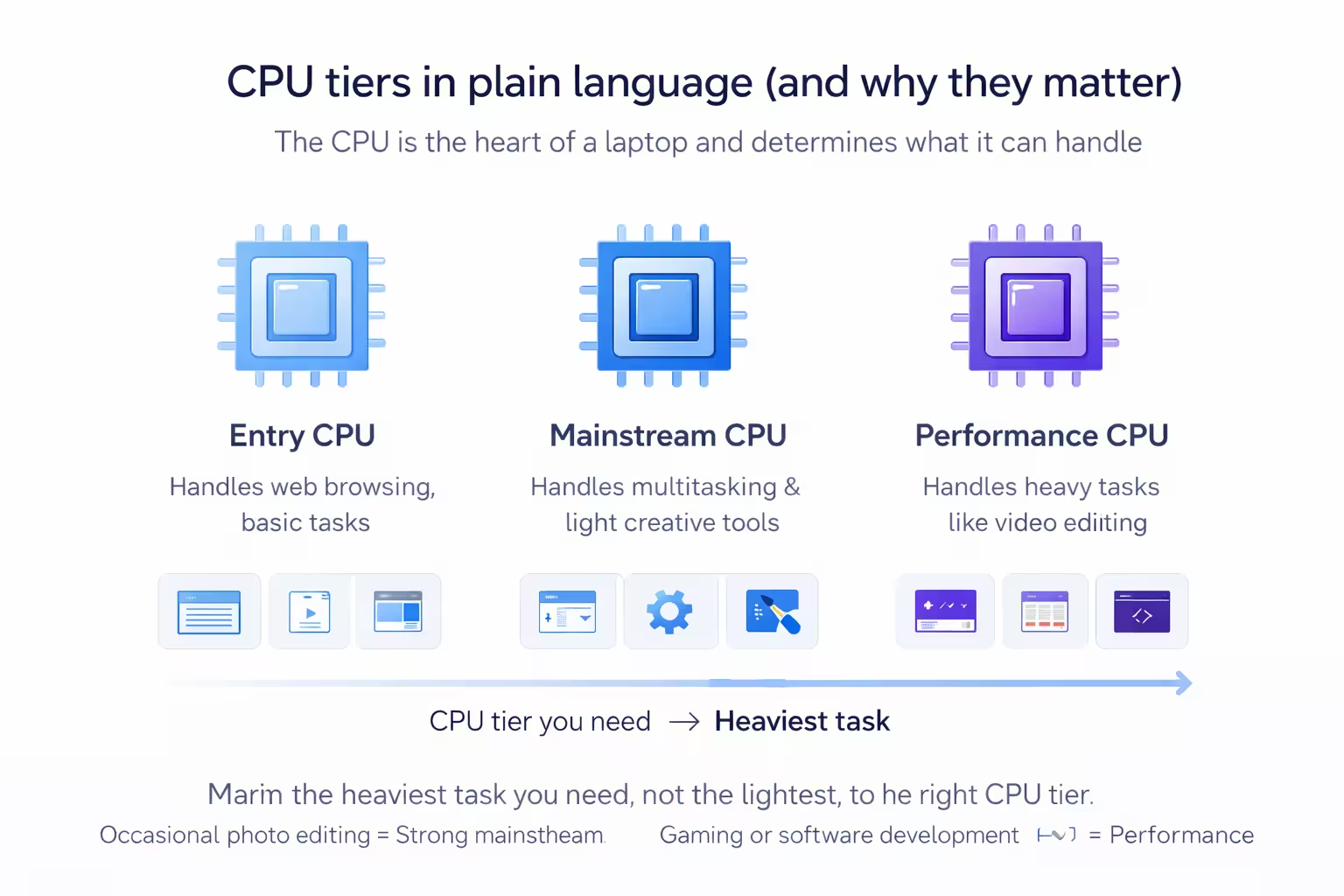
The CPU is the heart of the laptop, but it does not need to be complicated. For budget buyers, the most important difference is not between specific model numbers, but between entry, mainstream, and performance tiers. Entry CPUs handle web browsing, documents, and basic streaming. Mainstream CPUs handle multitasking, light creative tools, and smoother performance under load. Performance CPUs handle heavier workflows such as video editing, data tools, or running multiple apps at once. The CPU tier you choose should match the heaviest task you expect, not the lightest. If your heaviest task is occasional photo editing, a strong mainstream CPU is usually enough. If your heaviest task is gaming or software development, you need a CPU that can hold up under sustained load.
Modern CPU naming is messy, but you can simplify it. Avoid very old dual-core chips, especially if the laptop is labeled as budget but feels cheap in every way. Those machines are often slow in real use and can become frustrating quickly. Look for a recent generation Intel Core i5, AMD Ryzen 5, or newer mid-tier chip. If you are in a lower price tier and must choose between a newer low-tier CPU and an older high-tier CPU, pick the newer one. Newer chips are usually more efficient, have better battery life, and support modern features.
CPU choice also affects heat and fan noise. A fast chip in a thin chassis can throttle quickly, which means it looks powerful on paper but slows down in real work. That is why this guide focuses on balanced picks, not just raw numbers. For quiet study sessions or office work, a cool and efficient CPU can feel better than a hot one. For gaming or heavy tasks, you want a laptop designed to handle heat with a strong cooling system. If you are unsure, read the short verdict lines in each pick. They highlight whether the performance is steady or bursty.
Another small CPU clue is the class of the processor. U-series chips focus on battery life, while H-series chips focus on sustained performance. That does not mean U-series is bad, it just means you should choose it when your work is mostly light to medium tasks. If your software is heavy or you run several apps at once, an H-series chip might be worth the extra cost. This is especially true if you plan to keep the laptop for several years.
The takeaway is simple: use the CPU tier to find the right lane for your work, then let other factors such as RAM, storage, and display quality guide the final pick. If you want a broader view across laptops and desktops, the Budget Computers hub breaks down tiers and use cases side by side. Use that to clarify your lane, then return to the picks below for the specific budget category you need.
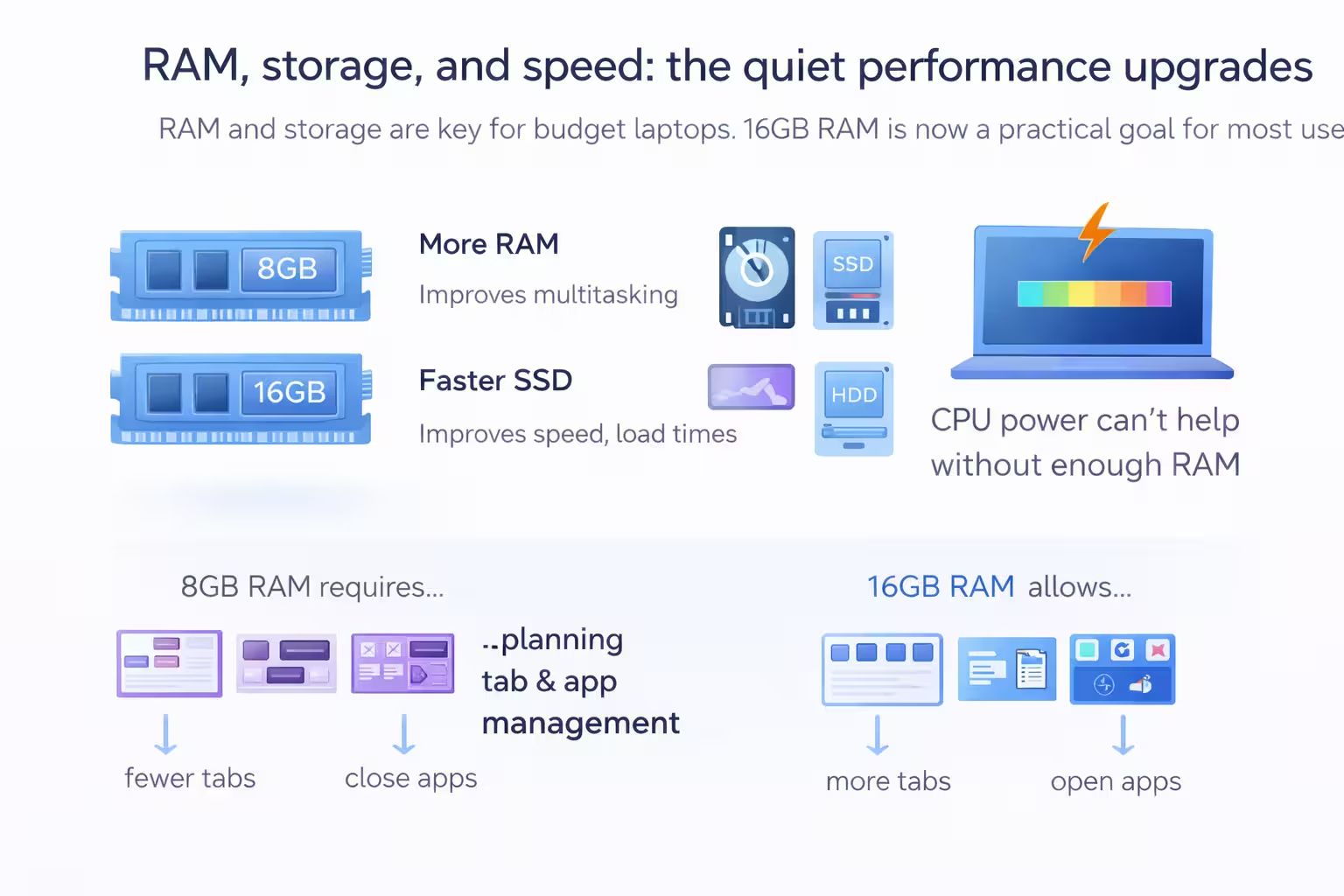
RAM and storage are the two specs that most directly affect how a budget laptop feels day to day. CPU power helps, but without enough RAM, your laptop will slow down under multitasking. That is why 16GB is now the practical goal for most people. If your budget forces you to pick 8GB, it can still work, but you should plan to keep fewer tabs open and close heavier apps when you are done. If you use tools like Zoom, multiple browser windows, or large documents at the same time, 16GB makes a noticeable difference.
Storage matters in two ways: capacity and speed. Most modern budget laptops use SSDs, which are faster than old hard drives. But not all SSDs are equal. A 256GB SSD can be fine for light use if you store files in the cloud, but it can fill up fast once you install apps and downloads. A 512GB SSD is the safer balance for most users because it gives you room to grow. If you work with large photos, video, or local projects, 1TB becomes realistic, especially if you want to keep the laptop for several years.
Speed upgrades often hide in small details. A laptop with two RAM sticks can run in dual channel mode, which improves graphics performance for integrated GPUs. That matters for light gaming and for smoother visuals. Some budget laptops have soldered RAM, which means you cannot upgrade later. If your goal is to keep the laptop for four years, look for a model with upgradeable RAM or make sure the base configuration is enough. For storage, check whether there is a second SSD slot. A second slot makes a future upgrade cheaper and easier.
If you are unsure where to spend extra budget, choose RAM first and storage second. A little more storage can be solved with external drives later, but RAM cannot always be upgraded. If you regularly use large spreadsheets or many browser tabs, more RAM has the biggest impact. If your work is mostly light, storage might matter more for saving files and media. Either way, avoid underpowered combinations that look good on paper but feel slow in practice.
Another hidden performance factor is how full the drive stays. When an SSD is nearly full, background tasks such as updates and indexing can slow down the system. That is why planning for extra storage is practical, not just convenient. If you know you will store large files, choose the larger SSD up front. If you are unsure, consider cloud storage for archives and keep local storage for active work. This approach keeps the laptop responsive and reduces the need for upgrades later.
In short, RAM and storage are your long-term insurance. You can live with a slightly slower CPU, but you cannot think your way out of a laptop that constantly runs out of memory. If you are unsure, choose the model with more RAM even if it has a slightly weaker CPU. For most real-world tasks, that choice leads to a smoother daily experience.
Screen size is a daily comfort decision. A 13 to 14 inch laptop is easier to carry, but it can feel cramped for long writing or spreadsheet work. A 15 to 16 inch laptop gives you more space, but it is heavier and less ideal for tight backpacks or daily commuting. If your laptop rarely leaves the desk, size can be larger. If you walk to class or commute, the weight matters more. The goal is not to pick the biggest screen; the goal is to pick the screen that keeps you comfortable for the way you actually work.
Resolution should match size. A 15.6 inch 1080p display is fine, but it is less sharp than a 14 inch 1080p display because the pixels are spread out. For 15 or 16 inch screens, 1080p is acceptable in budget tiers, but 1440p or higher looks cleaner if your budget allows. For 13 to 14 inch screens, 1080p already looks sharp. If you see a high resolution on a low tier laptop, check brightness and panel quality. A sharp screen with weak brightness can still feel uncomfortable in bright rooms.
Color accuracy and viewing angles are part of display quality. IPS panels usually provide better color and viewing angles than basic TN panels. Many budget laptops use IPS now, but some low-cost models still use lower quality panels. If you can, avoid displays with dull colors and narrow angles, especially if you share your screen during presentations or use media tools. Brightness also matters. A laptop that tops out at around 250 nits can feel dim outdoors or near windows. If you study in bright spaces, aim for 300 nits or more.
Another practical display tip is to check scaling and text size. If you choose a high-resolution display on a small screen, the text can become tiny unless you increase scaling. That can be fine, but some apps look better than others when scaled. If you prefer clarity without adjustments, a lower resolution at the right screen size can be more comfortable. In budget tiers, comfort often wins over pixel count. If you can, test a similar size and resolution in a store or read a review that mentions text clarity and glare.
If you know you will connect a larger external display, you can treat the built-in display as secondary. In that case, a lighter laptop can be more important than a large panel. Pair it with a monitor when you are home, and you get the best of both worlds. For help with that setup, the best monitors 2026 guide explains how to choose a display that fits a small desk. The combination of a portable laptop and a comfortable monitor is often the most cost effective way to upgrade your daily workflow.
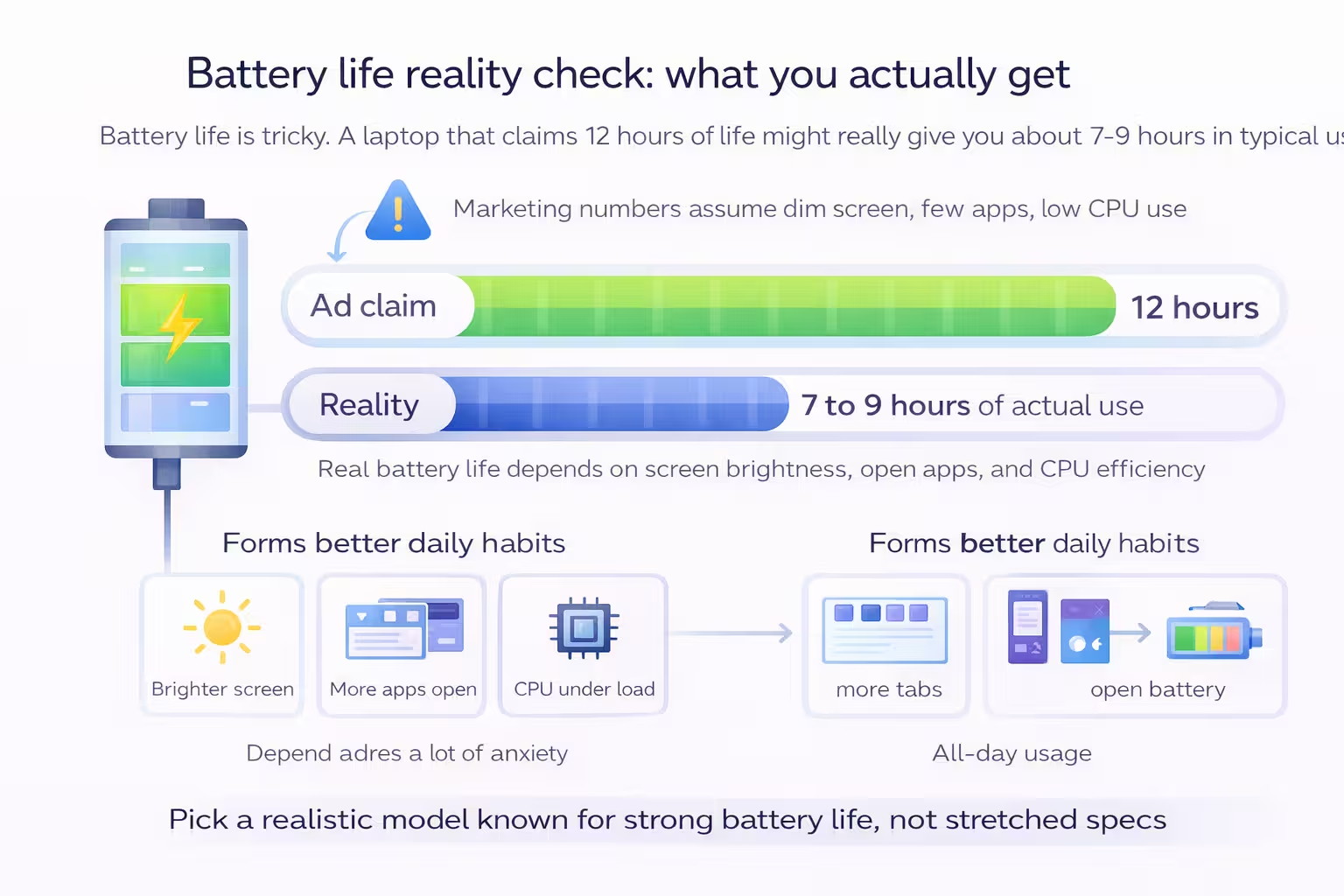
Battery life is one of the most confusing laptop specs because marketing numbers are almost always optimistic. A laptop that claims 12 hours might give you 7 to 9 hours in real use. The actual result depends on screen brightness, the number of apps you run, and whether the CPU is efficient. If you rely on your laptop for campus days or long meetings, aim for a model known for strong battery life, even if other specs are average. A laptop that lasts all day without stress can be more valuable than one that is slightly faster but requires constant charging.
Efficiency matters more than raw power for battery. AMD Ryzen U-series chips, Intel U-series chips, and modern ARM-based chips tend to last longer when you are doing light tasks. High performance chips can drain faster, especially if the laptop is thin and the cooling system is working hard. Screen brightness is another factor you can control. If you keep brightness at 70 percent instead of 100 percent, you can often gain an extra hour or two. That makes brightness range a practical feature, not just a spec.
Battery degradation is also real. After a year or two, most laptop batteries hold less charge. If you plan to keep your laptop for several years, that should influence your choice. A laptop that gets 10 hours when new might still be usable at 6 to 7 hours after two years. A laptop that gets 6 hours when new might feel short after just a year. That is why battery life is not a bonus spec; it is a durability feature.
A simple way to judge battery readiness is to imagine your longest day. If you have a day with four to six hours of classes, plus transit time, plus a study session, you likely need a laptop that can run 8 to 10 hours in real use. If your day is mostly at a desk with easy access to outlets, you can accept less. This guide gives a short verdict for each pick, but if battery life is your top priority, treat it as a filter. That will reduce your list fast and lead to a better fit.
Battery life also impacts resale value. Laptops with strong battery health are easier to sell or hand down. If you are planning to upgrade in a few years, treating the battery well can help you recover more value.
Budget laptops can feel very different in build quality even when the specs look similar. A stiff chassis, stable hinge, and a clean keyboard deck add daily comfort. A flimsy hinge and flexible keyboard deck can make typing annoying and reduce the sense of quality. If you can, look for aluminum or magnesium in the lid or palm rest. It often signals better rigidity. Plastic is not bad by default, but it should feel solid, not hollow or creaky. In the long run, build quality affects how long the laptop stays usable, especially if you move it around every day.
Ports are the most overlooked pain point in budget buying. Many budget laptops only have one USB-C port and a couple of USB-A ports. If you plan to connect an external monitor, storage, or a dock, you need to check what that USB-C port actually supports. Some ports support charging and display out, others do not. That difference determines whether you can run a one-cable setup or whether you will need extra adapters. The best budget laptops include a full-featured USB-C port, HDMI, and at least two USB-A ports. That covers most everyday accessories without extra expense.
Think about where you use the laptop. If you sit at a desk, a USB-C dock can make life easier. If you travel, you might prefer a laptop with an SD card slot or a full HDMI port so you can connect quickly. If you already own a collection of USB-A accessories, make sure the laptop has enough USB-A ports to avoid adapters. A small hub can solve the problem, but it is better to plan for it ahead of time. The guide at USB-C dock vs USB-C hub explains the difference if you are unsure.
The takeaway is simple: do not treat ports and build quality as a tie-breaker only. They should be part of your core evaluation, especially in budget tiers. A laptop that looks good on paper can feel frustrating if it requires multiple adapters and wobbles when you type. You use these things every day, and the best budget laptop is the one that feels sturdy and easy to connect.
If your work involves a lot of peripherals, consider a laptop with a full HDMI port and at least two USB-A ports. It reduces the need for adapters and keeps your desk cleaner. Those small conveniences add up.
Keyboards are personal, but there are patterns that help you choose wisely. Look for a keyboard with consistent travel and a firm bottom-out feel. If you type a lot, that matters more than RGB lights or special function keys. A decent keyboard reduces fatigue and makes long writing sessions less painful. The same goes for the trackpad. A large, smooth trackpad that tracks accurately will save you from reaching for a mouse every five minutes. Budget laptops sometimes cut corners here, so it is worth reading the short verdicts and looking at whether a model is known for good inputs.
The webcam is another area where budget laptops often feel behind. If you attend classes or meetings online, a 720p webcam can be workable, but 1080p is noticeably better. That said, lighting matters more than raw resolution. A bright room and a decent angle can make a low-end webcam look fine. If video calls are a big part of your routine, consider a laptop with a 1080p webcam or plan to use an external camera. For a simple setup, a small USB webcam can be cheaper than upgrading a laptop tier just for the camera.
Audio quality is usually basic in budget laptops, but it matters for calls and media. If the speakers are weak, a pair of headphones or earbuds will fix the issue. That is why we do not treat speaker quality as a deal breaker, but it is still worth noting. What matters more is microphone clarity. A slightly better mic can make you sound more professional in meetings. Many modern laptops include basic noise suppression, which is helpful in shared spaces. If you frequently work in noisy environments, look for models with that feature.
Overall, these input features are about daily comfort. A laptop that feels fast but frustrating to type on will not feel like a good purchase for long. When you compare picks, do not ignore the keyboard and trackpad comments. They are often the difference between a laptop that feels like a tool and one that feels like a chore.
For budget buyers, the operating system is a major decision because it determines what the laptop can do. Windows laptops support the widest range of apps and hardware, but they require more powerful components to feel smooth. ChromeOS laptops, often called Chromebooks, are simpler and can feel fast with lower specs. If your tasks are web-based, a Chromebook can be a great value. If you need specific Windows apps or heavier software, Windows is the safer choice even if the hardware costs more.
ChromeOS is best when your workflow is Google Docs, Gmail, and browser-based tools. It boots quickly, updates quietly, and can be secure by default. It is also a strong option for students who use school platforms that are already web-based. The limitations appear when you need advanced tools like full Adobe Creative Cloud apps, engineering software, or certain games. If you are not sure, check the tools you use most and confirm they work in the browser. If not, ChromeOS may feel limiting.
Windows laptops give you flexibility but require more careful spec selection. A low-end Windows laptop with 8GB RAM and a basic CPU can feel slow. A Chromebook with the same hardware can feel responsive. That is why Windows models should be chosen carefully in the lowest price tier. If you are in the $600 to $800 range, Windows options improve dramatically. This guide focuses on balanced Windows picks because most buyers in this range need that flexibility, but the tier structure still applies: if you are using mostly web apps, ChromeOS remains a strong value option.
Another factor is longevity and updates. ChromeOS updates are automatic and can keep the system feeling fresh. Windows updates are more frequent and sometimes interrupt workflow, but they also provide compatibility with new software. If you plan to keep the laptop for several years, both systems are fine as long as the hardware is adequate. The decision is mostly about the apps you need, not about which system is better.
Students have a unique mix of requirements: portability, battery life, and reliability matter more than raw power. For most students, the ideal budget laptop is light, quiet, and consistent. A solid 14-inch laptop with good battery and 16GB RAM can handle lectures, essays, and research without drama. If you carry your laptop daily, weight and charger size are important, too. A heavy laptop quickly becomes annoying when you walk to class. That is why the mid-tier picks that balance weight and performance are often the best student choice.
Research workflows often involve many browser tabs, PDFs, and note tools. That pushes memory, which is why 16GB RAM is so helpful. If your budget only allows 8GB, the laptop can still work, but you should be willing to manage tabs and close apps more aggressively. For class notes, a comfortable keyboard is essential. You will type a lot, and a poor keyboard makes that tiring. If you plan to work in shared spaces, a quiet keyboard and good webcam make collaboration smoother.
Another student-specific factor is study style. If you often use your laptop with a second display in a dorm, you might prefer a model with USB-C display output or HDMI built in. If you study in libraries, battery life becomes the priority. If you are in a design or engineering program, you may need higher specs for software tools, which pushes you toward the higher budget tier. The key is to match your program needs to the tier, not to overbuy based on marketing. The student tech 2026 guide is a good companion if you want a broader look at student gear beyond laptops.
Most students should aim for balance, not maximum power. A reliable laptop that lasts all day and is easy to carry is worth more than a heavier gaming model that drains quickly. Use the short verdicts in each tier to see which picks prioritize portability and which prioritize speed. That will help you choose a laptop that fits your campus routine without overpaying.
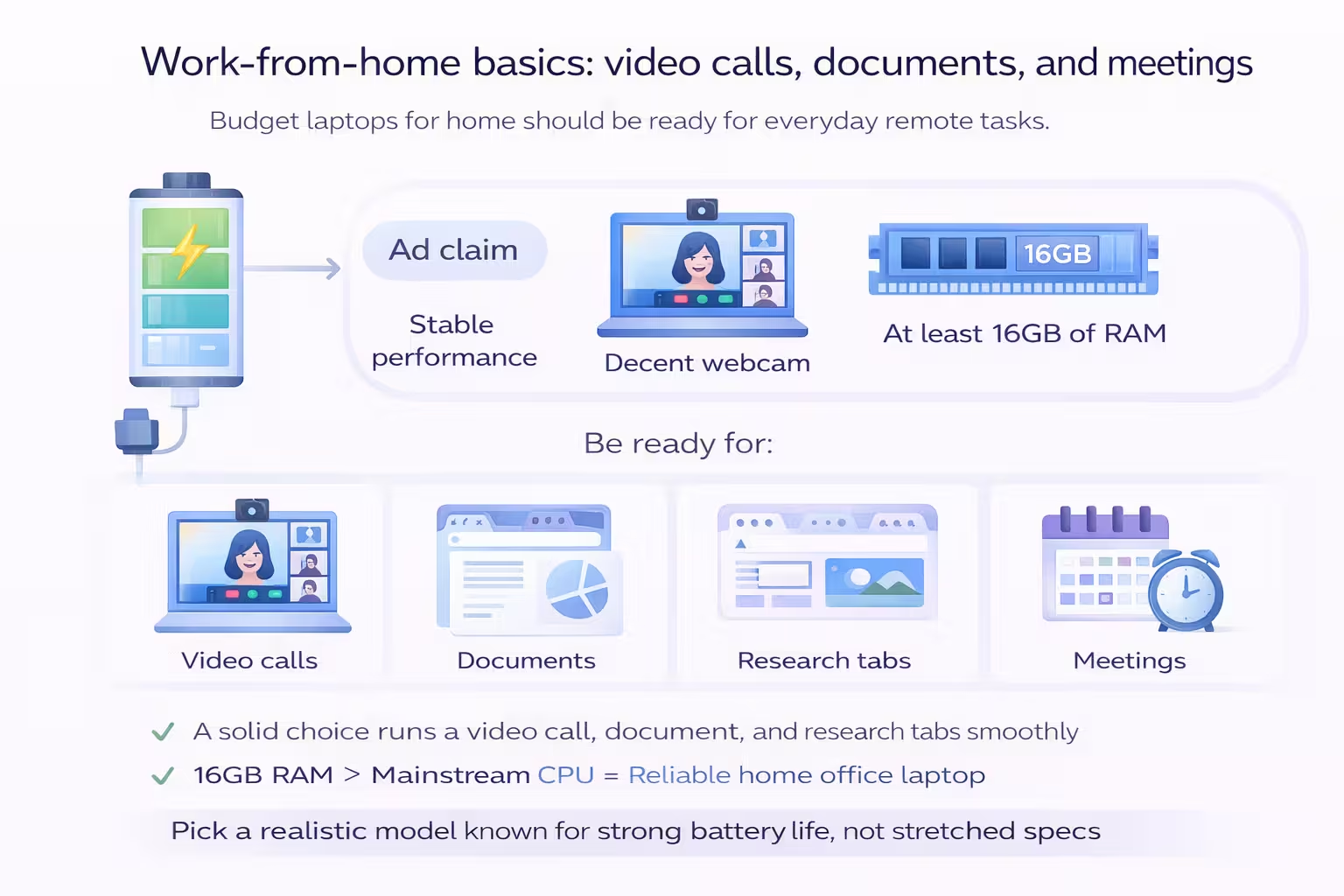
If you work from home, a budget laptop needs to be dependable in everyday tasks: emails, documents, meetings, and light project work. That means stable performance, a decent webcam, and enough RAM for multitasking. A laptop that can handle a video call while you edit a document and browse research tabs is the baseline. In this context, a 16GB RAM model provides a noticeable buffer, especially when you have multiple apps open at once. If your work involves spreadsheets or light data tools, the CPU should be in the mainstream tier.
The work-from-home setup also benefits from good ports. If you want a clean desk, a USB-C port that supports charging and display out can replace multiple cables. You can connect a monitor, keyboard, mouse, and power with one cable if your laptop supports it. A small dock or hub can help, but it is best to choose a laptop that already supports a clean setup. The guide at best USB-C hubs helps if you need an affordable way to expand ports.
Comfort also matters in long work sessions. A laptop with a good keyboard and a stable hinge makes long typing sessions easier. If you spend hours in meetings, a clear webcam and microphone reduce communication friction. If your laptop is used mostly at a desk, you might consider adding a small external monitor or stand. The best laptop stands 2026 guide can help you improve ergonomics without a large expense.
Ultimately, work-from-home buyers should prioritize stability. A laptop that runs cool, stays quiet, and handles your core tools without lag will feel like a good investment even if it is not the most powerful option on paper. That is why the picks in each tier highlight real-world usability, not just raw power.
If your work involves occasional travel or hybrid schedules, weight and charger size become important again. A compact charger and a lighter laptop can save daily hassle. Also consider whether you need extra security features such as a fingerprint reader or a privacy shutter. These features are small but useful in real life and can reduce friction if you log in often or work with sensitive files.
Budget laptops can play games, but the experience depends on the hardware and your expectations. Integrated graphics can handle esports titles and lighter games, especially at 1080p with medium settings. Dedicated GPUs in the budget range can improve the experience, but they add cost and reduce battery life. If your goal is occasional gaming rather than competitive performance, a solid mainstream CPU with decent integrated graphics can be enough. If your goal is frequent gaming, you should target the gaming picks in this guide, which are selected to balance price and performance.
The biggest mistake is expecting a budget gaming laptop to behave like a high-end gaming machine. You may need to adjust settings, accept lower frame rates, or play at a slightly lower resolution. That is not a failure, it is normal for the tier. The important thing is consistency. A laptop that holds stable frame rates and stays cool under load will feel better than one that spikes and throttles. Cooling quality matters more than raw specs, which is why the gaming picks in this guide emphasize sustained performance and thermals.
If you want to game and do productive work, consider how you will switch between those roles. Gaming laptops can be heavier and have shorter battery life, so they are less ideal for daily carrying. If you spend more time working than gaming, a balanced laptop plus a console might be a better overall value. If you truly want one machine for both, aim for the mid to upper tier with a dedicated GPU and a strong cooling design. That is where the compromise becomes reasonable.
Use the gaming pick details below to decide. The short verdicts explain the type of gaming each laptop is best for. If you only play a few titles on weekends, you do not need the highest gaming tier. If gaming is a regular part of your routine, invest in the tier that can sustain it without overheating. That will keep the laptop usable for more than a year or two.
Refurbished laptops can be a smart way to stretch a budget, but only if you buy from a reliable source. The biggest advantage is value: a refurbished laptop can offer higher specs for the same price as a new budget model. The risk is condition and warranty. That is why you should only buy refurbished devices from official manufacturer stores or trusted retailers with clear return policies. If the warranty is short or unclear, the savings may not be worth the risk.
When considering refurbished, focus on the components that matter most to you. Battery health can vary, so look for a listing that specifies battery testing or replacement. Cosmetic wear is usually a non-issue if you care about value. The main risk is hidden damage or poor repair quality, which is why return policies matter. If the retailer offers a full return window and a reasonable warranty, refurbished can be a great deal.
The decision often comes down to comfort with risk. If you need a laptop for school with a strict timeline, a new laptop might be safer. If you want a better value and can handle potential delays, refurbished can be a smart choice. Another option is to buy last year’s model new during sales. That gives you better value without the uncertainty of refurbished. In all cases, compare the total cost including warranty and accessories.
If you are open to refurbished, keep a short checklist: confirm the return window, verify warranty length, confirm the laptop includes the original charger, and look for clear grading of condition. These steps protect you from surprises. A refurbished deal is only good if it is supported by good policies. The safest approach is to treat refurbished like any other tier and compare it to new options with the same level of care. That way you get the savings without the regret.
Timing can save you real money, but only if you understand which sales actually matter. In Canada, strong laptop discounts tend to appear around back-to-school season, Black Friday, and Boxing Day. Back-to-school deals often target students, with bundles that include accessories or software. Black Friday deals are more aggressive on mid-range and gaming laptops. Boxing Day often clears inventory, which can make higher tier models more affordable. If you can wait for one of these cycles, you may be able to move up a tier without spending more. You can track stronger evergreen laptop picks in the Best Budget Laptops by Price guide and compare accessories in the Best Laptop Stands 2026 guide.
That said, timing is not everything. If you need a laptop now, do not delay your work or study for a small discount that might never come. The best strategy is to identify two or three models that fit your needs, then watch for sales on those models. Many retailers run rolling promotions, so you might find a good deal even outside major events. When you see a price that fits your budget and the laptop meets your needs, that is often the right time to buy.
Another tactic is to watch for price drops on previous-year models. These are often the best value because the hardware is still strong, but the marketing focus has shifted to new releases. If you are comfortable with a model that is one generation old, you can get a higher tier at a lower price. That is why the picks in this guide include models that are not necessarily brand new, but still strong performers in their tier.
Finally, remember that a deal is only a deal if the laptop fits your needs. A large discount on the wrong model is still a wrong model. Use the tiers and checklists to confirm fit, then use timing to save money. That balance leads to better decisions and less buyer’s regret.
If you are price tracking, keep notes on the normal range rather than just the lowest number you see. A sale that looks dramatic might just be a return to normal pricing. Saving screenshots or a quick note helps you recognize a real drop. This small step makes it easier to buy with confidence when the right deal appears.
When a good price appears on a model that already fits your checklist, it is usually safer to buy than to wait for a perfect discount.
Accessories can make a budget laptop feel premium if you choose the right ones. The most impactful upgrade is an external monitor or stand. A small stand improves posture by raising the screen to eye level, which reduces neck strain. If you work at a desk, a second screen can double productivity without doubling cost. If a full monitor is too much, a compact portable display can still help. The key is to choose accessories that improve comfort and workflow, not just add flair.
A good USB-C hub is another high impact purchase. It allows you to connect multiple devices without swapping cables constantly. This is especially useful if your laptop has limited ports. A basic hub that adds HDMI and extra USB ports can solve most connectivity issues. If you use a lot of peripherals, a dock may be worth it. The right hub can make a budget laptop feel much more flexible.
Input accessories also matter. A comfortable mouse and a full-size keyboard can transform long study or work sessions. They are inexpensive compared to the laptop itself and can make a noticeable difference. If you do a lot of video calls, a small ring light or external webcam can also improve your presence without upgrading your laptop tier. These are small, practical choices that increase the quality of your daily work.
The best accessory strategy is to buy only what you need. Start with posture and connectivity, then add peripherals if you find pain points. That keeps your total spending in control. A budget laptop plus a few smart accessories often outperforms a more expensive laptop used without any setup improvements.
Budget laptops can last for years if you treat them well. Basic maintenance makes a bigger difference than most people think. Keep the laptop clean, especially around the keyboard and vents. Dust buildup can reduce cooling efficiency, which leads to slower performance. Avoid using the laptop on soft surfaces like beds for long periods because that blocks airflow. Use a hard surface or a lap desk instead.
Battery care also matters. Do not leave the laptop plugged in at 100 percent all the time. Many laptops now include battery health settings that limit charge to 80 or 90 percent. If yours does, use it when you are at a desk for long periods. This reduces battery wear and helps your laptop maintain good battery life over time. It is a small habit that can add months or years to your laptop's useful life.
Storage management is another easy win. Keep at least 15 to 20 percent of your SSD free to avoid slowdowns. Remove unused apps, clean downloads, and store large files in the cloud or on an external drive. A cluttered SSD can make a fast laptop feel slow. If your laptop supports upgrades, consider adding storage later rather than replacing the device.
Finally, protect your laptop physically. Use a sleeve when you carry it, avoid tossing it in a backpack without padding, and do not leave it in extreme heat or cold. These basic habits keep your budget laptop looking and performing better for longer, which is the ultimate goal of a smart budget purchase.
Use this checklist to make a fast, practical decision. If you can answer these questions clearly, you are ready to pick a laptop tier and model. If you cannot, return to the earlier sections and focus on the areas where you feel unsure.
If you answer these with confidence, you can pick a tier quickly. For example, if you need portability, long battery life, and light tasks, the lower tier can work. If you need heavier multitasking and want to keep the laptop for several years, move up a tier to get 16GB RAM and a stronger CPU. The goal is not to chase the best spec, but to pick the most practical match.
The picks below are grouped by tier and give you the shortest path to a good decision. Start with your price range and then compare the short verdict and who it is for notes. If the notes align with your needs, you are done. If two models feel close, use the tie-breakers: battery life, keyboard comfort, and ports. Those factors often matter more than small performance differences.
If you are still unsure, use the compare table to view the top options side by side. That helps you see differences quickly without jumping between pages. You can also open the detailed reviews if you want deeper context. This guide is designed so that you do not have to study every detail. The picks and short verdicts are enough for most people.
For a quick look at how we evaluate picks, see the Methodology page.
A final reminder: do not feel pressured to overbuy. A laptop that matches your real workload is the right choice even if a higher tier looks more impressive. The purpose of this guide is to help you buy with clarity, not with anxiety. Pick the tier that matches your use, confirm the key specs, and move forward with confidence.
If you want a fast final check, ask yourself whether this laptop will still feel good after the first month. If the answer is yes because the keyboard feels solid, the screen is comfortable, and the battery lasts long enough for your routine, then you are in the right place. If the answer is no because you already plan to add adapters, upgrade storage, or carry a charger everywhere, consider moving up a tier or choosing a different model within the same tier. Small changes now prevent long-term frustration later.
The sweet spot for everyday work, study, and light gaming.
Shortlist of models that consistently deliver value in this tier.
A balanced pick with a sharp display, good keyboard, and dependable daily performance.
Quiet, efficient, and fast for school and work with strong battery endurance.
Extra storage for the money with a comfortable typing experience.
Solid all-rounder with a clean design and strong day-to-day speed.
Smooth 120Hz display and solid everyday performance with onsite service coverage.
Quick scan of CPU, RAM, storage, and graphics in this tier.
| Model | CPU | RAM | Storage | Graphics |
|---|---|---|---|---|
| Acer Aspire 5 | i5-1335U | 16GB | 512GB | Iris Xe |
| IdeaPad Slim 5 | Ryzen 5 7530U | 16GB | 512GB | Radeon |
| VivoBook 15 | i5-1240P | 16GB | 1TB | Iris Xe |
| HP Pavilion 15 | Ryzen 5 7530U | 16GB | 512GB | Radeon |
| Dell 15 Laptop DC15250-15.6-inch FHD | i5-1334U | 16GB | 512GB | UHD Graphics |
At this tier, prioritize a modern midrange CPU, 16GB RAM, and an SSD. Avoid older dual-core chips and low-end TN panels. These picks deliver the best balance of price, portability, and everyday speed.
Better screens, faster processors, and stronger build quality.
Shortlist of models that consistently deliver value in this tier.
Strong performance for the price with a sharp display and premium feel.
Excellent efficiency and a sleek, lightweight design for daily travel.
Flexible 2-in-1 with good battery life and a high-quality screen.
Solid performance and a refined chassis for school and productivity.
Huge RAM and storage bundle for heavy multitasking and big file libraries.
Quick scan of CPU, RAM, storage, and graphics in this tier.
| Model | CPU | RAM | Storage | Graphics |
|---|---|---|---|---|
| Dell 14 Plus | i7-13620H | 16GB | 1TB | Iris Xe |
| Vivobook 16 | Ryzen 7 8840U | 16GB | 512GB | Radeon 780M |
| Yoga 7 14 | Ryzen 7 7840U | 16GB | 512GB | Radeon 780M |
| OmniBook 5 Flip 14 | Core 5 120U | 16GB | 512GB | Intel Graphics |
| Acer Aspire 3 15.6" FHD | Ryzen 5 7430U | 32GB | 2.16TB | Radeon |
This tier is ideal if you want a more premium build, better speakers, and a brighter screen. Focus on RAM and display quality first, then storage. You can find lightweight models with excellent battery life here.
Higher-end performance with upgraded displays and GPU options.
Shortlist of models that consistently deliver value in this tier.
High-refresh 16-inch display with strong RTX 4060 performance for gaming and creative work.
Strong GPU performance with a balanced, understated design.
Premium build quality with a sharp display and creator-friendly features.
Budget-friendly pick with big memory and storage for everyday work.
Quick scan of CPU, RAM, storage, and graphics in this tier.
| Model | CPU | RAM | Storage | Graphics |
|---|---|---|---|---|
| ROG Strix G16 | i7-13650HX | 16GB | 1TB | RTX 4060 |
| Legion Slim 5 | Ryzen 7 7840HS | 16GB | 1TB | RTX 4060 |
| Dell 16 Plus Laptop DB16250 | i7-13620H | 16GB | 1TB | RTX 4050 |
| HP 15.6" FHD Touch | i7-1255U | 64GB | 2.28TB | Iris Xe |
If you want a dedicated GPU or a premium screen, this tier delivers. Compare GPU wattage, screen brightness, and thermals. These machines are ideal for creative work and modern games.
Gaming laptops
High-performance picks for developers who want fast compiles, smooth multitasking, and a relaxing high-FPS reset after hours.
Built for coding sprints, competitive frames, and chill weekends.
HX-class CPU and RTX 50-series power with strong cooling for value-focused gaming.
Premium build with RTX 50-series graphics and strong thermals in a portable chassis.
Reliable 1080p gaming with practical upgrades at a still-manageable budget.
Cloud-first gaming with a 120Hz QHD panel and effortless ChromeOS speed.
Flagship portable powerhouse with a 3K OLED display and creator-grade performance.
High-refresh 16-inch panel paired with RTX 5070 performance and solid cooling.
Filtered results
Refine the list with filters on the left, then pick a model to view details.
Ideal for
A balanced pick with a sharp display, good keyboard, and dependable daily performance.
Ideal for
Quiet, efficient, and fast for school and work with strong battery endurance.
Ideal for
Extra storage for the money with a comfortable typing experience.
Ideal for
Solid all-rounder with a clean design and strong day-to-day speed.
Ideal for
Smooth 120Hz display and solid everyday performance with onsite service coverage.
Ideal for
Strong performance for the price with a sharp display and premium feel.
Ideal for
Excellent efficiency and a sleek, lightweight design for daily travel.
Ideal for
Flexible 2-in-1 with good battery life and a high-quality screen.
Ideal for
Solid performance and a refined chassis for school and productivity.
Ideal for
Huge RAM and storage bundle for heavy multitasking and big file libraries.
Ideal for
High-refresh 16-inch display with strong RTX 4060 performance for gaming and creative work.
Ideal for
Strong GPU performance with a balanced, understated design.
Ideal for
Premium build quality with a sharp display and creator-friendly features.
Ideal for
Budget-friendly pick with big memory and storage for everyday work.
Ideal for
HX-class CPU and RTX 50-series power with strong cooling for value-focused gaming.
Ideal for
Premium build with RTX 50-series graphics and strong thermals in a portable chassis.
Ideal for
Reliable 1080p gaming with practical upgrades at a still-manageable budget.
Ideal for
Cloud-first gaming with a 120Hz QHD panel and effortless ChromeOS speed.
Ideal for
Flagship portable powerhouse with a 3K OLED display and creator-grade performance.
Ideal for
High-refresh 16-inch panel paired with RTX 5070 performance and solid cooling.
Compare picks
Add a few laptops to compare CPU, RAM, storage, and graphics side by side.
| Tier | Model | CPU | RAM | Storage | Price | Graphics | Notes | Action |
|---|---|---|---|---|---|---|---|---|
|
|
Fast answers to common budget laptop questions.
Yes. For most students and everyday users, 16GB keeps multitasking smooth and avoids slowdowns with browsers, office apps, and light creative tools.
Focus on a recent CPU, 16GB RAM, an SSD, and a comfortable keyboard. Battery life and a bright screen also matter for long study sessions.
Only if you game frequently or use creative apps. Otherwise, modern integrated graphics are good enough for casual play and daily tasks.
Both are great. Intel often offers stronger single-core performance, while AMD can deliver excellent efficiency and graphics. Choose based on the model, not the brand alone.
A 512GB SSD is the practical baseline for most buyers. It gives enough room for Windows updates, school or office files, and a normal app library without forcing immediate cleanup or external-drive dependence.
We evaluate budget laptops using real-world performance testing, verified specifications, long-term reliability, and price-to-value analysis. Prices and availability are reviewed weekly to ensure up-to-date recommendations.
Structured answers: summary, actions, tools, citations.
Suggested prompts
Learner mode follow-ups