Productivity / Work From Home
Remote Work Setup 2026: Essential Guide to Building a Productive Home Office
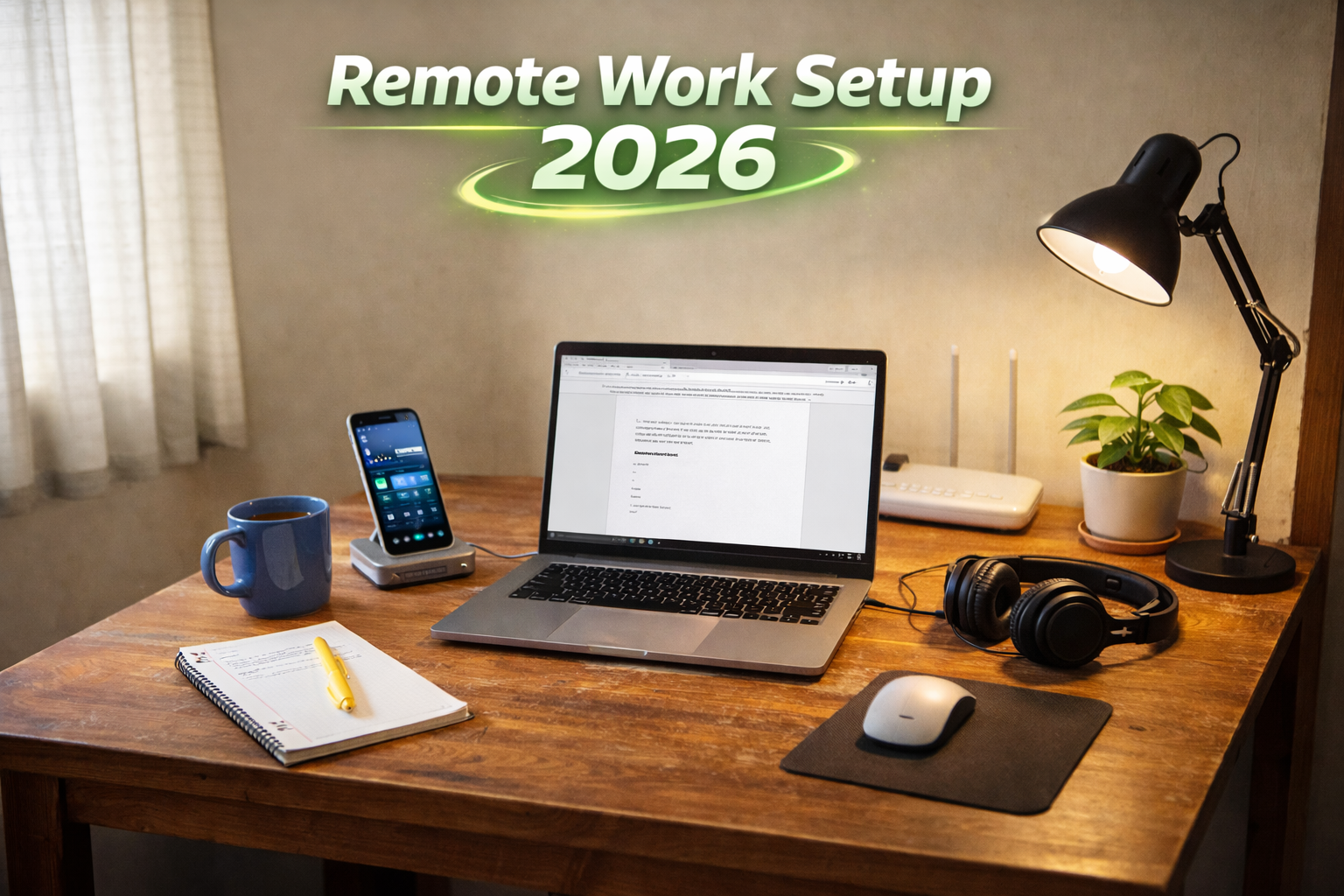
This guide is for remote and hybrid professionals in Canada who want a setup that feels focused, ergonomic, and dependable. We cover workspace choices, the 2026 tech stack, and smart upgrades you can add over time.
Key takeaways
- Prioritize ergonomics first, then add tech upgrades.
- A second monitor and proper lighting give the biggest productivity lift.
- Backups and security are part of your workspace, not an afterthought.
- Budget tiers help you build a setup without overspending.
Choose your workspace
Start by picking the calmest corner of your home. A dedicated space reduces context switching and makes it easier to focus. If space is limited, use a divider or tall shelf to create a visual boundary. A compact desk paired with a supportive chair still beats a kitchen table every time.
Small spaces
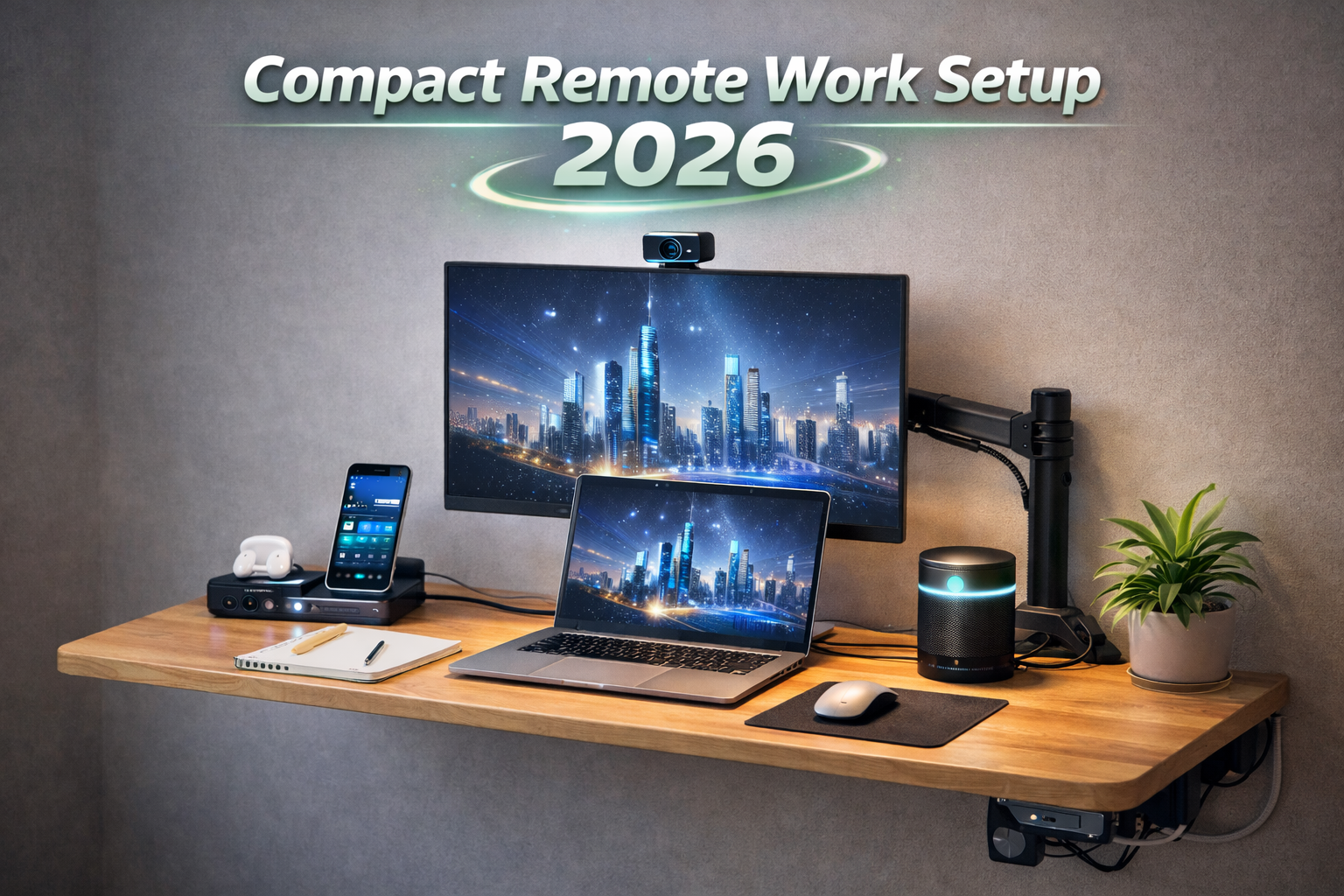
Choose a narrow desk, a monitor arm, and a compact laptop stand to save surface area.
Noise control
Soft materials reduce echo. Add a rug, curtains, or a small acoustic panel.
Ergonomics that prevent pain
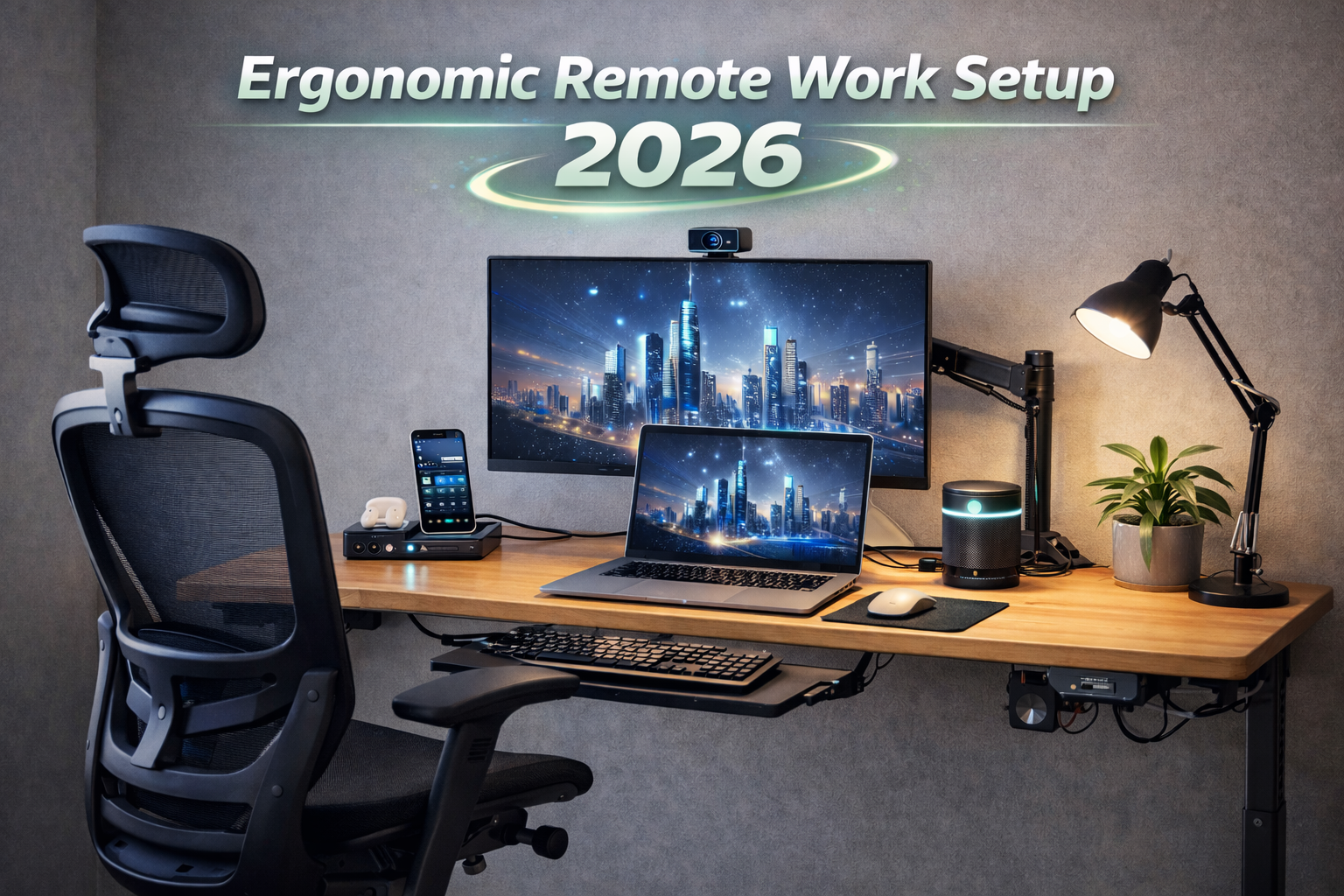
Think of ergonomics as injury prevention. Align your screen at eye level with a monitor stand or arm, keep feet flat, and let your elbows rest at 90 degrees. A chair with lumbar support is the highest-impact upgrade you can make.
- Monitor height: top third of the screen at eye level.
- Desk height: forearms parallel to the floor.
- Keyboard/mouse: consider a split keyboard and a vertical mouse.
- Breaks: stand every 45–60 minutes.
Core tech stack for 2026
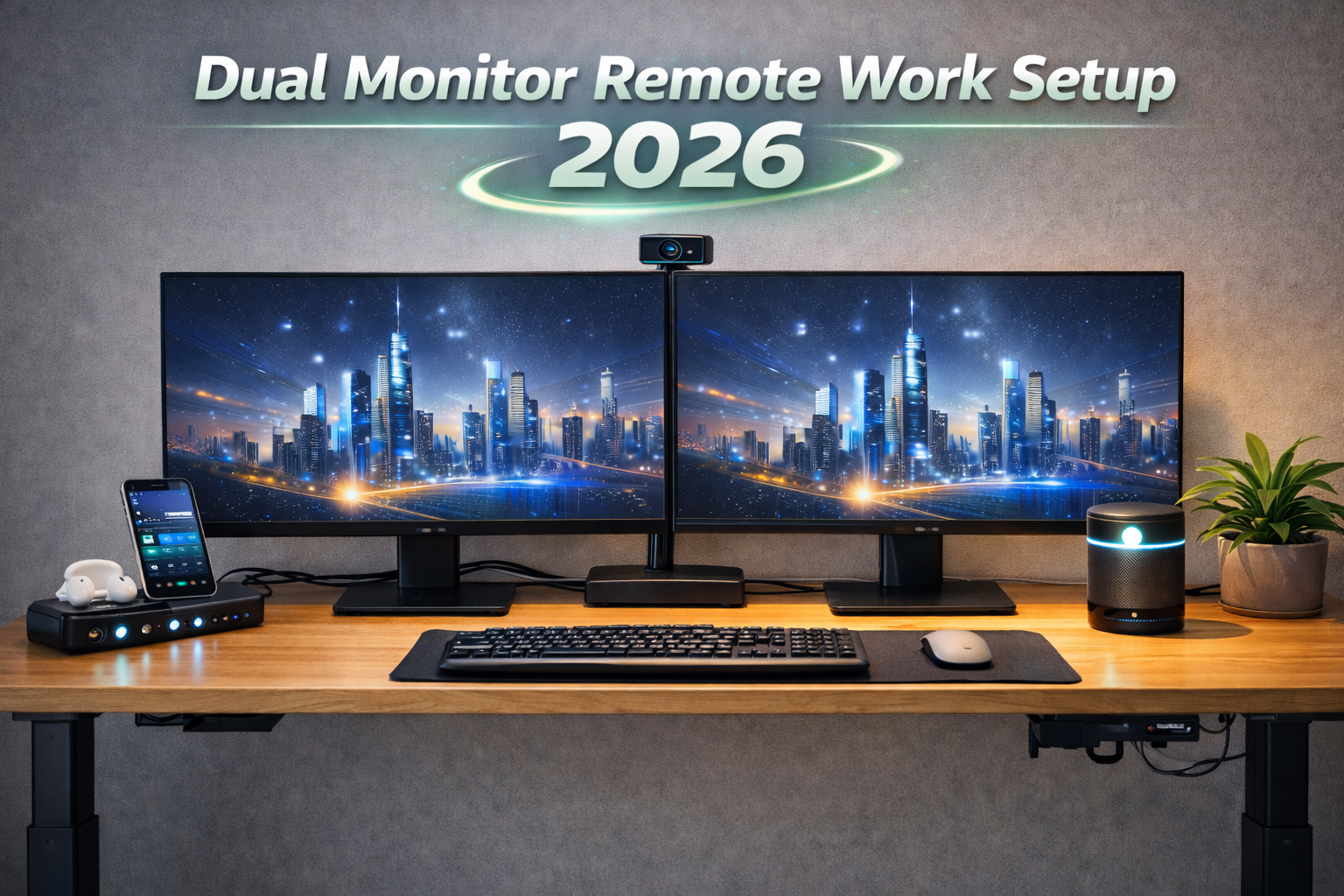
Your core stack should be reliable, quiet, and easy to service. Pair a modern laptop or desktop with a crisp monitor, a USB-C dock, and a sharp webcam. For audio clarity, add a noise-cancelling headset.
Compare options: best USB-C docks and best USB-C hubs.
Essentials checklist
- Primary computer + portable SSD
- 27-inch monitor or dual monitors
- Dock or hub: USB-C dock or USB-C hub
- Video: 1080p webcam
Connectivity checklist
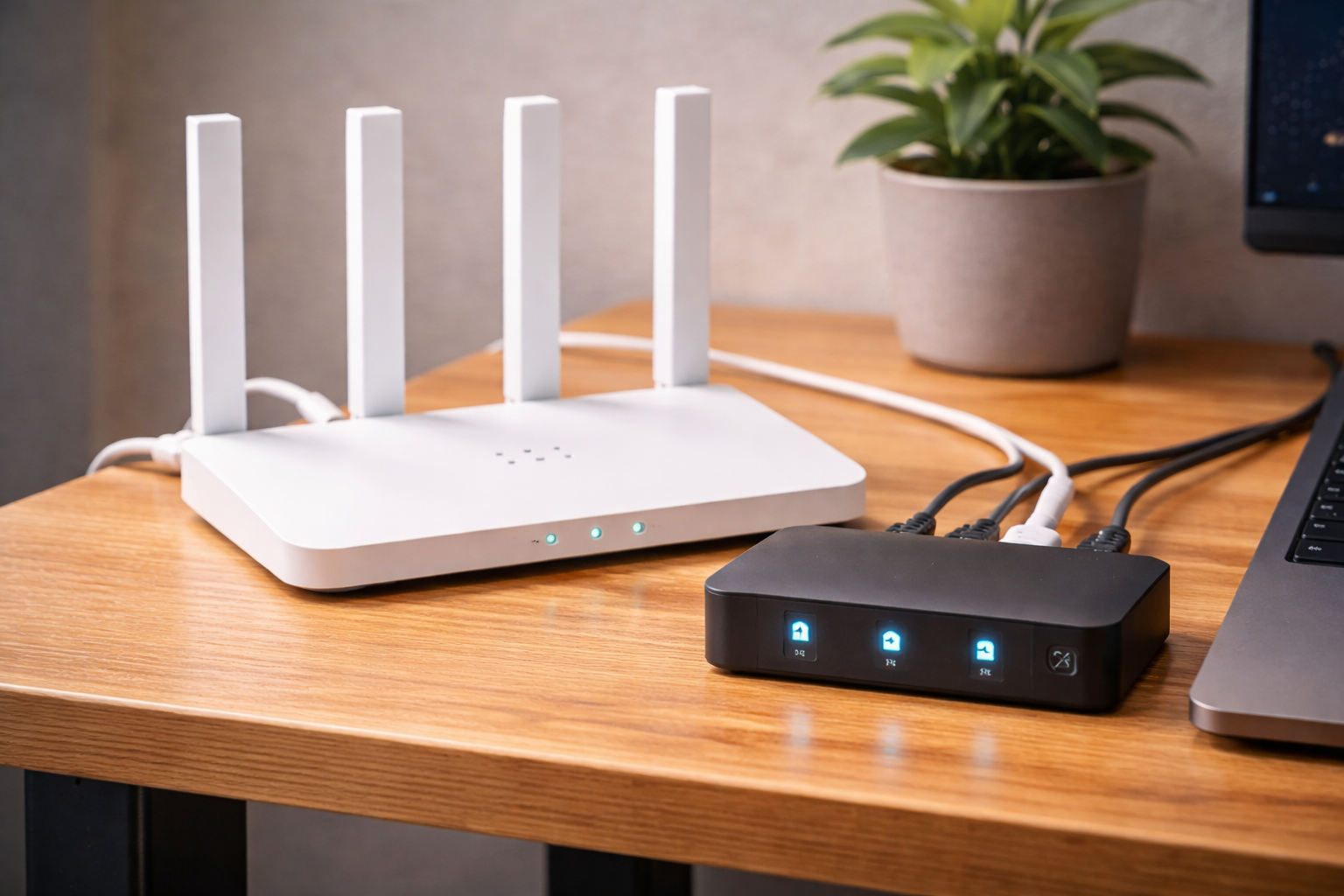
The best workstation fails without stable internet. Wi-Fi 6E is the practical standard now, while Wi-Fi 7 is a future-friendly upgrade for newer devices. Add Ethernet for critical calls, or a mesh Wi-Fi system to eliminate dead zones.
- Wi-Fi 6/6E/7: prioritize stability and coverage over peak speed. See Wi-Fi 6E vs Wi-Fi 7.
- Ethernet: use a USB-C Ethernet adapter for zero-drop video calls, and grab a reliable cable from best Ethernet cables.
- Backup: keep a mobile hotspot ready for emergencies.
Audio/video professionalism
Clear video and audio build trust. Pair a 4K webcam or sharp 1080p model with a soft key light. A ring light helps even in low light and keeps your frame consistent.

Cable management + desk organization
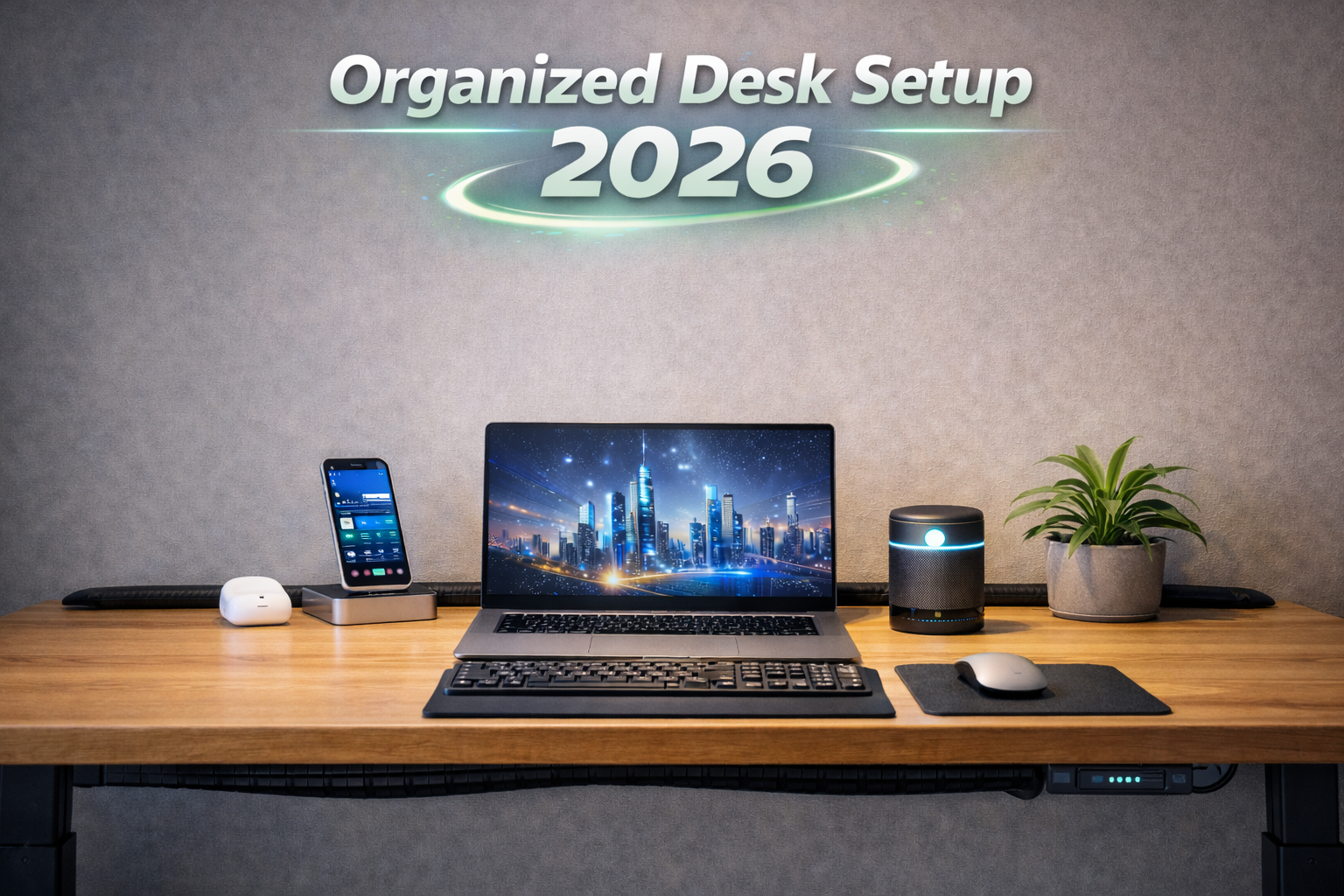
A clean canvas keeps your brain calm. Use a cable kit and a monitor arm to free space. Keep chargers grouped so cords stay controlled.
Security + backup
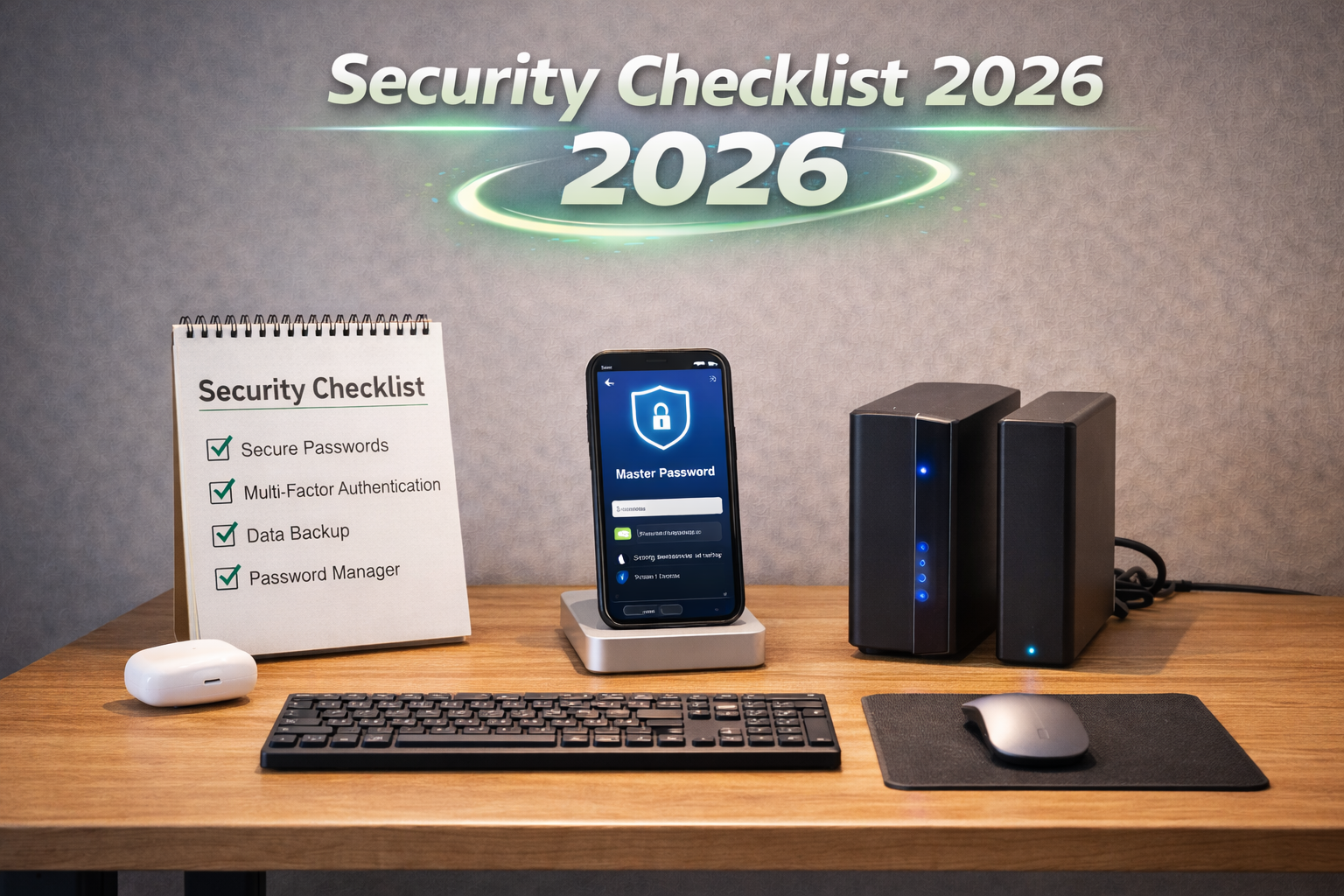
Treat your home office like a small business. Use a password manager, enable 2FA, and add a VPN for public networks. Back up data to a cloud backup.
Productivity system
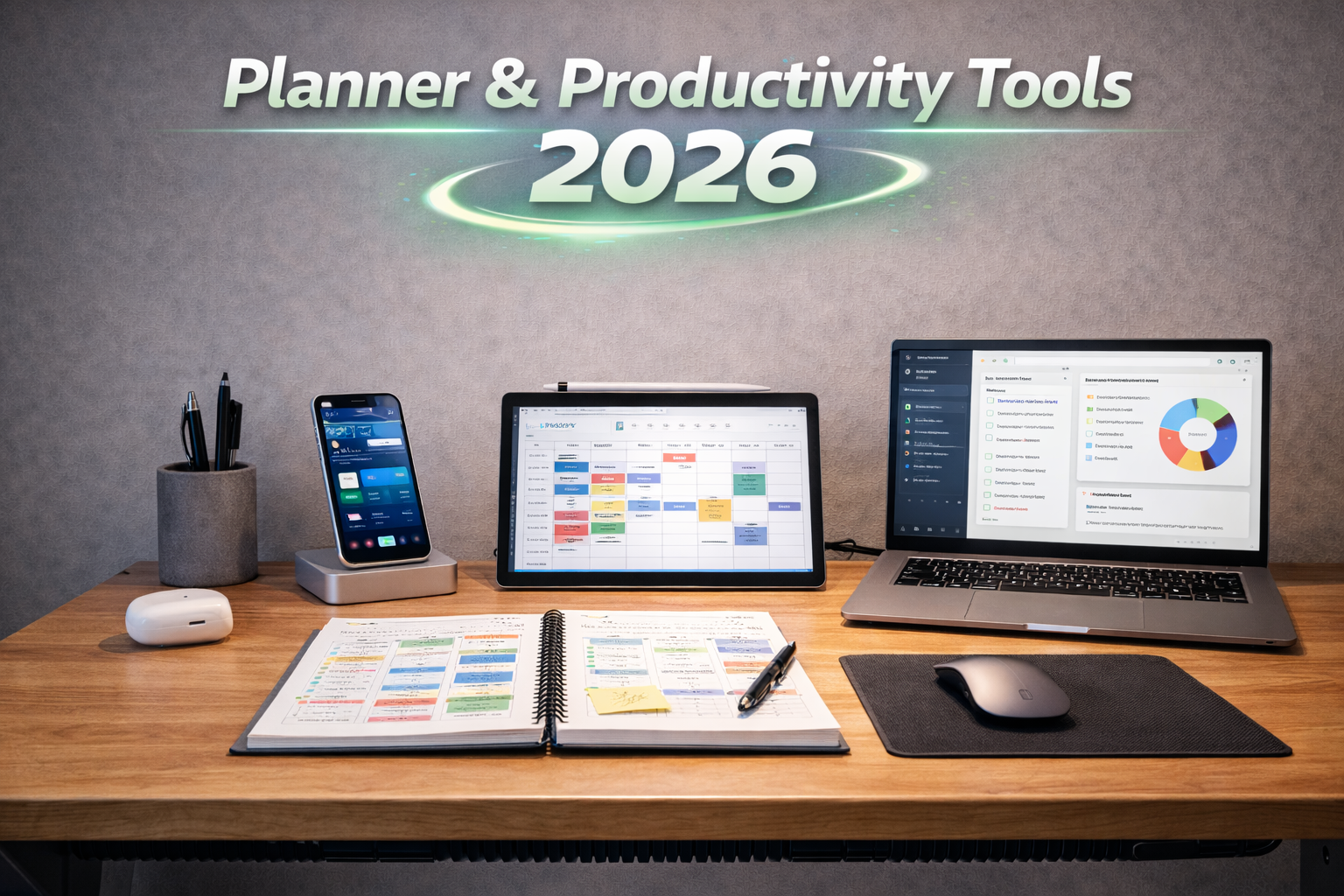
Tools matter, but habits matter more. Use time-blocking, focus modes, and short micro-breaks. A Pomodoro timer can help you stay consistent.
Nice-to-have upgrades
Budget tiers
Budget
Laptop + single monitor, and an entry chair.
Mid
Dual monitors and a dock.
Pro
Premium chair and an ultrawide monitor.
Setup templates
Minimal
Laptop and a compact stand.
Creator
Power workstation with a color-accurate monitor.
Meetings-heavy
Great lighting with a 4K webcam.
Dual-screen
Two 27-inch monitors.
FAQ
Conclusion
Build a workspace that feels calm, stable, and professional. Start with the essentials, then layer in upgrades as your needs evolve. Browse the gear that matches your workflow and budget.
Related guides
Keep readingBest laptops for 2025
Everyday picks
Best monitors for 2026
Work + play
Best USB-C docks
Desk power
Best USB-C hubs
Travel ports
Best SSD upgrades for laptops
Faster storage
Back-to-campus tech 2026
Student kits
Cleaning essentials 2026
Desk refresh
AI workspace setup 2026
Smarter routines
Tech news in Canada
Headlines