Windows Productivity Guide
Productivity System for a Home Office (Windows Users)
A clear productivity system helps you do the right work at the right time. This guide explains time blocking, Windows focus mode, micro breaks, and a Pomodoro timer so you can build a system that works every day.
Introduction
A productivity system is a repeatable set of habits that makes your work feel predictable instead of reactive. Tools matter, but habits matter more because they decide how you start, how you focus, and how you finish. If you only add tools, your day still gets interrupted by messages, meetings, and fatigue. If you build routines, tools become simple helpers.
This guide focuses on Windows users working from home. You will learn time blocking, Windows focus mode, micro breaks, and the Pomodoro timer technique. The goal is to reduce decision fatigue and keep your energy steady from morning to late afternoon.
Pomodoro Timer
What the Pomodoro technique is
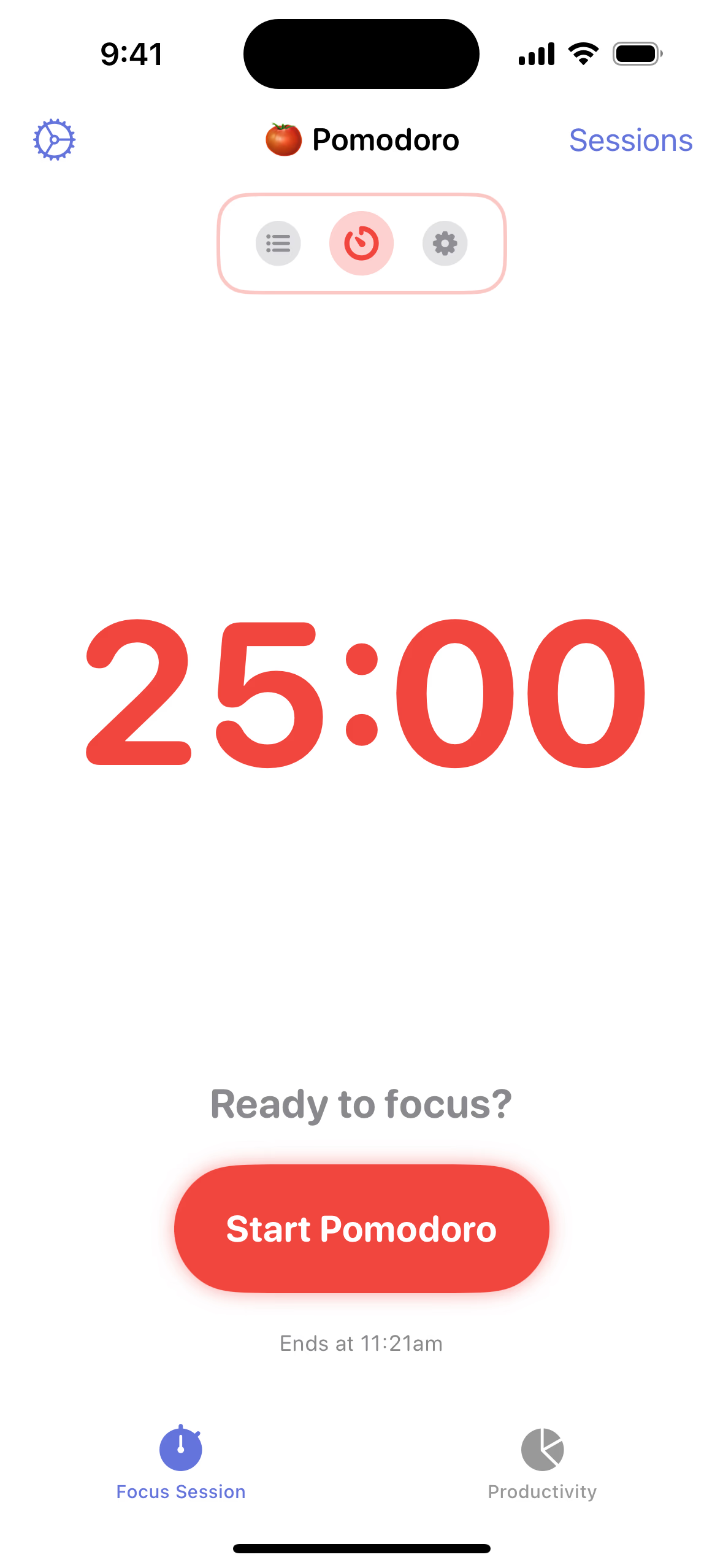
The Pomodoro timer method breaks work into short, focused sprints. You work in a fixed interval, take a short break, and repeat. This keeps your attention sharp and stops you from burning out.
Standard intervals
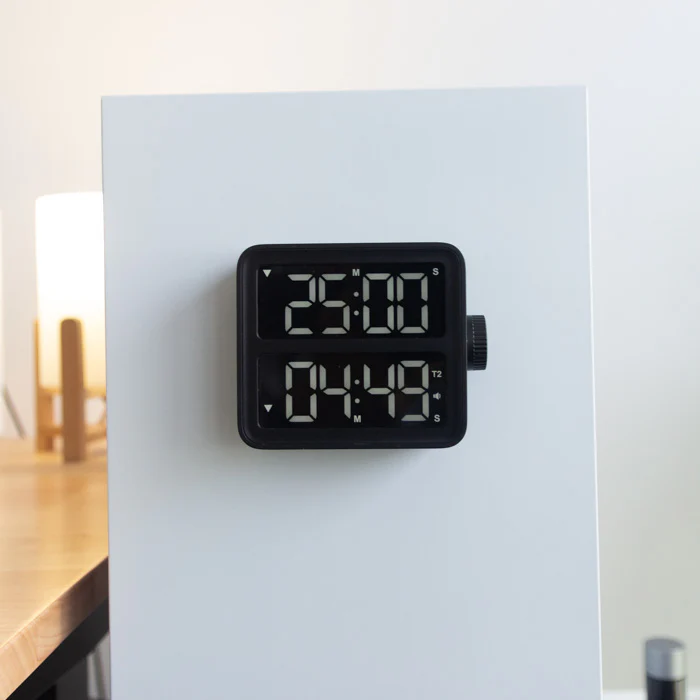
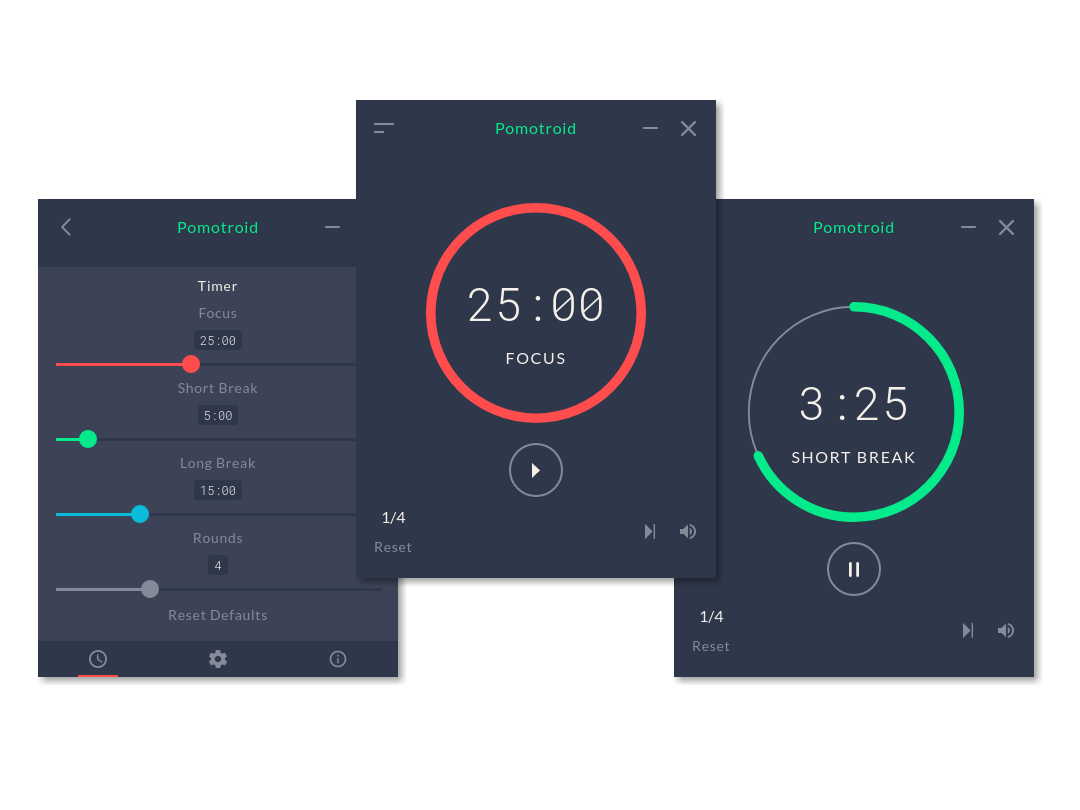
The classic schedule is 25 minutes of work, a 5 minute break, and a longer break after four cycles. The long break is usually 15 to 30 minutes. You can adjust the timing, but keep the pattern consistent.
Why Pomodoro improves focus and consistency
Short intervals lower the mental barrier to starting. You only need to commit to one sprint, not the whole task. Over time, this builds consistency. It also reduces context switching because you are not checking messages every few minutes.
Best Pomodoro tools for Windows
- Microsoft Clock (Focus Sessions) built into Windows.
- Focus To-Do for tasks plus Pomodoro tracking.
- Pomofocus (web-based) if you want a simple browser timer.
Step-by-step guide to using a Pomodoro timer on Windows
- Open Microsoft Clock and choose Focus Sessions.
- Set your task and choose a number of sessions.
- Start a 25 minute sprint and close extra tabs.
- When the timer ends, stand up and take a 5 minute break.
- After four cycles, take a longer break.
Common mistakes to avoid
- Skipping breaks, which causes fatigue and lower quality work.
- Leaving notifications on during a focus sprint.
- Changing timer lengths constantly, which breaks the habit.
Related guides
Keep readingFocus Modes and Micro-Breaks
Windows focus mode and notification control
Windows focus mode silences notifications so you can keep one task in front of you. When focus mode is on, your system stops alerts that pull you out of deep work. This is critical when you need uninterrupted time for analysis, writing, or design.
Micro breaks and the 20-20-20 rule
Micro breaks are short pauses that reset your attention and reduce eye strain. The 20-20-20 rule is simple: every 20 minutes, look at something 20 feet away for 20 seconds. This helps with long screen sessions and keeps you steady throughout the day.
How focus modes and breaks work together
Focus mode protects your work blocks, while micro breaks protect your energy. Together they create a productivity system that is sustainable. You work hard in short sprints, then reset before the next block.
Example of a simple time-blocked workday
- 9:00–10:30: Deep work block using Pomodoro timer.
- 10:30–11:00: Email and messages.
- 11:00–12:30: Project work block with micro breaks.
- 1:30–2:30: Meetings and admin tasks.
- 2:30–4:00: Second deep work block.
Nice-to-Have Productivity Upgrades
Standing Desk Converter
A standing desk converter lifts your monitor and keyboard so you can switch between sitting and standing without replacing your desk. It supports better posture and reduces stiffness on long days.
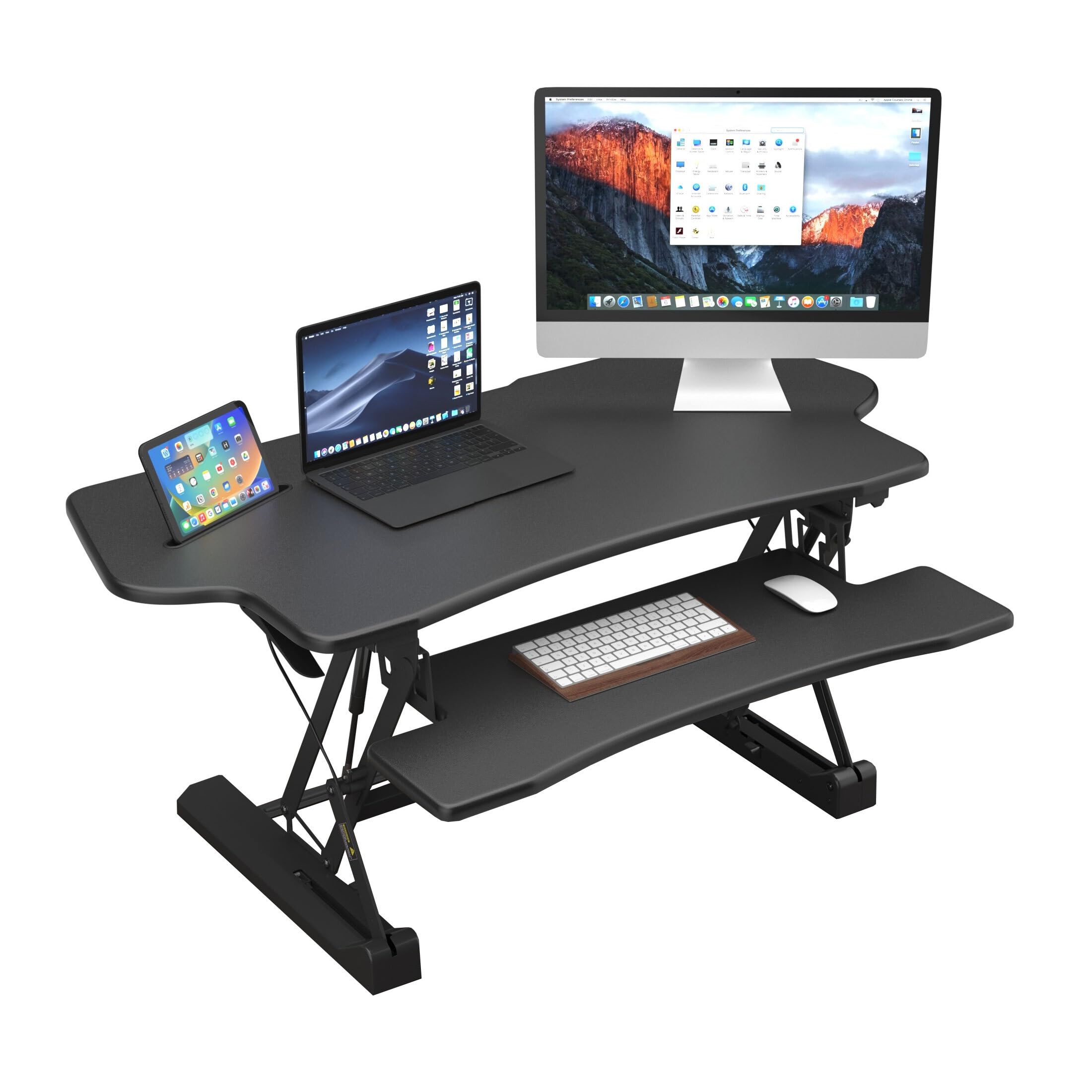
Most people do best with short standing intervals. A common rule is 20 to 30 minutes standing for every hour of sitting. Look for stability, a smooth height range, and enough workspace for your laptop, keyboard, and mouse. Larger converters help if you use dual monitors.
Wireless Charger
A wireless charger uses the Qi standard to charge phones without plugging cables in and out. This reduces desk clutter and keeps your phone in a consistent place. A clear desk improves workflow because you do not need to search for charging cables during busy sessions.
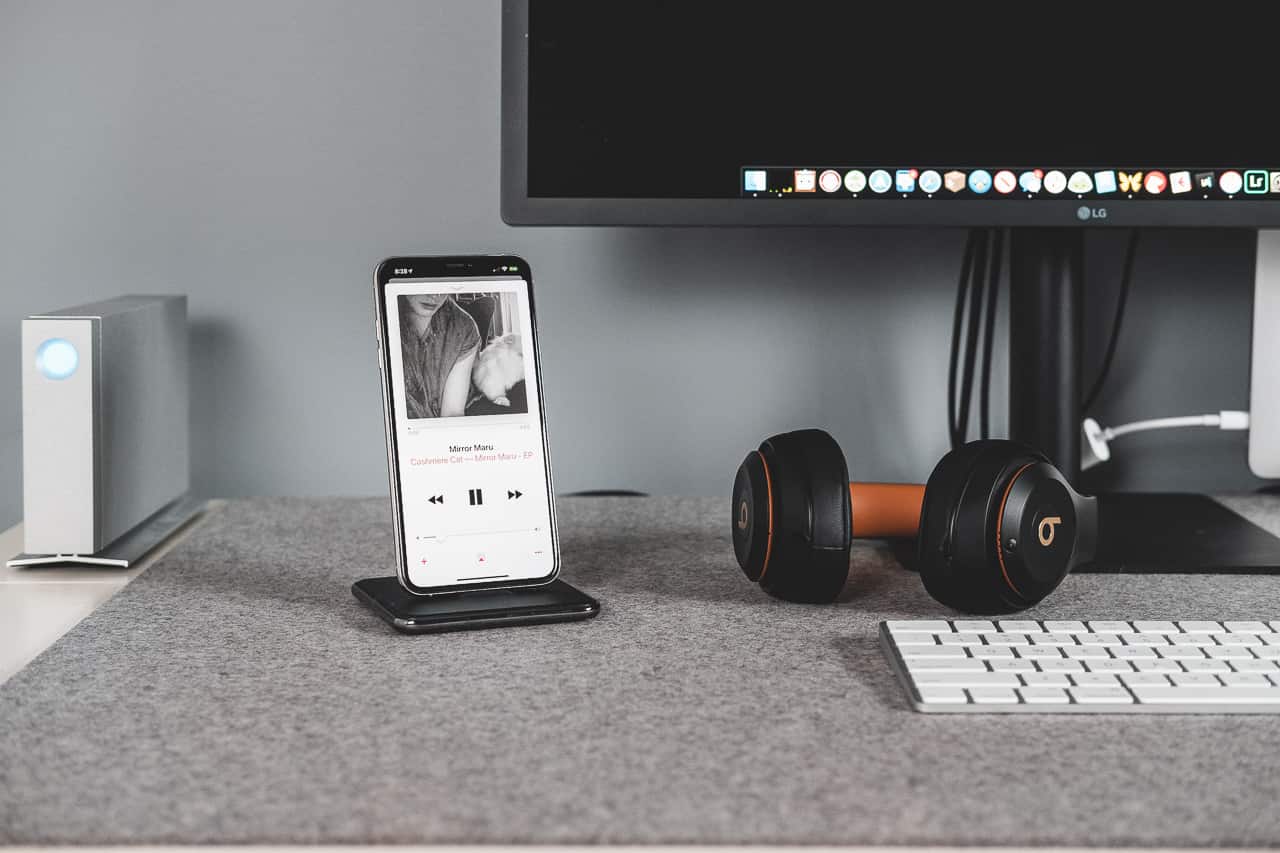
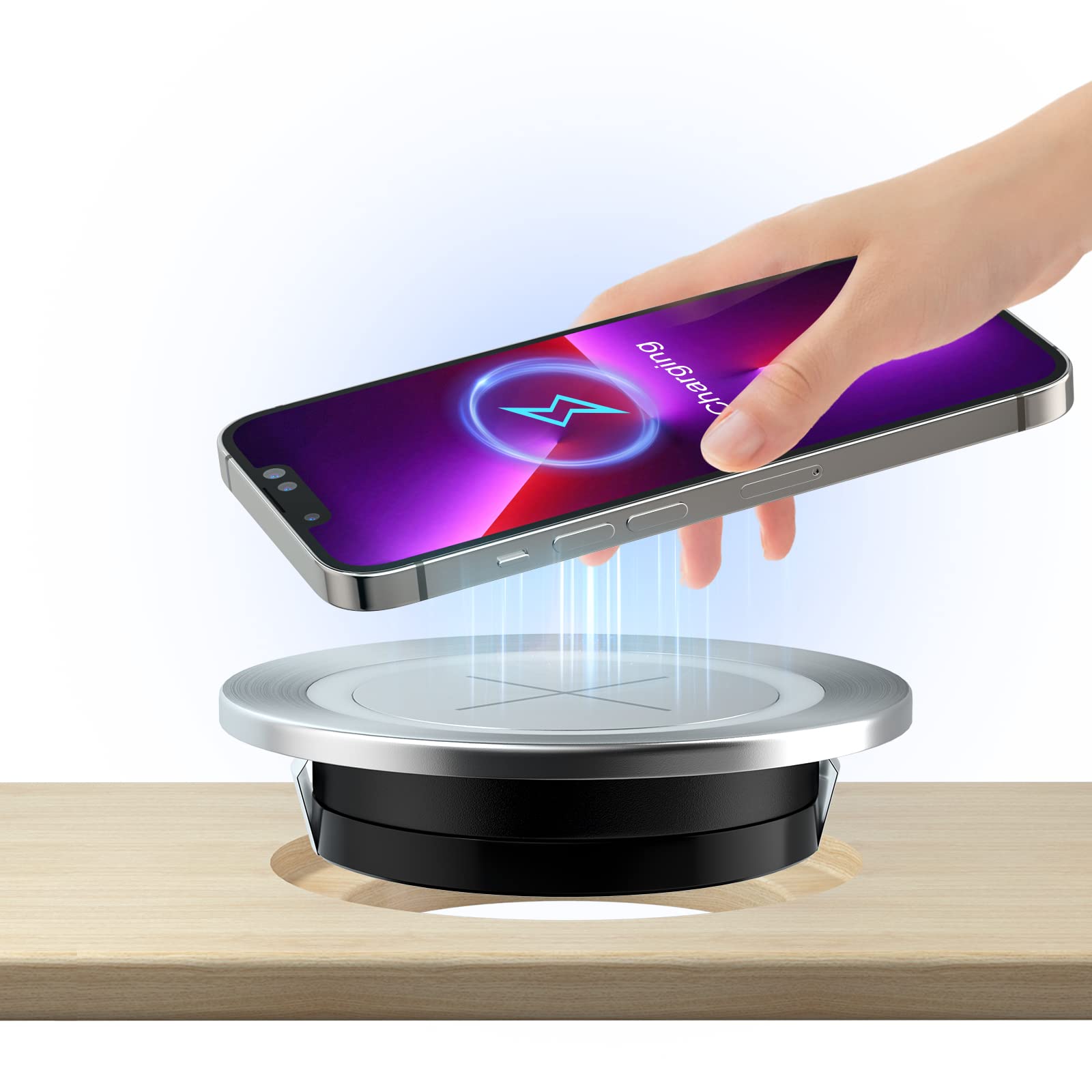
Place the charger near your keyboard or next to your monitor so it is easy to reach but not in the way. Make sure your phone supports Qi charging and that the pad provides enough power for your device.
Quick Productivity Checklist
| Action | Why it helps |
|---|---|
| Use Pomodoro sessions | Keeps focus steady and avoids burnout |
| Enable Windows focus mode | Reduces interruptions from notifications |
| Practice time blocking | Assigns time to priority work |
| Take regular micro breaks | Protects energy and eye health |
| Alternate sitting and standing | Improves posture and comfort |
| Keep devices charged and clutter-free | Prevents workflow interruptions |
FAQ
Is the Pomodoro timer good for complex tasks?
Yes. It helps you start, stay consistent, and reduce mental fatigue during long tasks.
How long should a focus block be?
Most people do well with 60 to 90 minutes of focused work before a longer break.
Can I use Windows focus mode with a Pomodoro timer?
Yes. Turn on focus mode during each Pomodoro sprint for the best results.
Conclusion
A productivity system works when it is simple and repeatable. Use a Pomodoro timer, Windows focus mode, time blocking, and micro breaks as your core habits. Add upgrades like a standing desk converter and wireless charger only after the basics feel consistent. This approach keeps your day structured and your energy steady without relying on complicated tools.