How to Install and Use

VPN How to Install and Use (Canada, 2026)

This page shows the typical screens you will see when installing and connecting a VPN. The visuals are generic so you can understand the flow before choosing a provider.

Step-by-Step: What You Will See on Screen

Windows / Mac
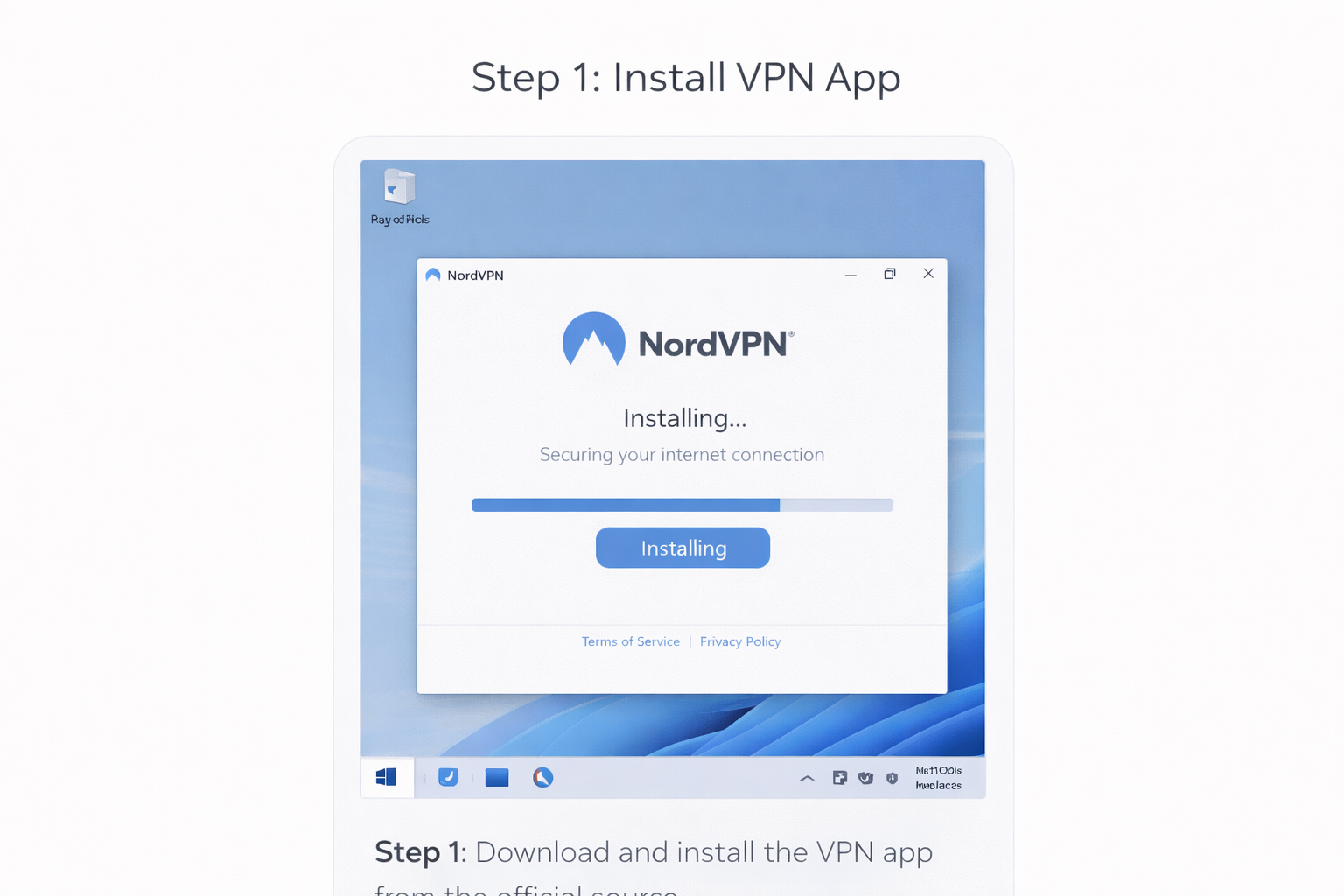
VPN app installation screen on a computer
Step 1: Download and install the VPN app from the official source.
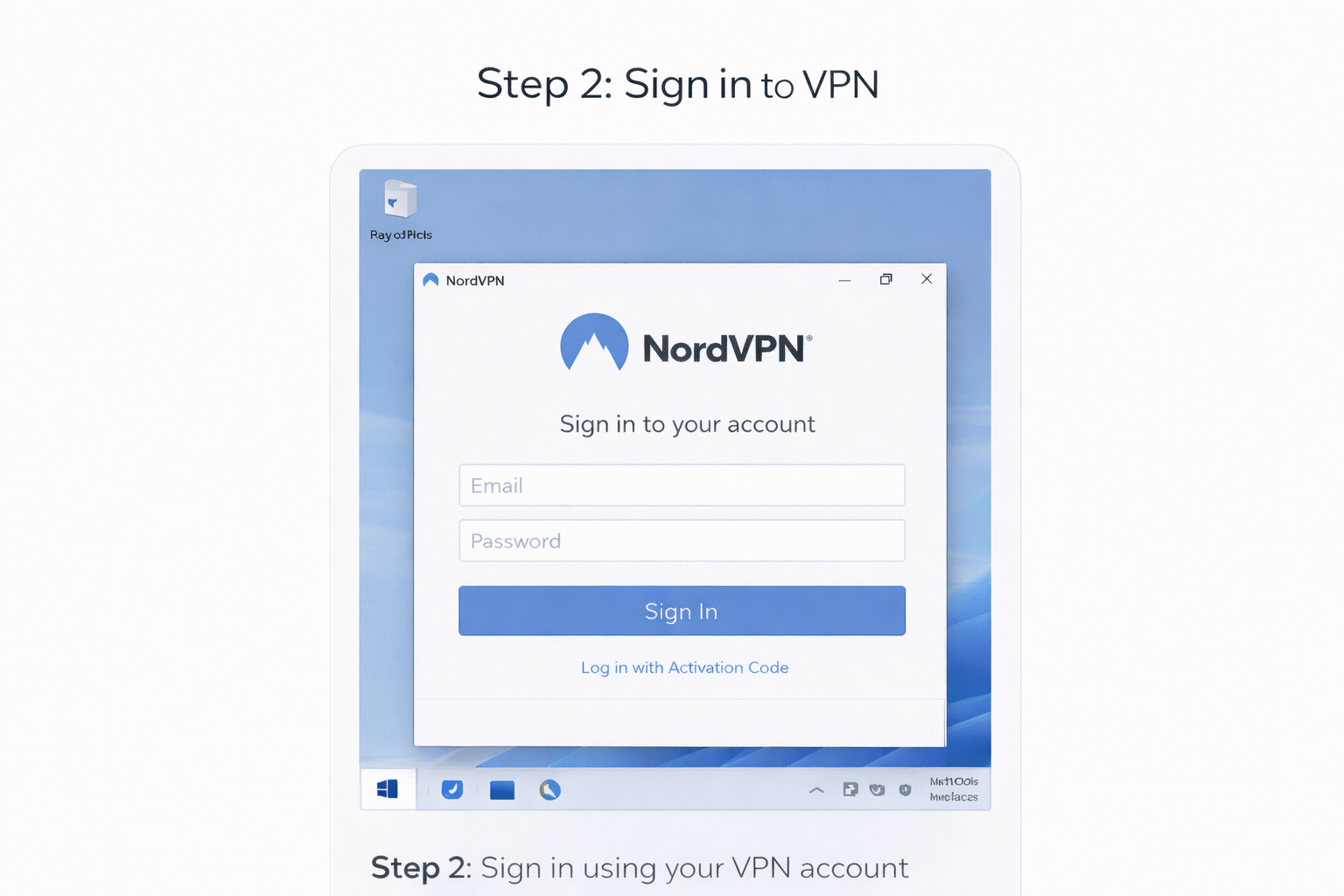
VPN app login screen on desktop
Step 2: Sign in using your VPN account credentials.
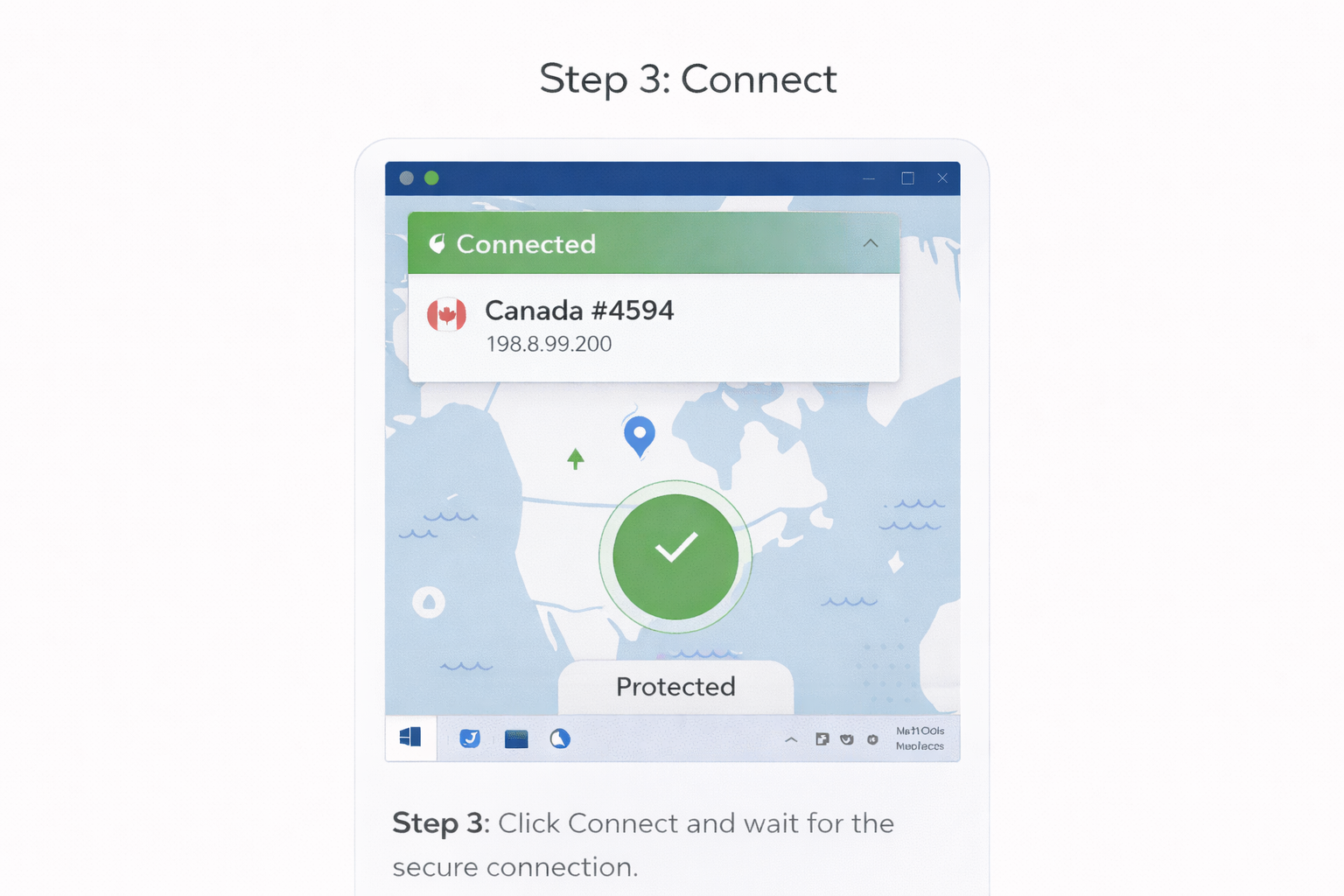
VPN app connected status screen on desktop
Step 3: Tap Connect and wait for the secure connection.

Photo credit: NordVPN.

Mobile (iPhone / Android)
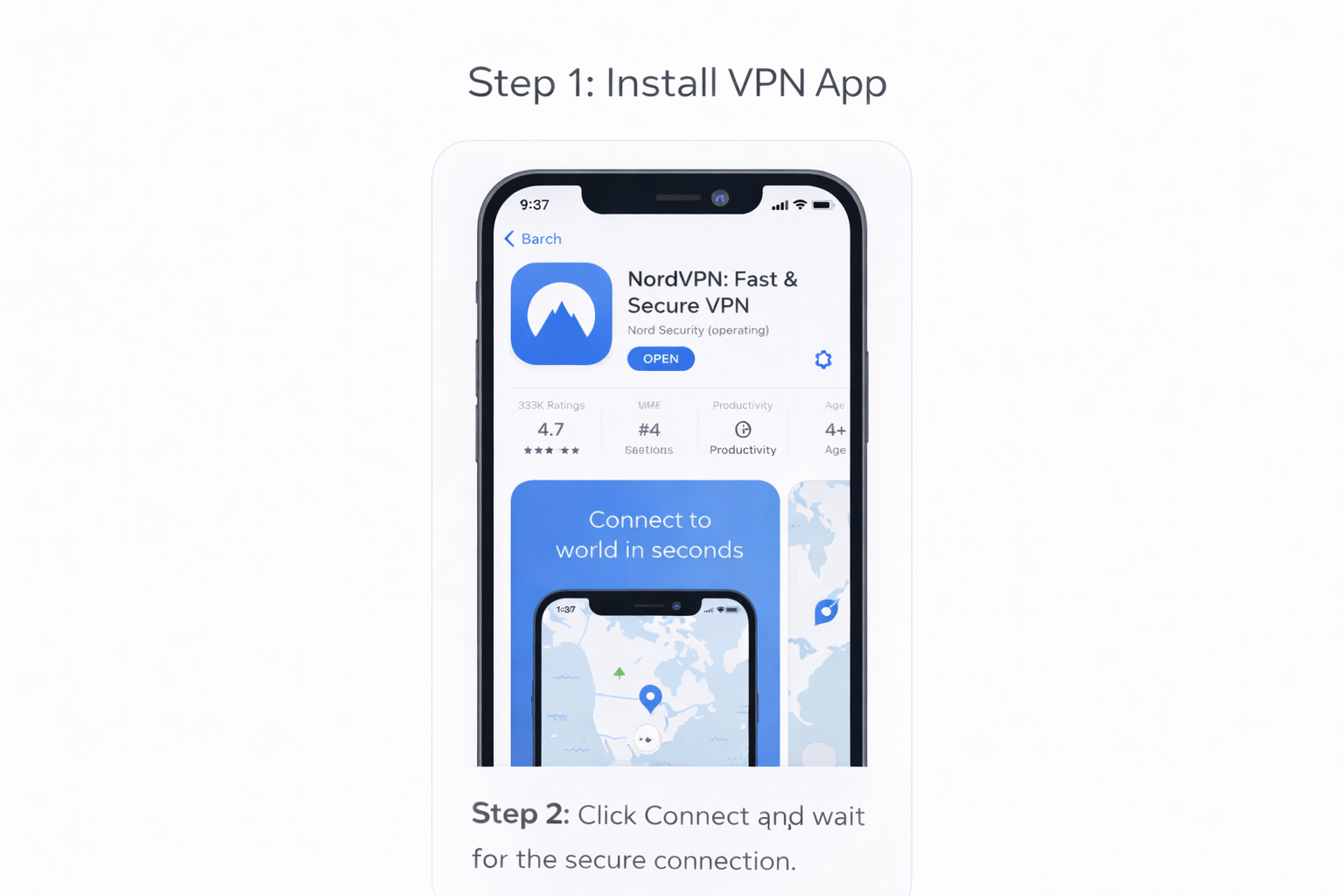
VPN app installation screen on a smartphone
Step 1: Install the official VPN app from your app store.
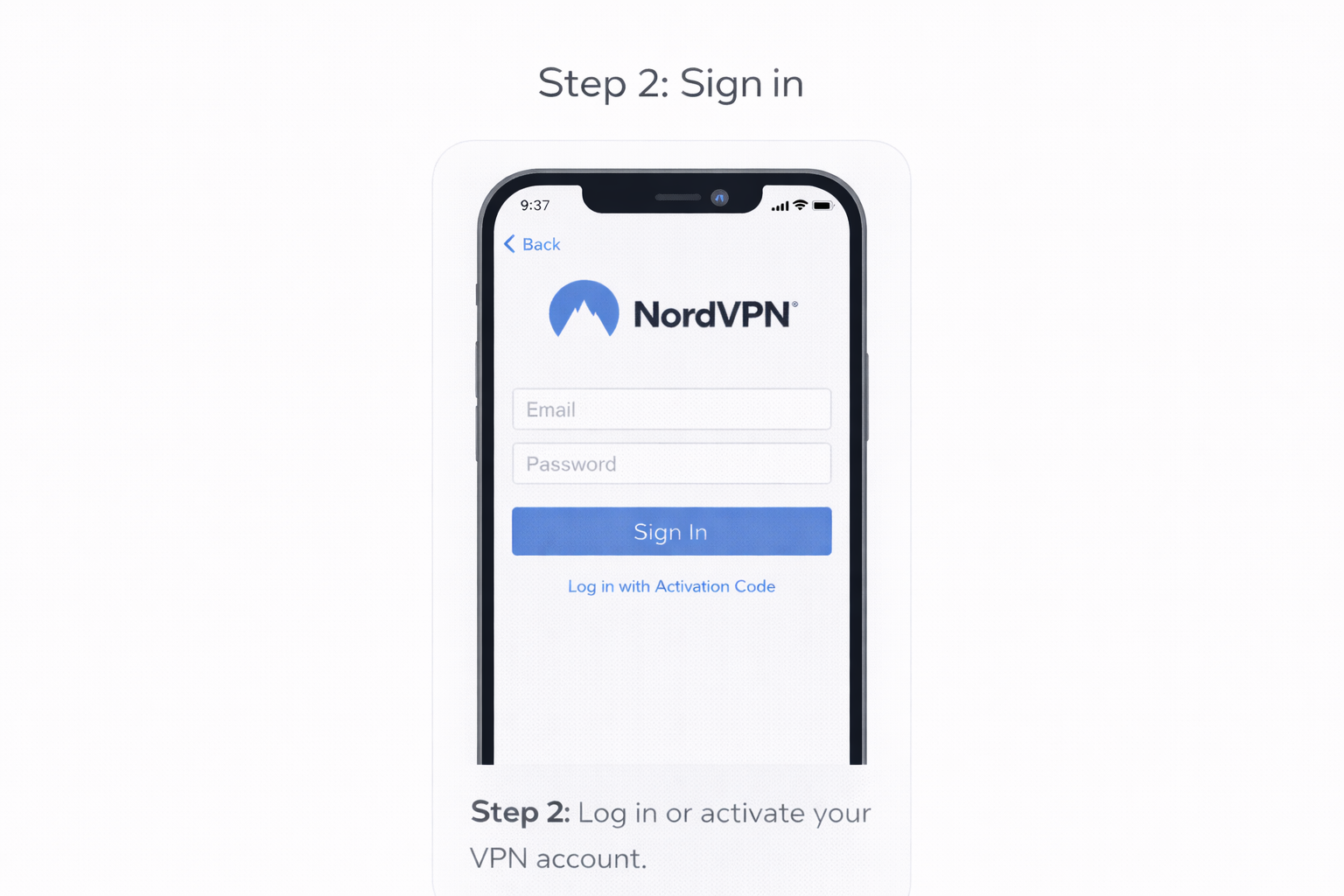
VPN app login screen on mobile phone
Step 2: Log in or activate your VPN account.
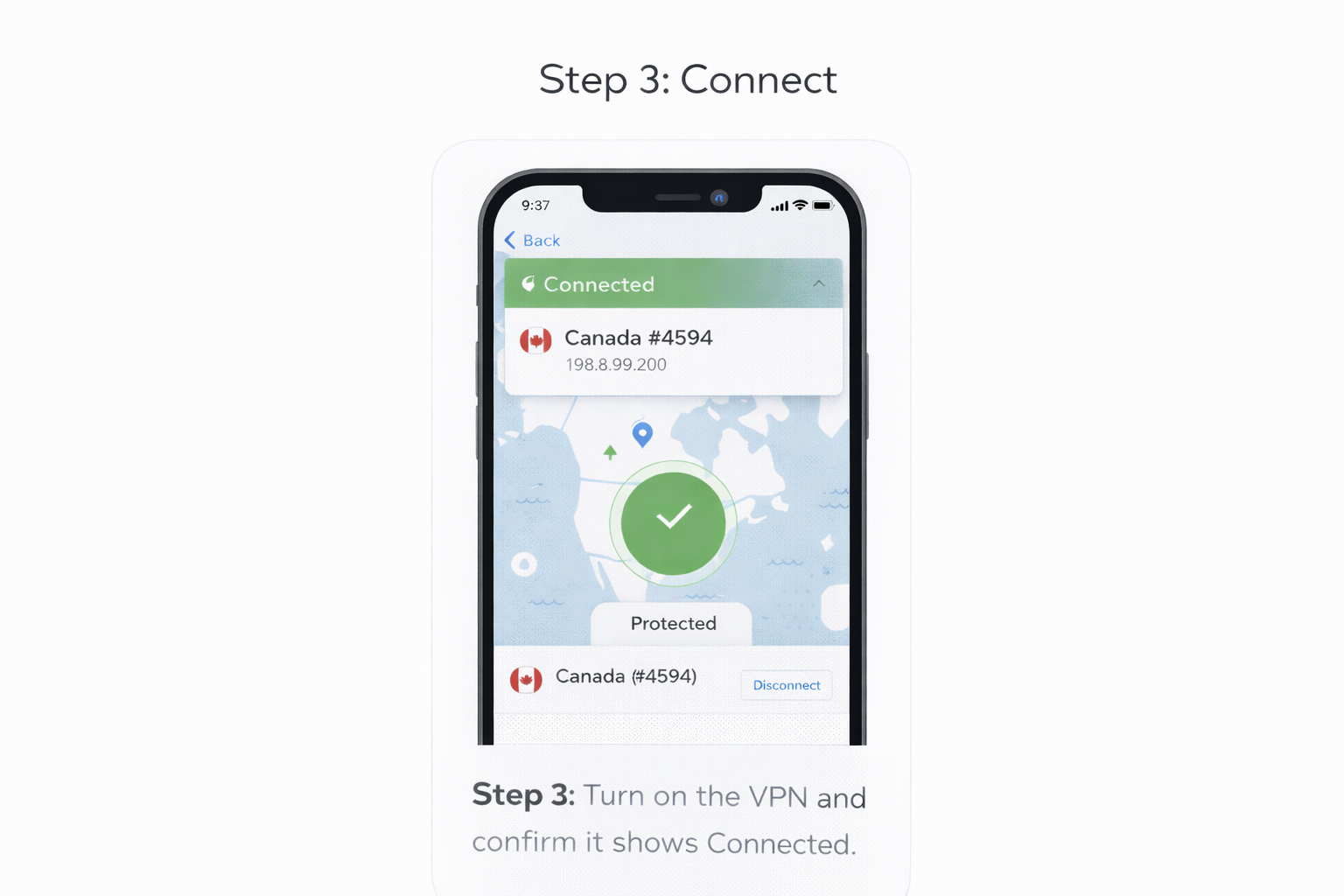
VPN connected status screen on mobile phone
Step 3: Turn on the VPN and confirm it shows Connected.

Photo credit: NordVPN.

This guide uses generic screenshots for learning purposes. Actual screens may vary slightly by VPN provider.

TechnextPicks Assistant

Uses TechnextPicks when relevant, otherwise answers with general knowledge.
Thinking...

Suggested prompts

Guest verification

Thinking... this can take up to 180 seconds on a small VPS.